Overview
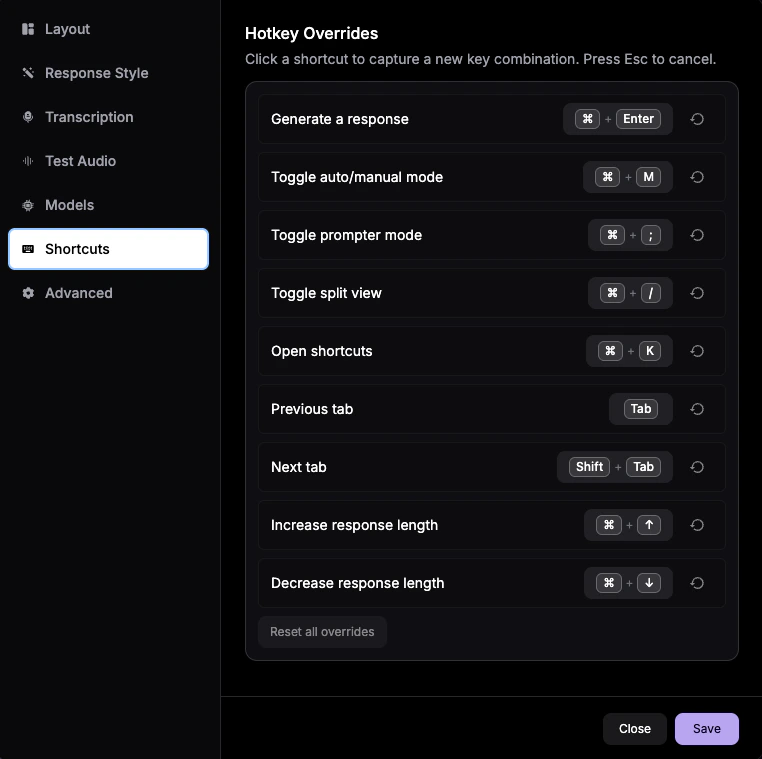
Master these keyboard shortcuts for seamless control during interviews. Shortcuts are organized into Interview Copilot features (available on all platforms) and Desktop App exclusive features.
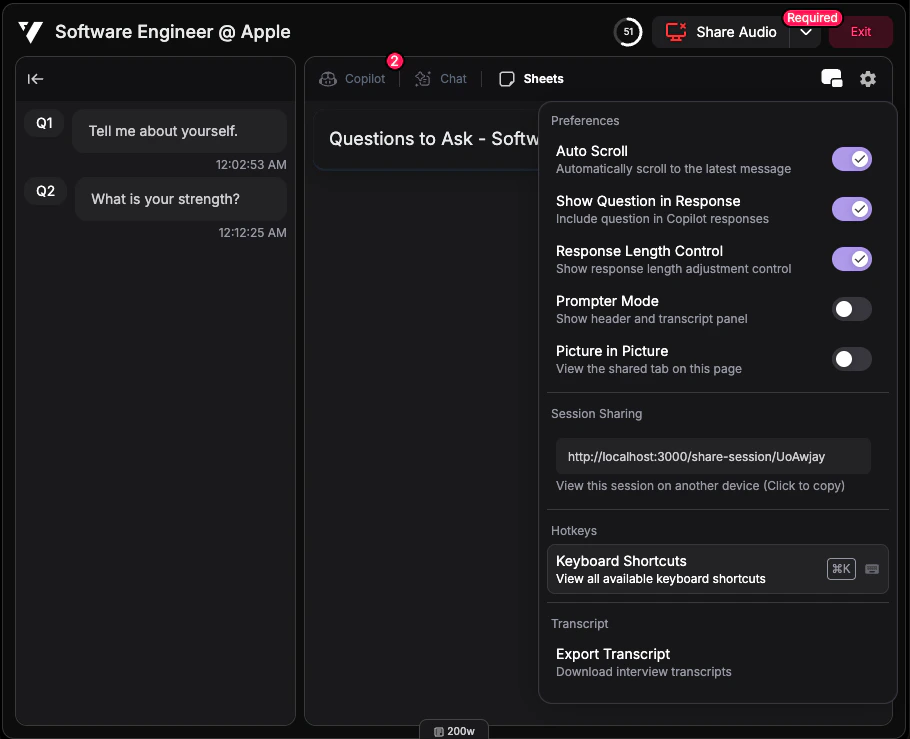
To view all keyboard shortcuts during a session, click the settings gear icon and select “Keyboard Shortcuts”.
Interview Copilot
Control copilot behavior and navigate between tabs efficiently during interviews.
| Hotkey (Mac / Windows) | Action | Description |
|---|
| Cmd + Enter / Ctrl + Enter | Manual response | Trigger manual response in Manual Mode |
| Cmd + M / Ctrl + M | Toggle auto/manual mode | Switch between automatic and manual response modes |
| Cmd + ; / Ctrl + ; | Toggle prompter mode | Show/hide prompter overlay for reading responses |
| Cmd + / / Ctrl + / | Split/merge view | Toggle between split and merged view layouts |
| Cmd + K / Ctrl + K | Show keyboard shortcuts | Display keyboard shortcuts reference |
| Tab | Next tab | Navigate to next tab |
| Shift + Tab | Previous tab | Navigate to previous tab |
| Cmd + ↑ / Ctrl + ↑ | Increase response length | Make responses longer and more detailed |
| Cmd + ↓ / Ctrl + ↓ | Decrease response length | Make responses shorter and more concise |
Desktop App Only
The following shortcuts are exclusive to the Desktop App and require desktop installation.
Window Management
Control window visibility and behavior without touching your mouse.
| Hotkey (Mac / Windows) | Action | Description |
|---|
| Cmd + Shift + T / Ctrl + Shift + T | Toggle window visibility | Alternative hide/show command |
| Cmd + Shift + D / Ctrl + Shift + D | Hide from Dock/Taskbar | Remove app icon from Dock (Mac) or Taskbar (Windows). Learn more |
| Cmd + Shift + P / Ctrl + Shift + P | Click-through mode | Make window non-interactive to click through to apps behind it. Learn more |
| Cmd + Q / Ctrl + Q | Quit application | Close the Desktop App |
Window Movement
Quickly reposition the copilot window using arrow keys.
| Hotkey (Mac / Windows) | Action | Description |
|---|
| Cmd + ← / Ctrl + ← | Move window left | Reposition window to left side |
| Cmd + → / Ctrl + → | Move window right | Reposition window to right side |
| Cmd + ↑ / Ctrl + ↑ | Move window up | Reposition window upward |
| Cmd + ↓ / Ctrl + ↓ | Move window down | Reposition window downward |
Zoom & View
Adjust text and content size for better readability.
| Hotkey (Mac / Windows) | Action | Description |
|---|
| Cmd + + / Ctrl + + | Zoom in | Increase text and content size |
| Cmd + - / Ctrl + - | Zoom out | Decrease text and content size |
| Cmd + 0 / Ctrl + 0 | Reset zoom | Return to 100% zoom level |
Screen Capture
Instantly capture anything from your screen and send it directly to Chatbot for immediate support. Works with all copilot domains.
| Hotkey (Mac / Windows) | Action | Description |
|---|
| Cmd + Shift + S / Ctrl + Shift + S | Start screen capture | Drag to select area to capture |
| Cmd + Shift + C / Ctrl + Shift + C | Full screen capture | Capture entire screen instantly |
Navigation
General navigation shortcuts for the Desktop App interface.
| Hotkey (Mac / Windows) | Action | Description |
|---|
| Cmd + R / Ctrl + R | Reload current page | Refresh the current view |
| Cmd + Home / Ctrl + Home | Navigate to home | Return to home page |
| F1 | Show hotkey guide | Display this reference guide |
| Esc | Close guide/modal | Dismiss open dialogs or guides |