Overview
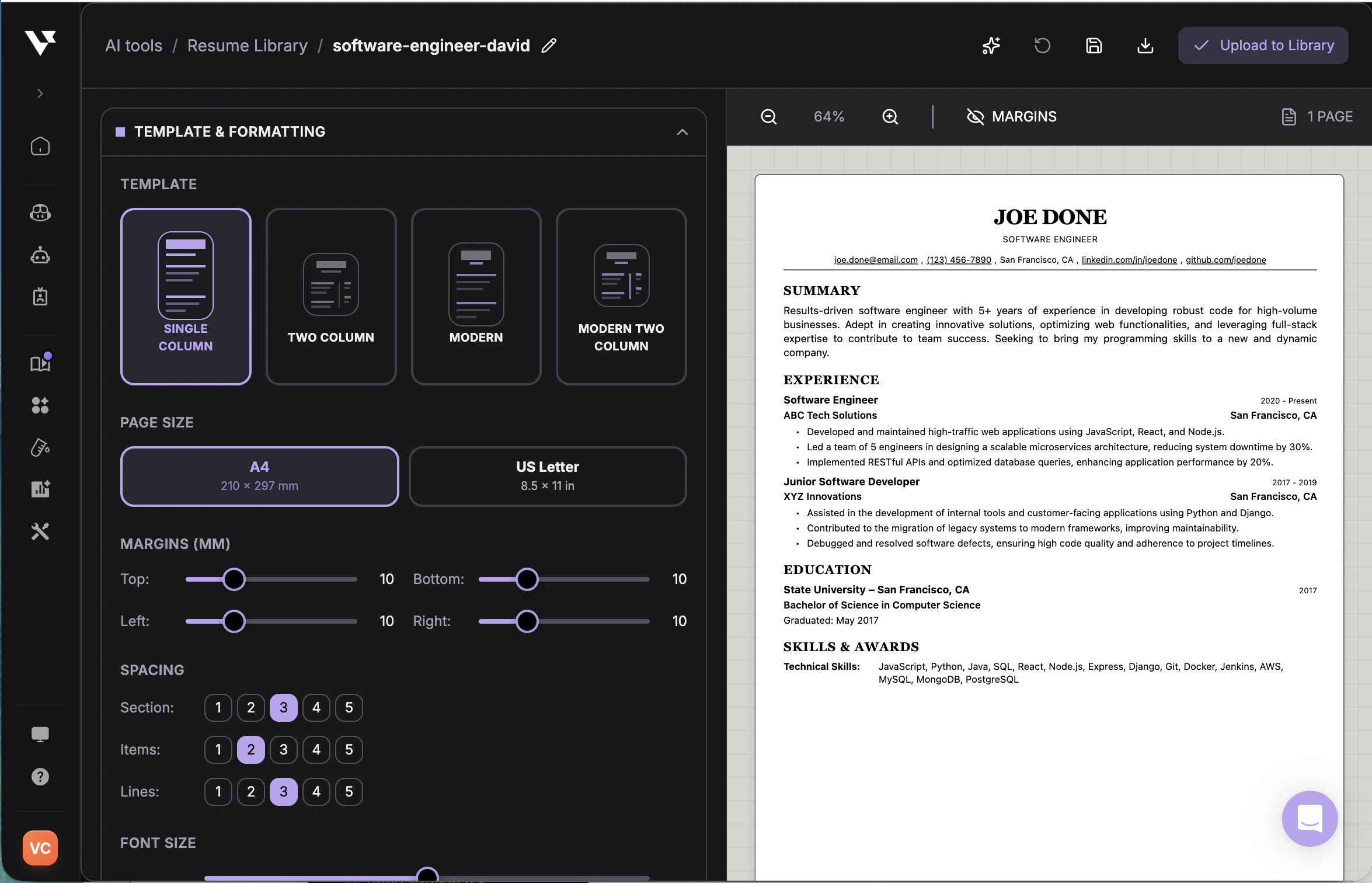
The AI Resume Builder helps you create, refine, and export resumes with customizable templates, flexible formatting controls, and AI-assisted writing tools. You can upload an existing resume to continue editing it, or start from scratch using the same builder interface.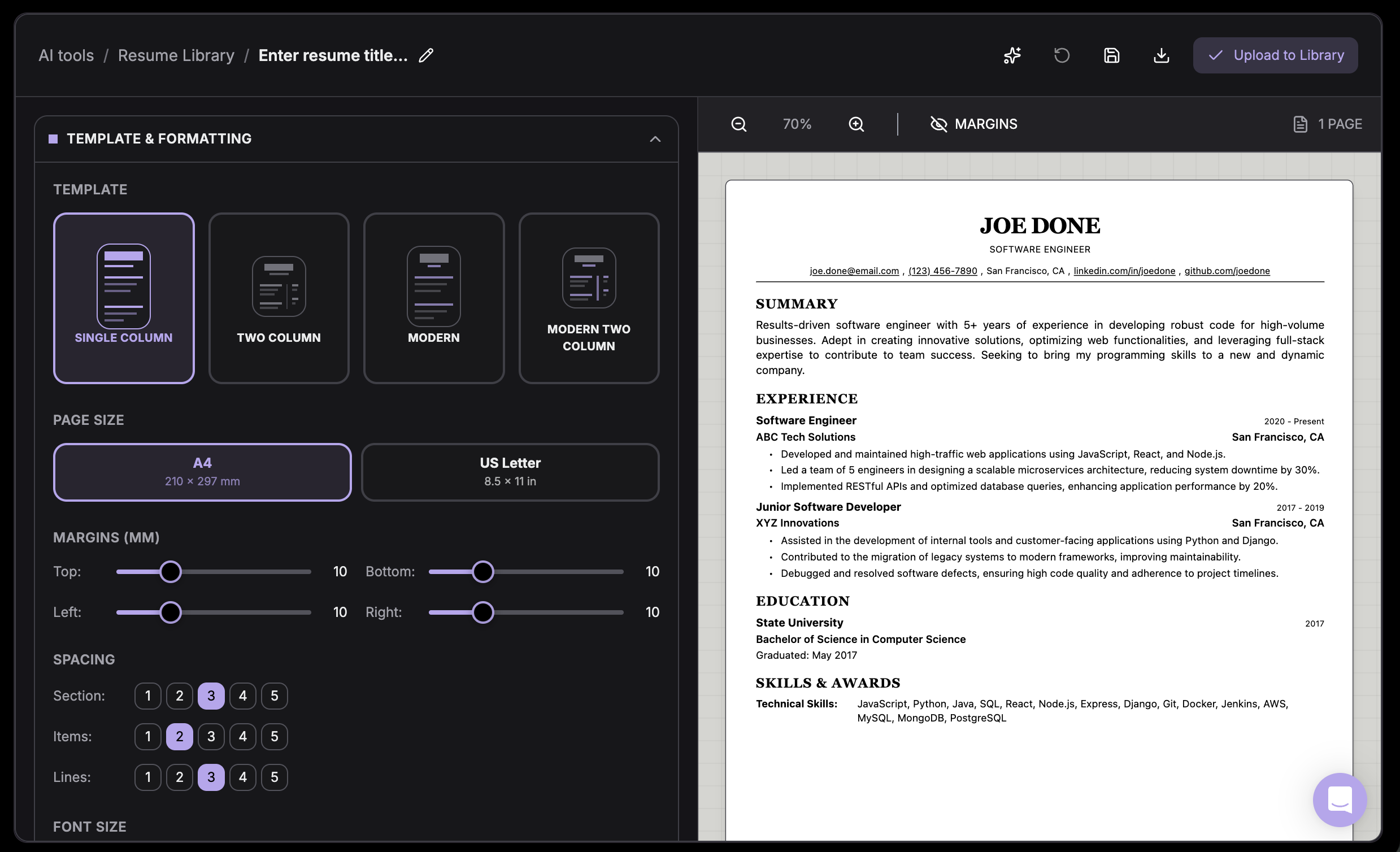
Resume Library
The Resume Library is your central hub for managing every resume you’ve created or uploaded. Use it to find past resumes, designate a Master Resume, and start a new one.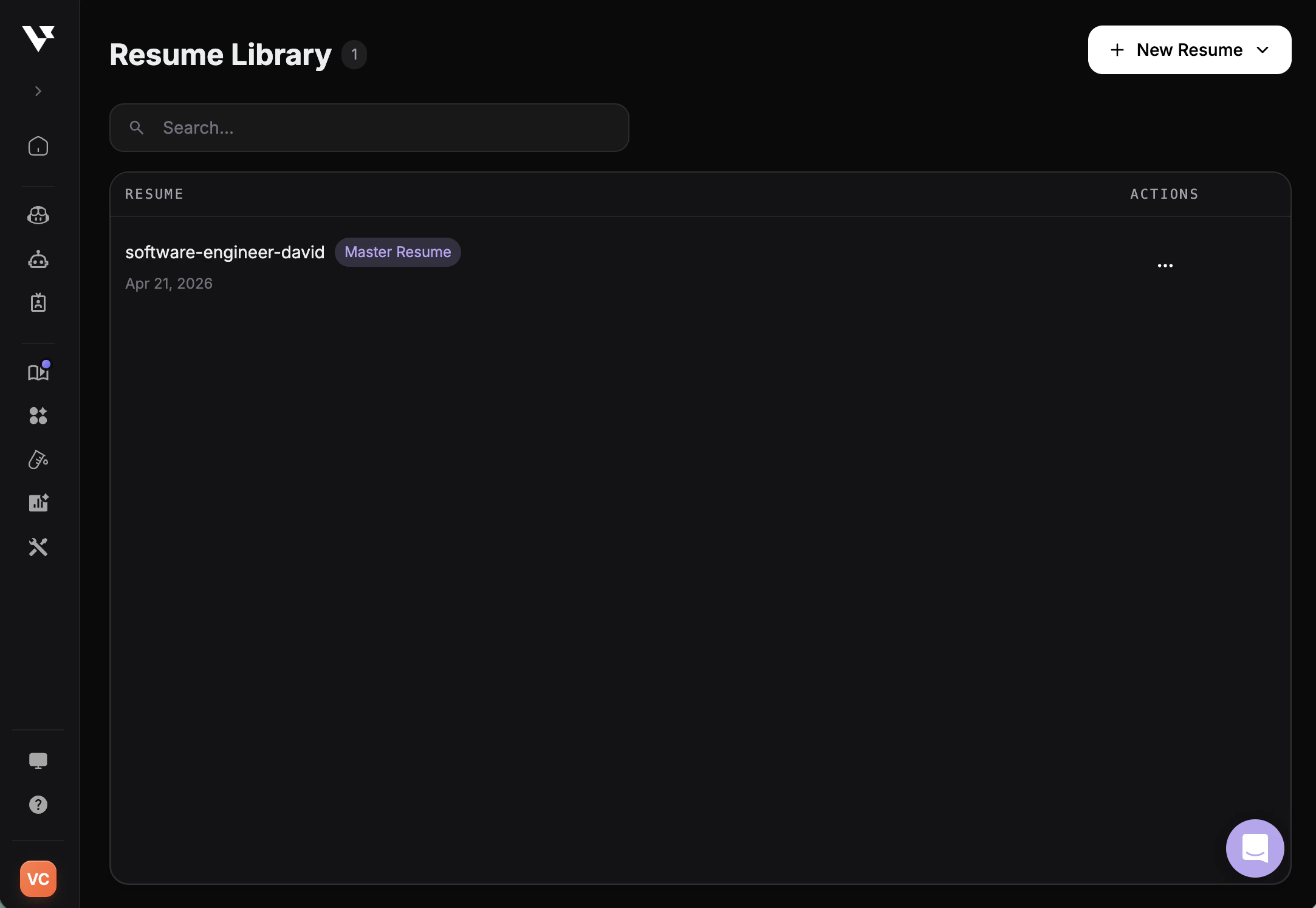
- Search by file name to quickly locate a saved resume
- Master Resume marks your primary resume as the default source for tailored applications
- + New Resume starts a new resume, either from upload or from scratch
- The ⋯ action menu lets you edit, duplicate, download, or delete any resume
Getting Started
The AI Resume Builder supports two ways to begin creating your resume.Upload an Existing Resume
If you already have a resume, you can upload it and continue editing within the builder. The system extracts content from your uploaded document so you can update sections, adjust formatting, and refine descriptions directly inside the editor.Start From Scratch
You can also create a new resume from an empty template. Sections can be filled in manually and structured according to your preferred layout and formatting settings. Both approaches use the same editing interface and formatting controls.Templates and Formatting
Templates and formatting settings control the overall layout, spacing, and typography of your resume. These tools help you organize information clearly and adjust the visual structure of the document.Template
The template determines the structural layout of the resume.- Single Column uses a traditional vertical layout where all sections appear in one column. This format emphasizes clarity and consistency.
- Two Column divides the page into two vertical sections, allowing supporting information such as skills or links to appear alongside primary sections.
- Modern uses a contemporary layout style that improves visual hierarchy while maintaining a structured presentation.
- Modern Two Column combines modern styling with a two-column structure to provide more flexibility in organizing resume content.
Page Size
Page size determines the dimensions of the resume document. Different regions use different standard page formats. Selecting the appropriate page size helps ensure the resume exports and prints correctly depending on where it will be used.Layout and Spacing
Layout settings determine how content is distributed across the page. You can adjust:- Margins, which control the white space around the edges of the page
- Section spacing, which defines the distance between major resume sections
- Item spacing, which controls the gap between entries within the same section
- Line spacing, which affects the readability of paragraphs and bullet points
Typography
Typography settings control how text appears throughout the resume. You can adjust base text size, header scaling, and the font styles used for headings and body text. These settings help create a clear visual hierarchy so important information stands out while keeping the document easy to read.Effective Output
The builder generates a preview of the resume based on your selected formatting settings. This preview reflects the final layout, spacing, and typography so you can review the design before exporting.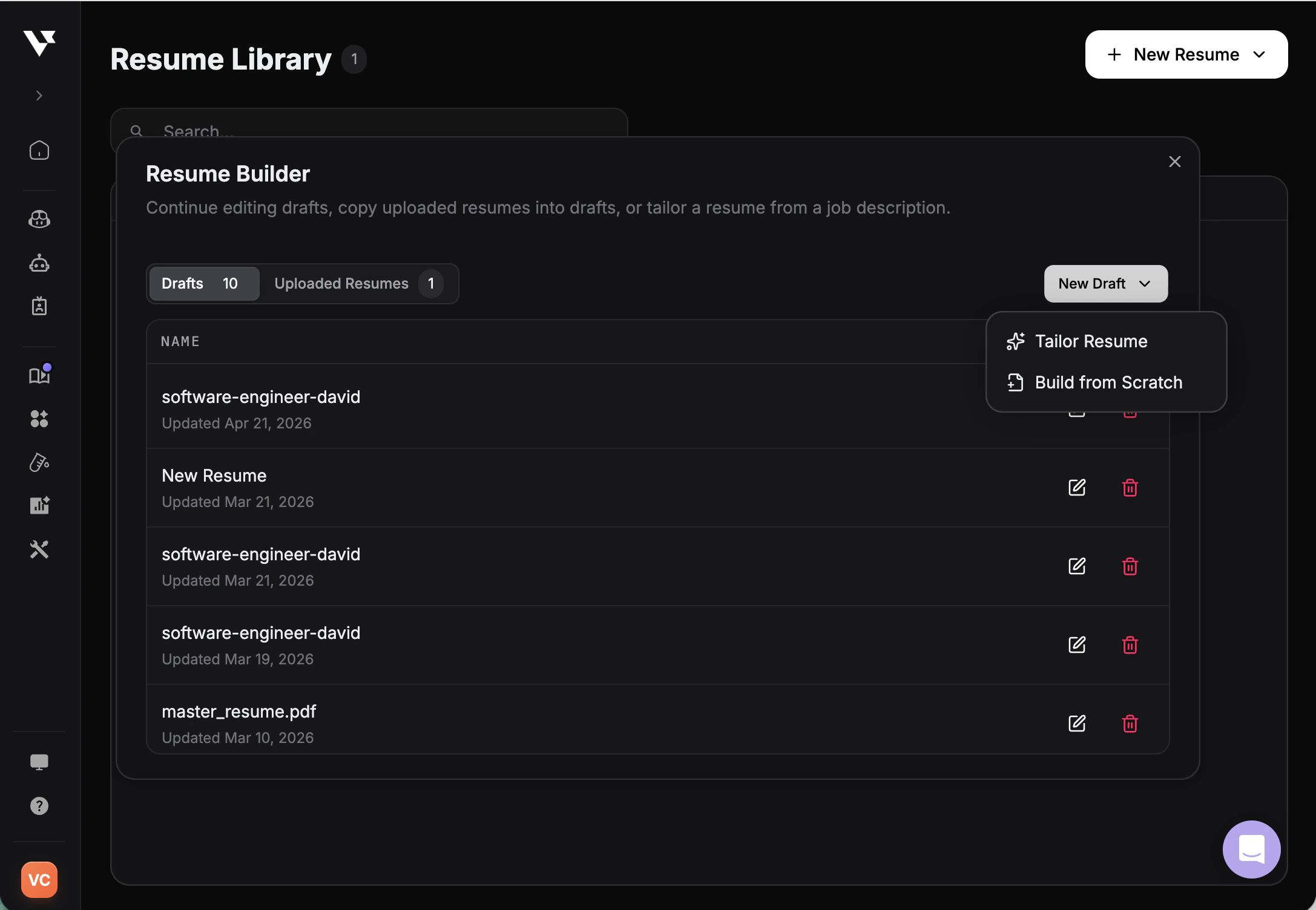
Resume Sections
The resume editor lets you organize your information into structured sections. Each section highlights a different part of your background and helps employers quickly understand your qualifications.Personal Information
The Personal Information section contains your primary contact details and professional identity. This section helps employers quickly identify who you are and how to reach you. It may also include links to professional profiles or portfolios that support your application.Summary
The Summary section provides a brief overview of your professional background. It highlights your experience, key strengths, and general career direction, helping recruiters quickly understand your profile before reviewing the rest of your resume.Experience
The Experience section outlines your professional work history. Each entry represents a role you have held and includes information about the position, organization, and time period. Descriptions summarize responsibilities, contributions, and achievements. This section demonstrates your practical experience and professional growth.Education
The Education section provides information about your academic background. It typically includes institutions attended, degrees earned, and the time period during which you studied. This section helps employers understand your academic training and qualifications.Projects
The Projects section highlights independent work, academic initiatives, or professional projects that demonstrate your skills. Projects help showcase practical experience and can be especially useful when demonstrating technical ability or portfolio-style work.Skills and Awards
The Skills and Awards section lets you list competencies, certifications, recognitions, or additional qualifications. This section helps employers quickly understand your capabilities and any notable achievements that support your application.AI Enhancement
AI enhancement tools are available throughout the resume builder to help generate or refine resume content. You can use AI to improve descriptions, strengthen bullet points, clarify wording, and expand sections so your resume communicates your experience more effectively. These tools can assist both when building a resume from scratch and when improving an uploaded resume.Manual Editing
All resume content can be edited directly in the builder. Manual editing lets you revise wording, adjust structure, and refine details according to your preferences. AI suggestions can always be reviewed and modified before saving.Exporting Your Resume
Once your resume is complete, it can be exported into a final document suitable for job applications. The exported document preserves the selected layout, formatting, and typography so the resume appears consistent when shared with employers or uploaded to application platforms.