

What is Manual Mode?
By default, Interview Copilot operates in Auto Mode, providing a hands-free experience where it automatically transcribes questions, detects when the interviewer finishes speaking, and generates responses in real-time. Manual Mode gives you control over when the copilot generates responses. Transcription continues automatically in the background, but the copilot only provides an answer when you explicitly request it. How to access: Manual Mode is available in every active Interview Copilot session after you launch copilotHow to Enable Manual Mode
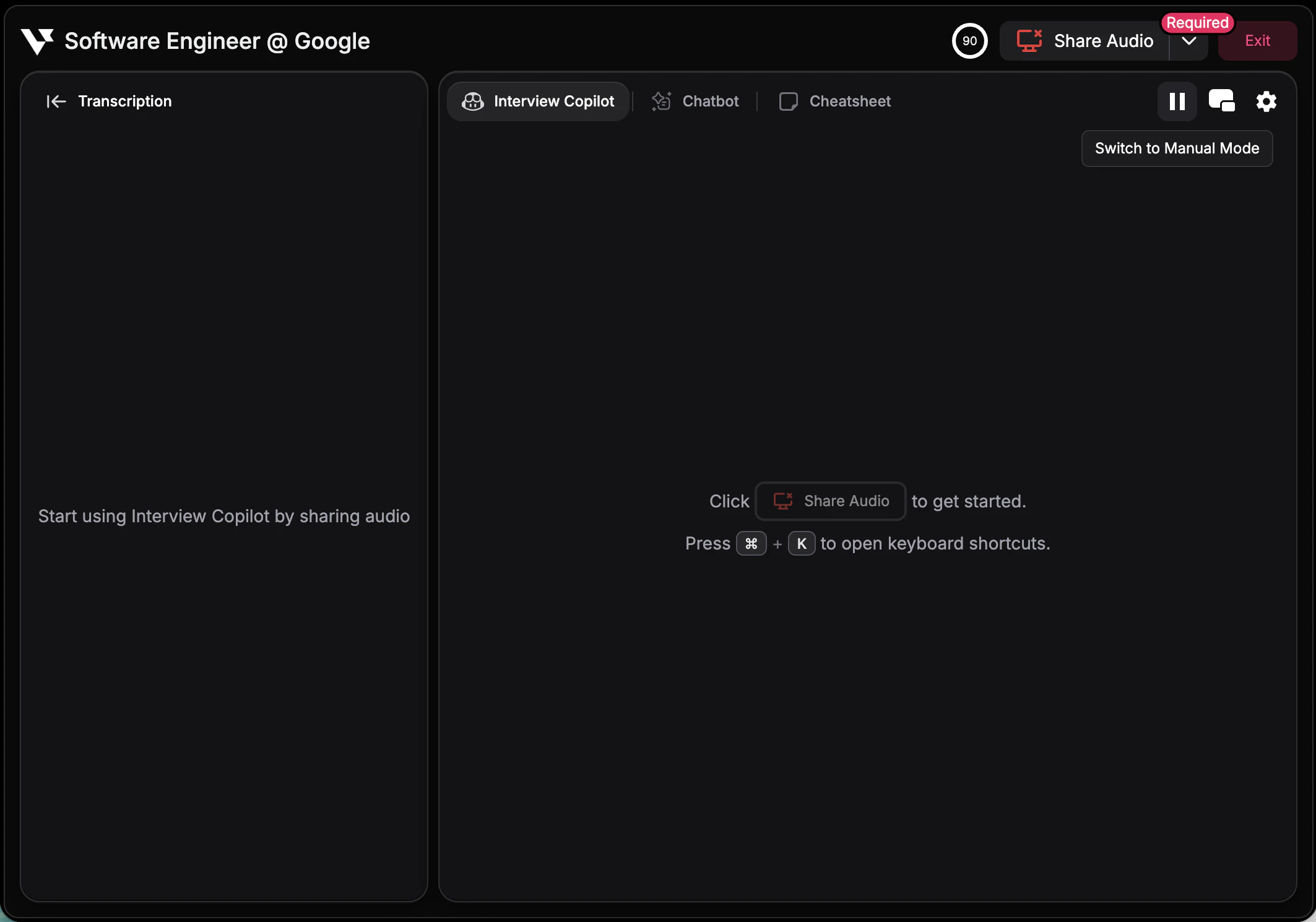
Using the Button
1
Locate the Response Mode Button
Find the response mode button in the top-right corner of the copilot interface.
2
Choose a Mode
- Manual = responses generate only when you ask
- Auto = responses generate automatically
- Smart Listening = waits for the interviewer to finish and skips anything that isn’t a question. Learn more
Using the Hotkey
Press Cmd + M (Mac) or Ctrl + M (Windows) to toggle between Auto Mode and Manual Mode instantly.How to Request a Response in Manual Mode
When in Manual Mode, the most recent transcription is automatically highlighted with a purple border in the transcription section, indicating which message the AI will answer when you trigger a response.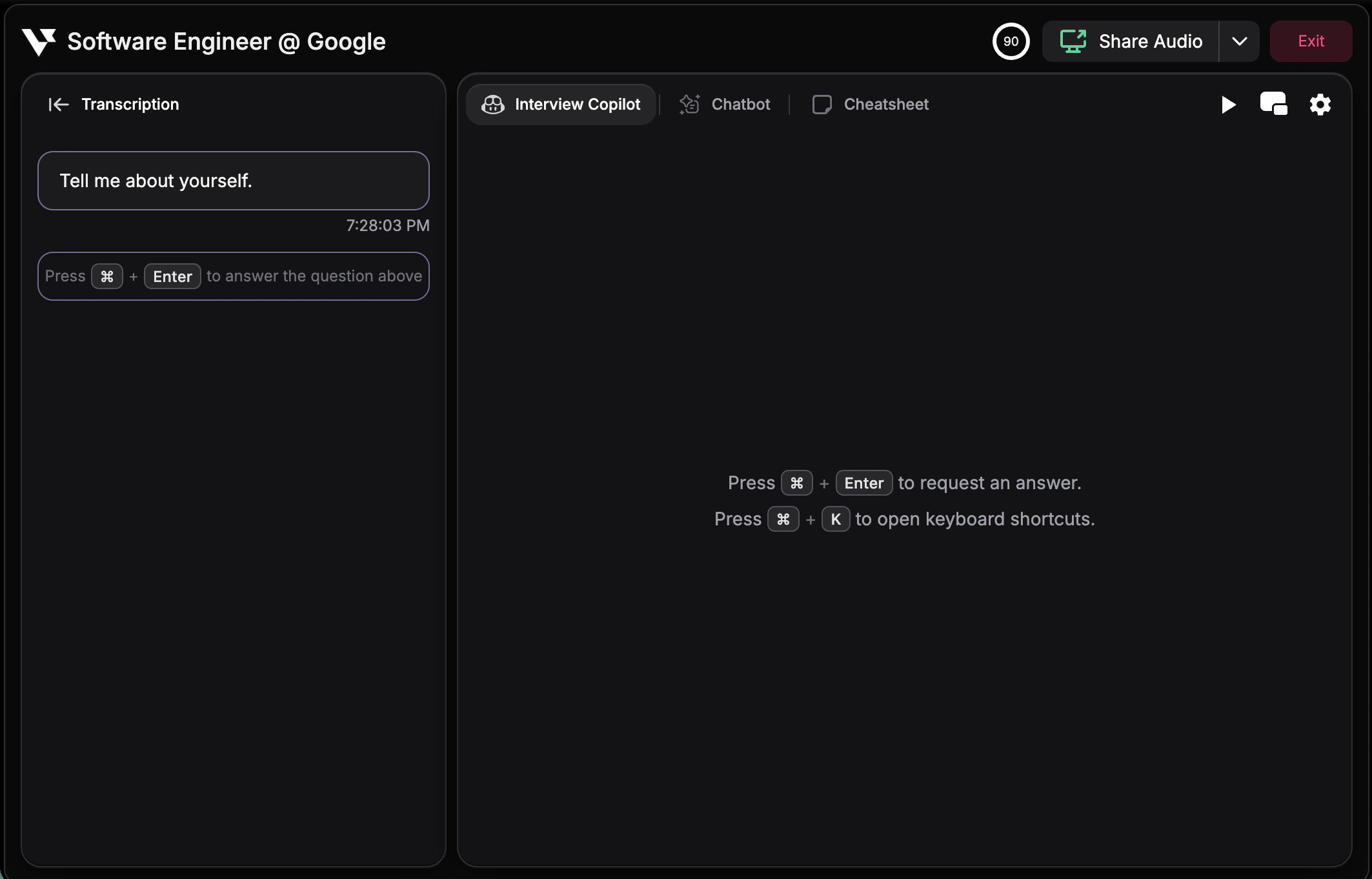
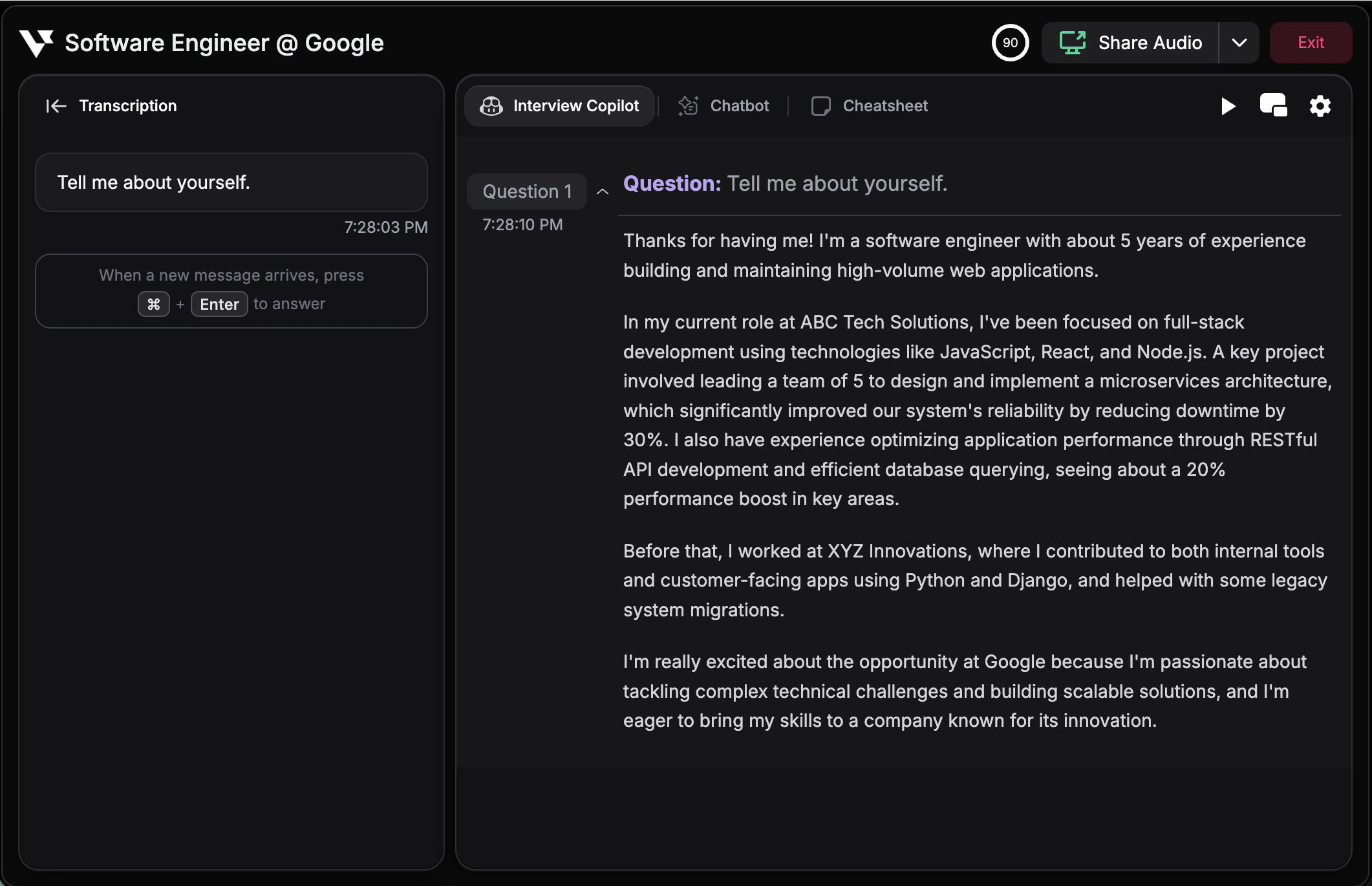
You must be in Manual Mode for this hotkey to work. In Auto Mode, responses are already generated automatically.