

Overview
Configure your preferred starting view and response mode so every new Interview Copilot session launches with your ideal setup. No need to reconfigure layout or mode settings each time—set it once and your preferences are automatically applied. How to access: Click the settings gear icon on the copilot launch page, then select the Layout tab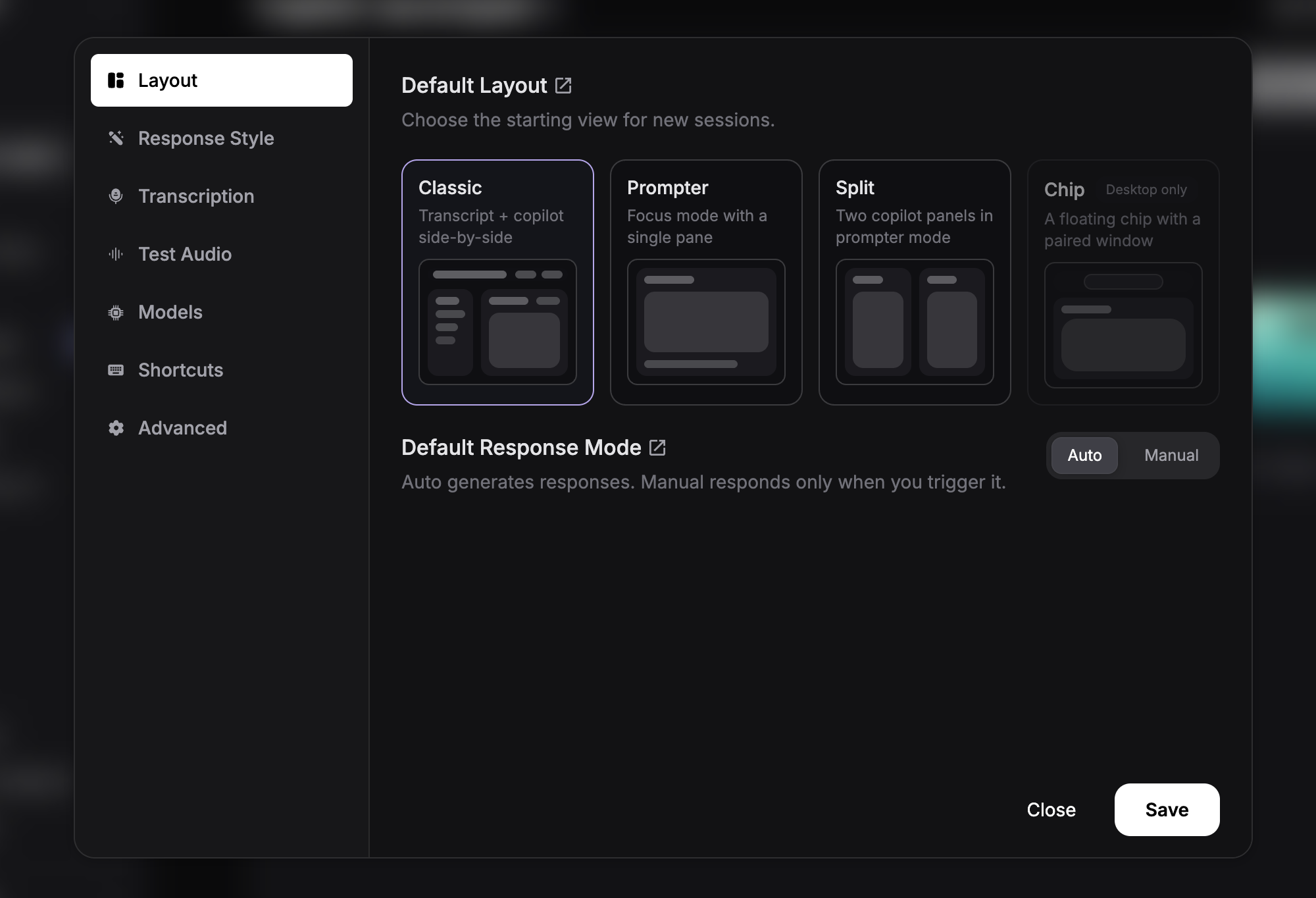
The settings modal has multiple tabs: Response Style for customizing AI prompts, and Layout for configuring default view and mode settings. Learn about Custom Response Style →
Default Layout
Choose the starting view for new copilot sessions. This determines how the interface is organized when you first launch the copilot.Chip Layout (Desktop only)
A native floating chip paired with a compact response window. Lightweight, stays out of the way, and blends into your workflow.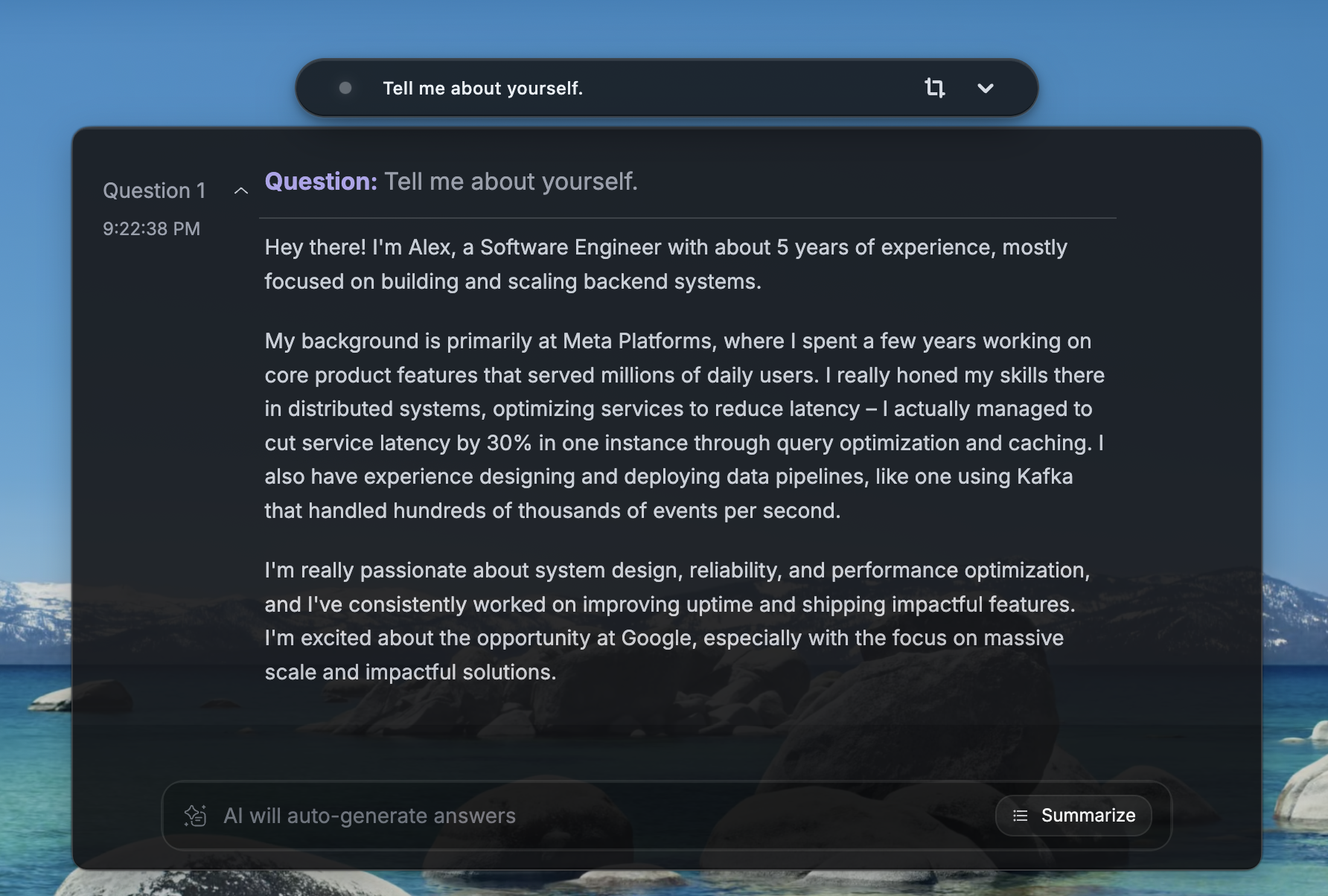
Classic Layout
Transcript on the left, copilot responses on the right. Best for following the conversation and checking transcription accuracy in real time.
Prompter Layout
A single-pane focus view that hides the transcript and maximizes space for copilot responses.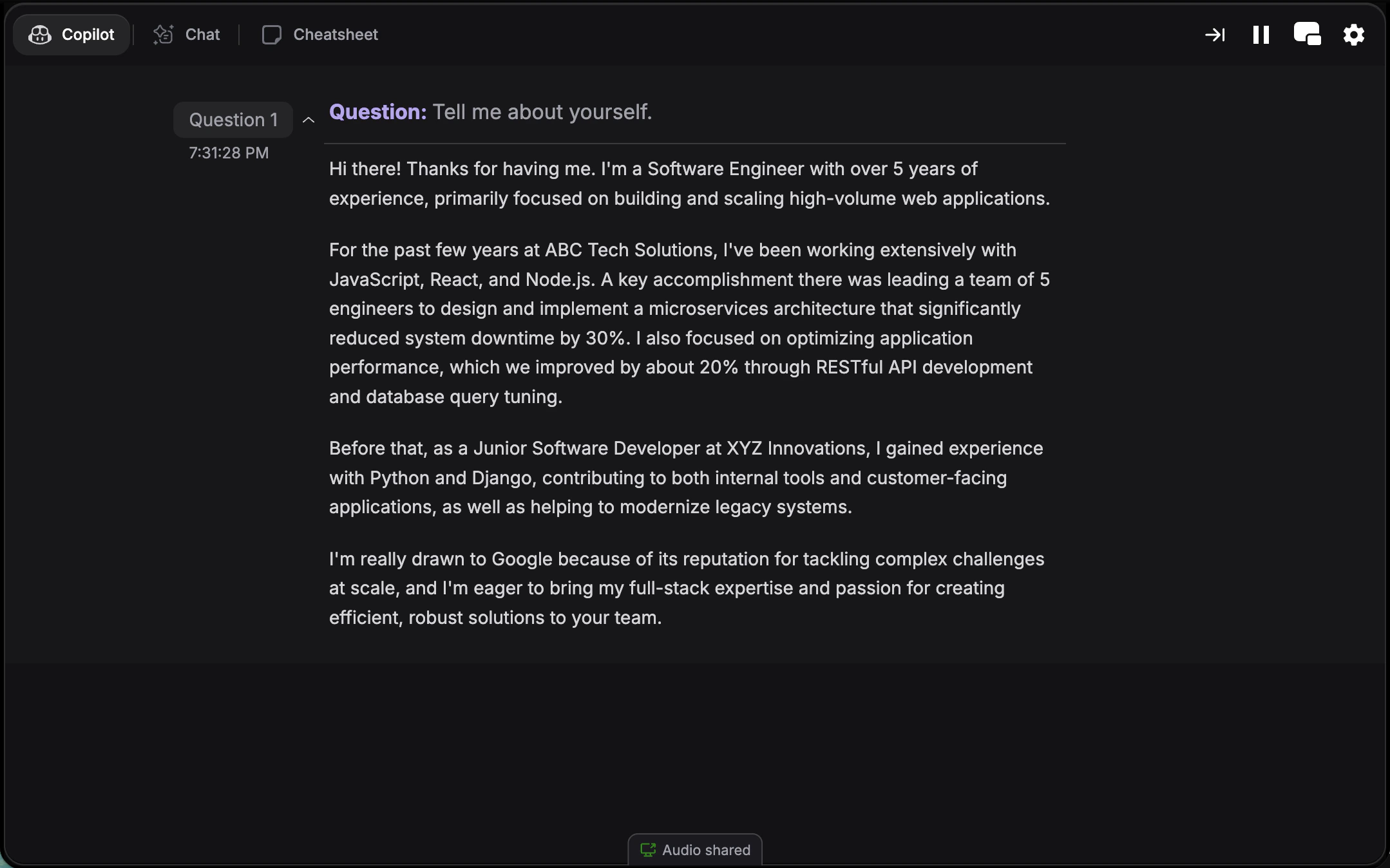
Split Screen Layout
Two copilot panels side-by-side without the transcript—e.g. Copilot + Chatbot. Similar to Split Screen Mode, but as your default.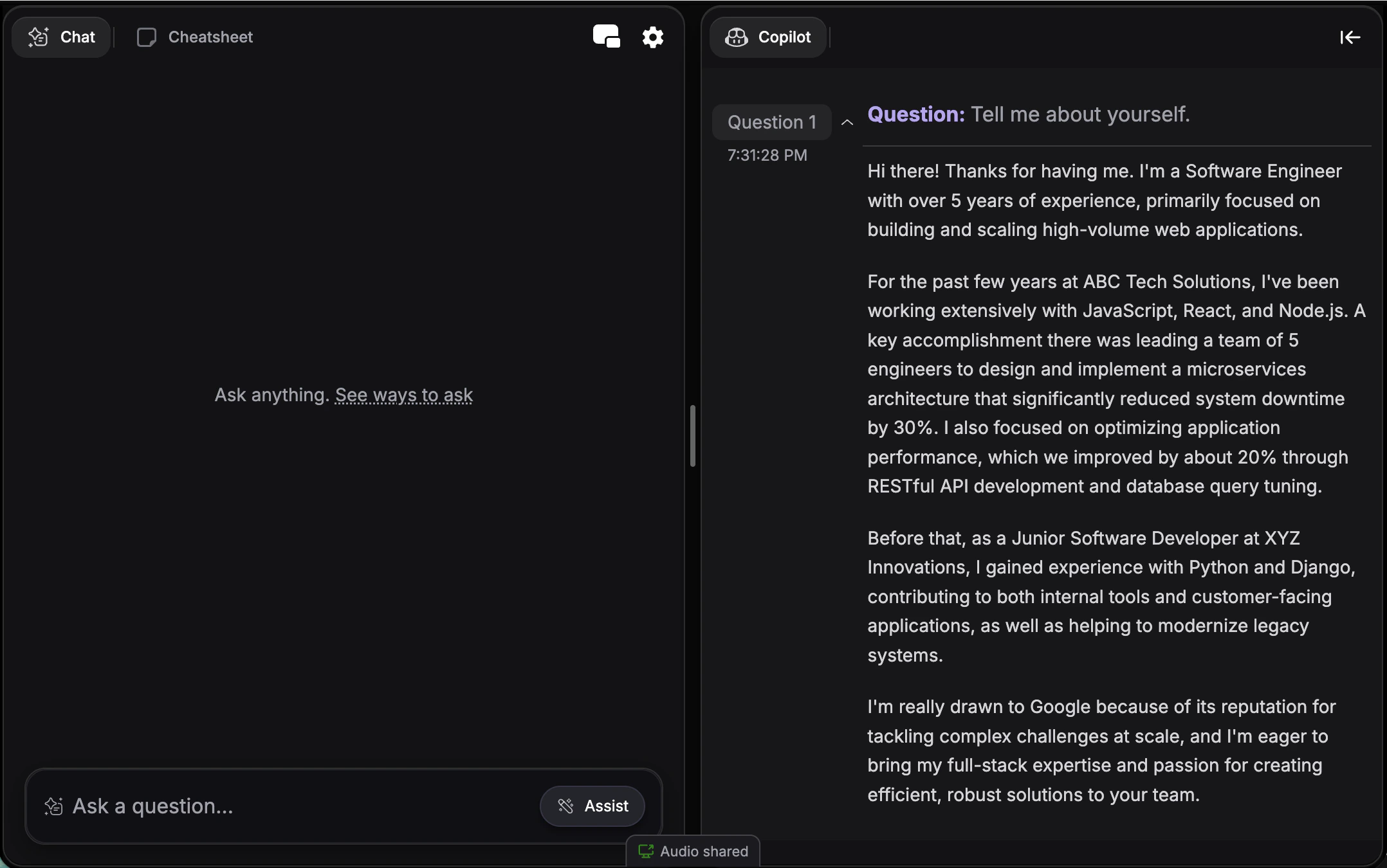
Default Response Mode
Control how the copilot generates responses in new sessions. This setting determines whether responses appear automatically or only when you trigger them.Auto Mode (Default)
Responses generate automatically when the interviewer finishes speaking. Fully hands-free experience with real-time suggestions. Best for:- Fast-paced interviews where you need instant support
- Hands-free workflow during screen sharing
- When you want continuous, automatic guidance
Manual Mode
Responses generate only when you explicitly request them using Cmd + Enter (Mac) or Ctrl + Enter (Windows). Transcription runs continuously in the background. Best for:- Multi-part questions where you want to wait for the complete question
- Strategic control over when suggestions appear
- Reducing cognitive load by choosing when to reference the copilot
Smart Listening
Responses generate automatically, but only once the interviewer has finished a question. Half-finished questions are held until the rest arrives, and small talk is skipped. Best for:- Interviewers who pause mid-question or ask long, multi-part questions
- Interviews with small talk or filler you don’t want answered
- Hands-free use with fewer unwanted answers
How to Configure Default Settings
1
Navigate to Settings
Go to the copilot launch page and click the settings gear icon.
2
Select Layout Tab
In the settings modal, choose the Layout tab to access default preferences.
3
Choose Default Layout
Select your preferred starting layout:
- Chip (desktop only) - Floating chip with a paired window
- Classic - Transcript + copilot side-by-side
- Prompter - Focus mode with a single pane
- Split - Two copilot panels in prompter mode
4
Choose Default Response Mode
Select your preferred response behavior:
- Auto - Generates responses automatically
- Manual - Responds only when you trigger it
- Smart Listening - Waits for the interviewer to finish before answering
5
Save and Launch
Your preferences are saved automatically. Launch a new copilot session to see your defaults applied.
How to Change Settings During a Session
Your default settings apply when you start a session. Once the interview is active, you can still adjust layout and mode on the fly:Switch Response Mode
Click the response mode button at the top right of your answers and choose Manual, Auto, or Smart Listening. The change applies to the current interview only. Press Cmd + M (Mac) or Ctrl + M (Windows) to turn Manual Mode on and off. Learn more about Manual Mode → · Learn more about Smart Listening →Activate Split Screen
Press Cmd + / (Mac) or Ctrl + / (Windows) to toggle Split Screen Mode, which lets you view multiple tabs side-by-side. Learn more about Split Screen Mode →Navigate Between Tabs
Use Tab and Shift + Tab to rotate through Support, Copilot, Cheatsheet, and Chatbot tabs. View all keyboard shortcuts →Message Direction
Control the order in which messages appear in the copilot interface. You can choose between two message flow directions based on your preference. How to access: Go to Copilot Parameters → Advanced in your settings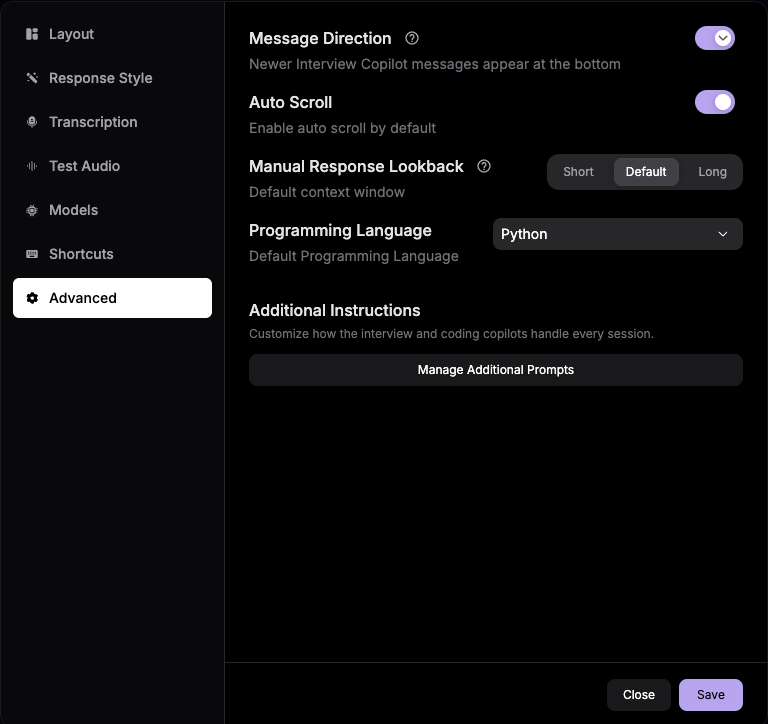
Top to Bottom (Newer Messages at Bottom)
Messages flow from top to bottom, with the newest messages appearing at the bottom of the screen—similar to traditional chat applications.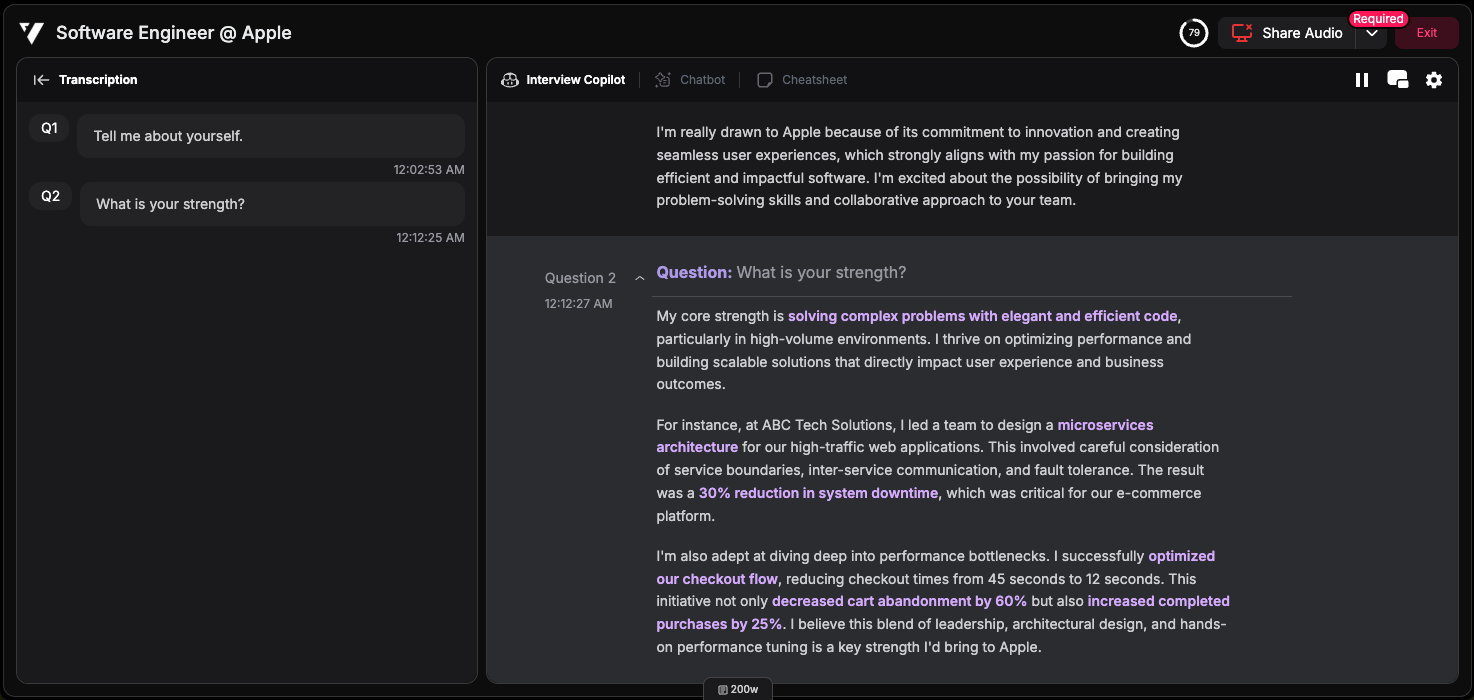
- Users familiar with standard chat applications
- When you prefer scrolling down to see the latest messages
- Natural reading flow from top to bottom
Bottom to Top (Newer Messages at Top)
Messages flow from bottom to top, with the newest messages appearing at the top of the screen—ideal for quick glances at the most recent content.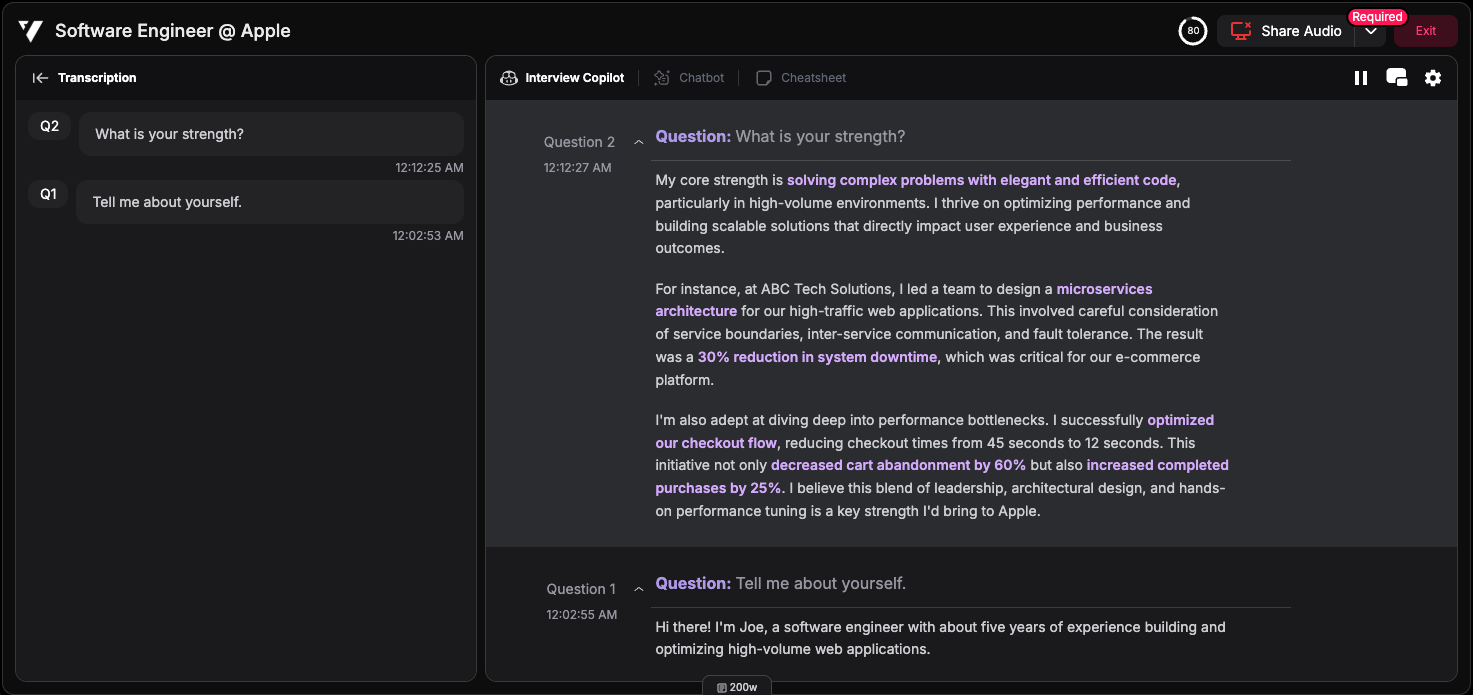
- Quick access to the latest messages without scrolling
- Teleprompter-style reading experience
- Users who prefer newest information immediately visible