

What is Mercor Interview Copilot?
Mercor Interview Copilot is specifically optimized for Mercor’s AI-powered screening interview system. It provides real-time guidance tailored to help you navigate and excel in Mercor’s unique automated interview format. How to access: Select Mercor Interview as your interview domain in Step 2 of launching interview copilot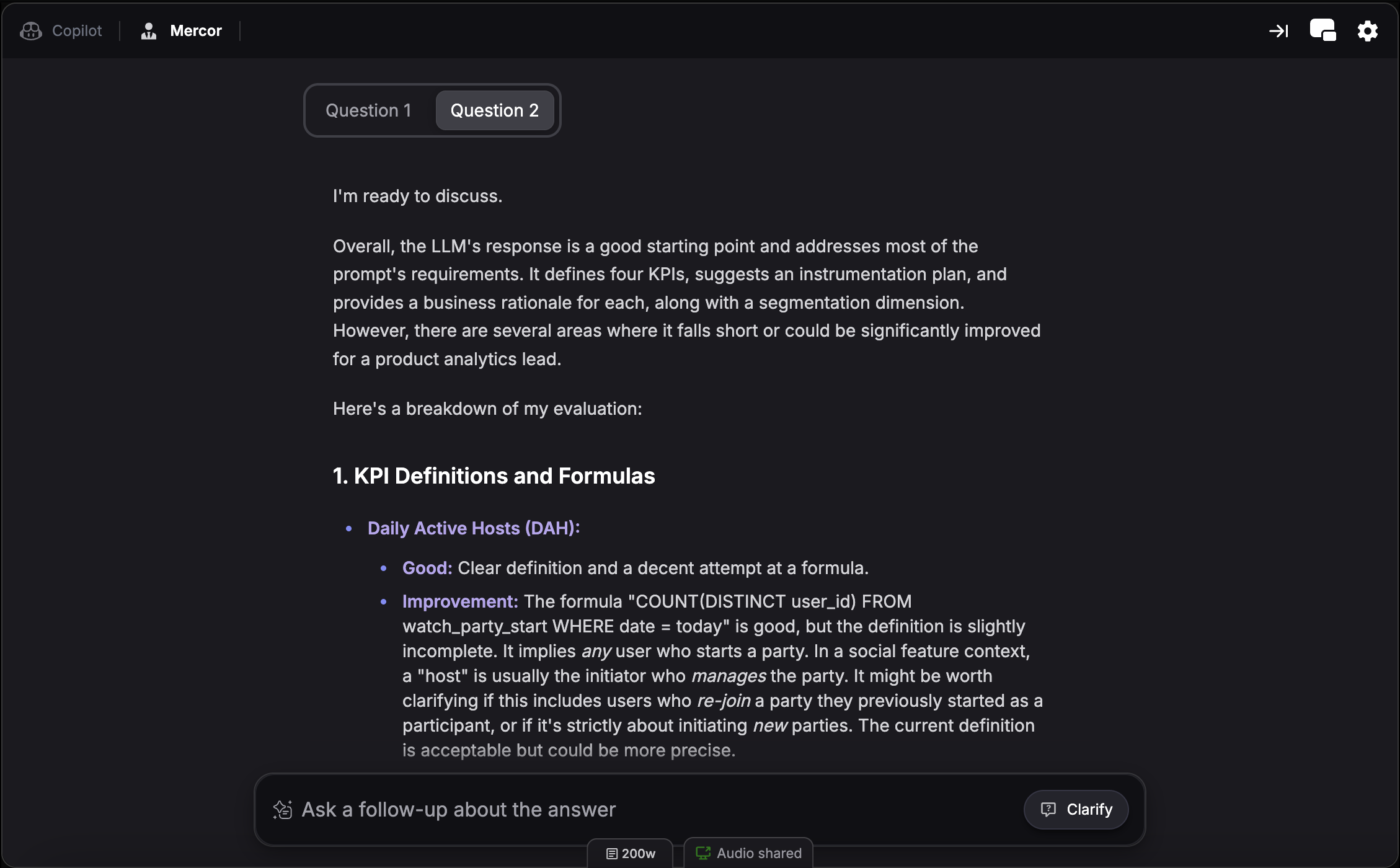
How Interview Copilot Helps You Pass Mercor
Mercor’s AI interviewer follows specific patterns and evaluation frameworks. Interview Copilot helps by:- Detecting question types - Identifies technical, behavioral, or competency-based questions in real-time
- Structuring responses - Provides frameworks like STAR method for behavioral questions
- Maintaining consistency - Ensures your answers align with your resume and previous responses
- Optimizing for AI evaluation - Suggests clear, concise answers that AI systems evaluate favorably
Setup
Setting up Mercor Interview Copilot is the same as setting up any interview copilot, with one key difference: selecting Mercor Interview as your domain in Step 2 at launch pad.- Select your interview profile - Upload your resume and configure your background
- Choose Mercor Interview domain - Select this from the interview domain options
- Configure settings - Review language, audio permissions, and platform
- Launch your session - Start before the interview begins
For detailed setup instructions including interview profile creation, audio configuration, knowledge base upload, and platform selection, refer to the quickstart guide.
Mercor Solver
Mercor Solver is a chat interface within your Mercor Interview session that gives you direct control over solving technical challenges, case studies, and text-based problems. While the copilot automatically detects and responds to spoken questions, Mercor Solver lets you manually input problems and get instant AI-powered solutions. How to access: Switch to the Mercor tab within any active Mercor Interview sessionHow to Use Mercor Solver
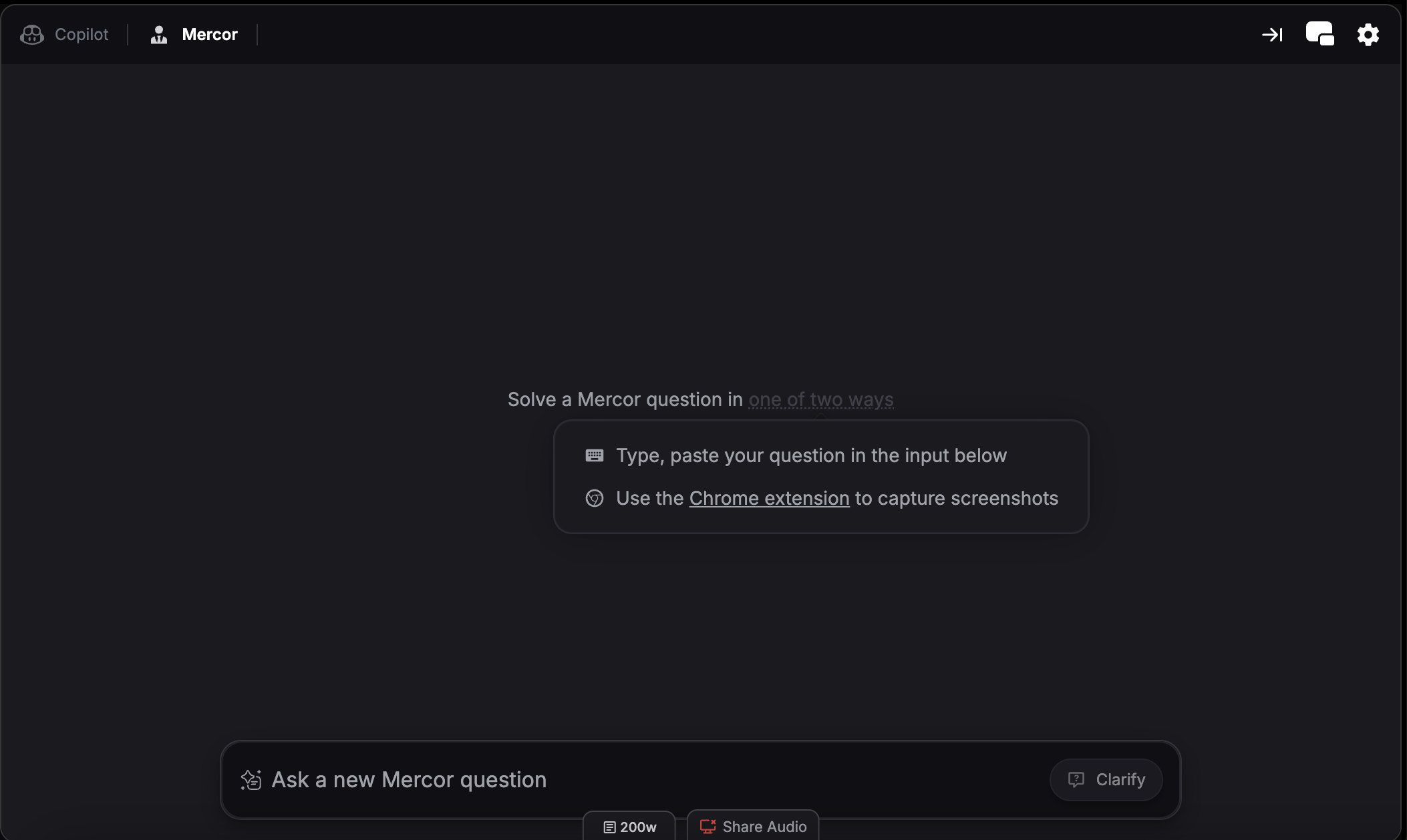
1. Screen Capture
Capture anything on your screen and send it directly to Mercor Solver for immediate assistance—the fastest way to get help with problems displayed on screen. Browser version:- Click the screen capture Chrome extension icon to capture your screen and send it to Mercor Solver
- Use screen capture hotkeys to capture and send to Mercor Solver:
- Cmd + Shift + S (Mac) or Ctrl + Shift + S (Windows) - Capture selected area
- Cmd + Shift + C (Mac) or Ctrl + Shift + C (Windows) - Full screen capture
2. Upload Screenshots
Attach screenshots directly in the chat to get AI-powered assistance on any visual content. This is useful when a single screenshot isn’t enough to capture the full problem. How it works:- Click the attachment icon in the chat box to upload screenshots
- Attach one or multiple screenshots in a single message
3. Type Directly
Type or paste any problem statement, technical challenge, or case context into the chat box and get an instant, structured solution. This is ideal for text-based challenges where you can copy the problem directly.4. Use Quick Actions
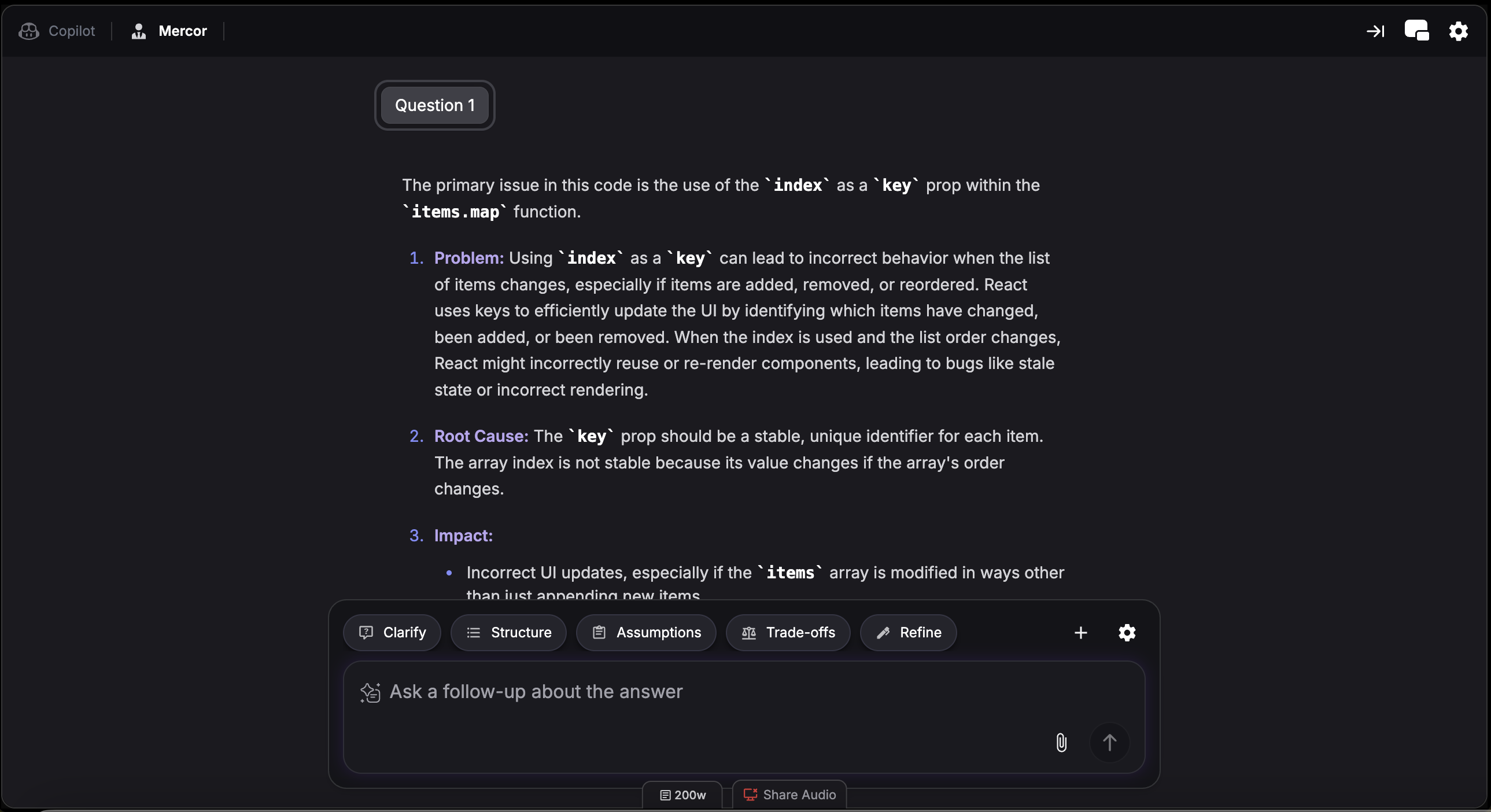
Clarify
Clarify
Get clarification on the problem statement or requirements
Structure
Structure
Receive a structured approach or framework for solving the problem
Assumptions
Assumptions
List key assumptions to state before solving the problem
Trade Offs
Trade Offs
Explore trade-offs between different approaches or solutions
Refine
Refine
Refine and improve your current solution or response
5. Highlight Text
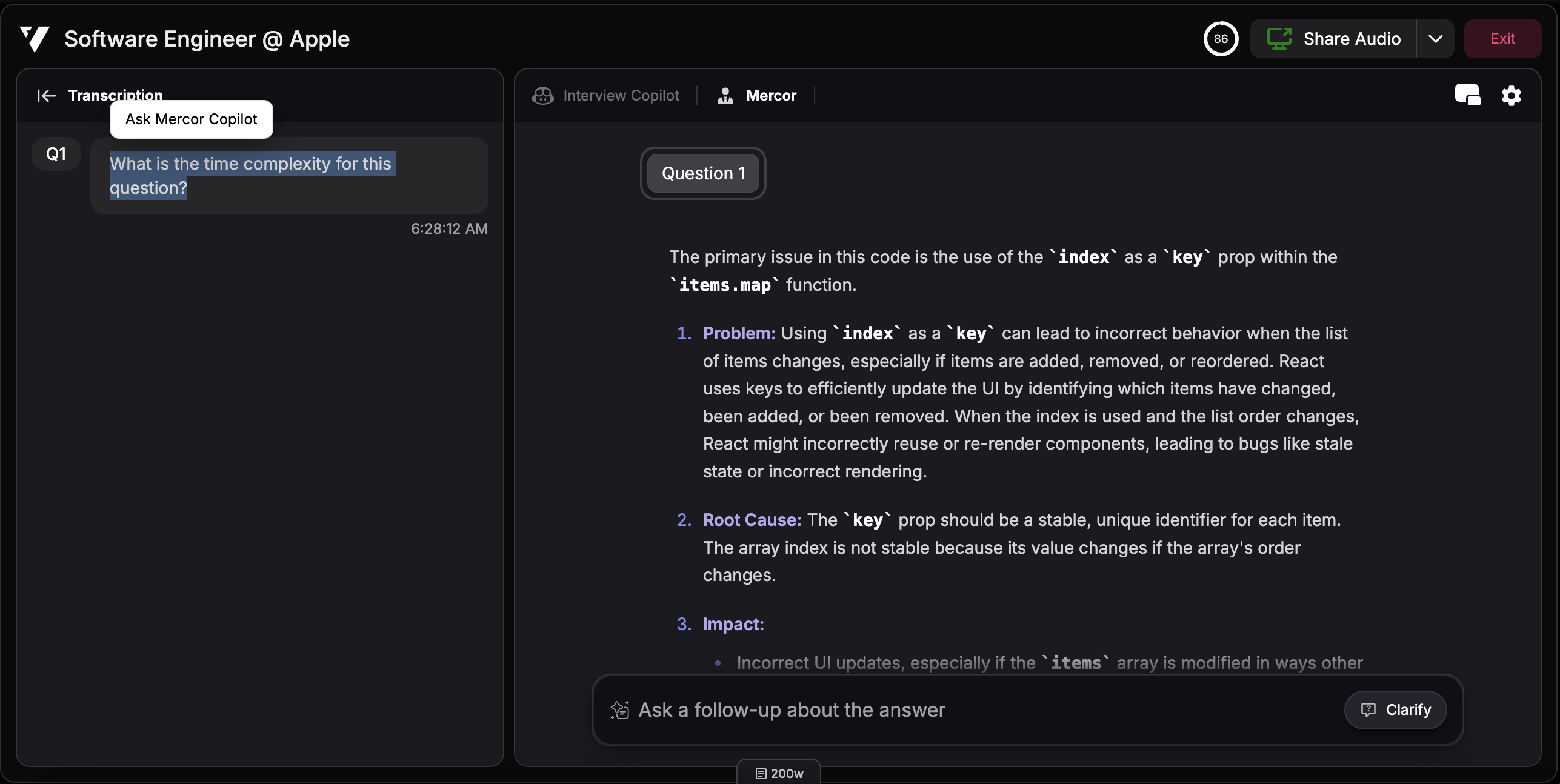
6. Share Context
Hover over the chat box and click the settings icon to toggle Share Context. When enabled, Interview Copilot considers your Mercor Solver interactions as reference when generating spoken support. Turn off if you don’t want Interview Copilot to elaborate on the content.Split Screen Mode
View Interview Copilot and Mercor Solver side-by-side instead of switching between tabs. This lets you reference copilot suggestions while working on problems in Mercor Solver simultaneously. Hotkey: Cmd + / (Mac) or Ctrl + / (Windows) Learn more about split screen mode.When to Use Mercor Solver
- Technical Challenges - Paste coding problems, algorithm questions, or technical assessments for instant solutions
- Case Studies - Input business cases or scenario-based problems for structured analysis
- Text-Based Problems - Any challenge presented in text form that you can copy and paste
- Visual Content - Upload screenshots of diagrams, code snippets, or problem statements
- Follow-up Questions - Dig deeper into specific topics or request alternative approaches