

Overview
The Knowledge Base is your central hub for training and preparing your AI Interview Copilot. It focuses on AI-usable documents, whether you upload an existing file or create one from scratch. Access: Knowledge BaseChoose the Right Knowledge Base Option
The Knowledge Base gives you 2 ways to add AI-usable documents:Documents
AI actively uses documents to generate tailored responses during your interview. Upload resumes, job descriptions, company research, and other materials that give the Copilot stronger context.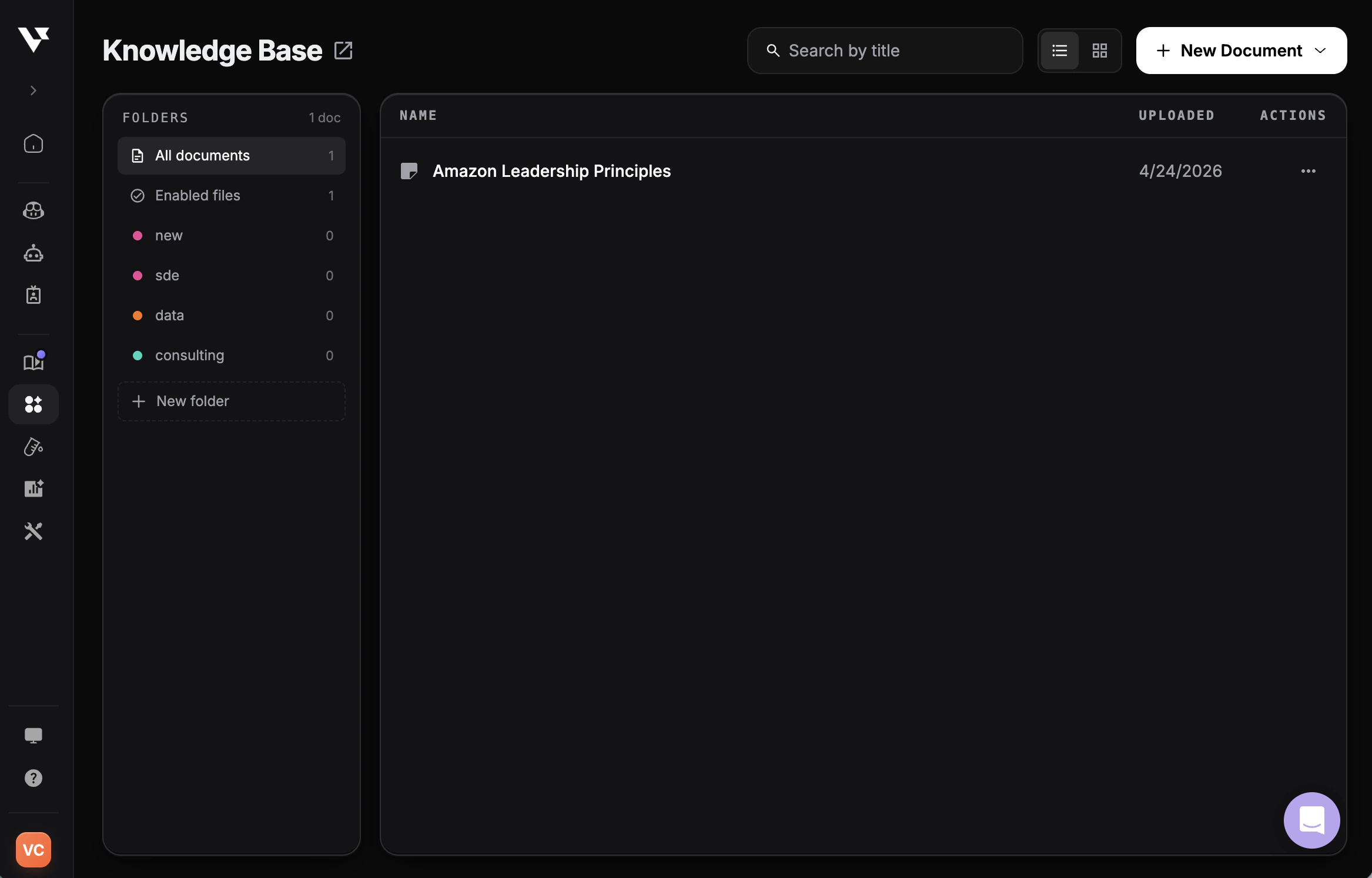
1
Open Knowledge Base
Visit the Knowledge Base and select the Documents tab.
2
Click + New Document
Click the + New Document button to start uploading.
3
Upload your file
Drag and drop or choose a local file. Supported formats: .pdf, .docx, .pptx, .txt, .csv, .md (up to 3.5 MB).
4
Toggle it on or off
Once uploaded, your document appears on the dashboard. Toggle it ON to include it in Copilot responses or OFF to exclude it.
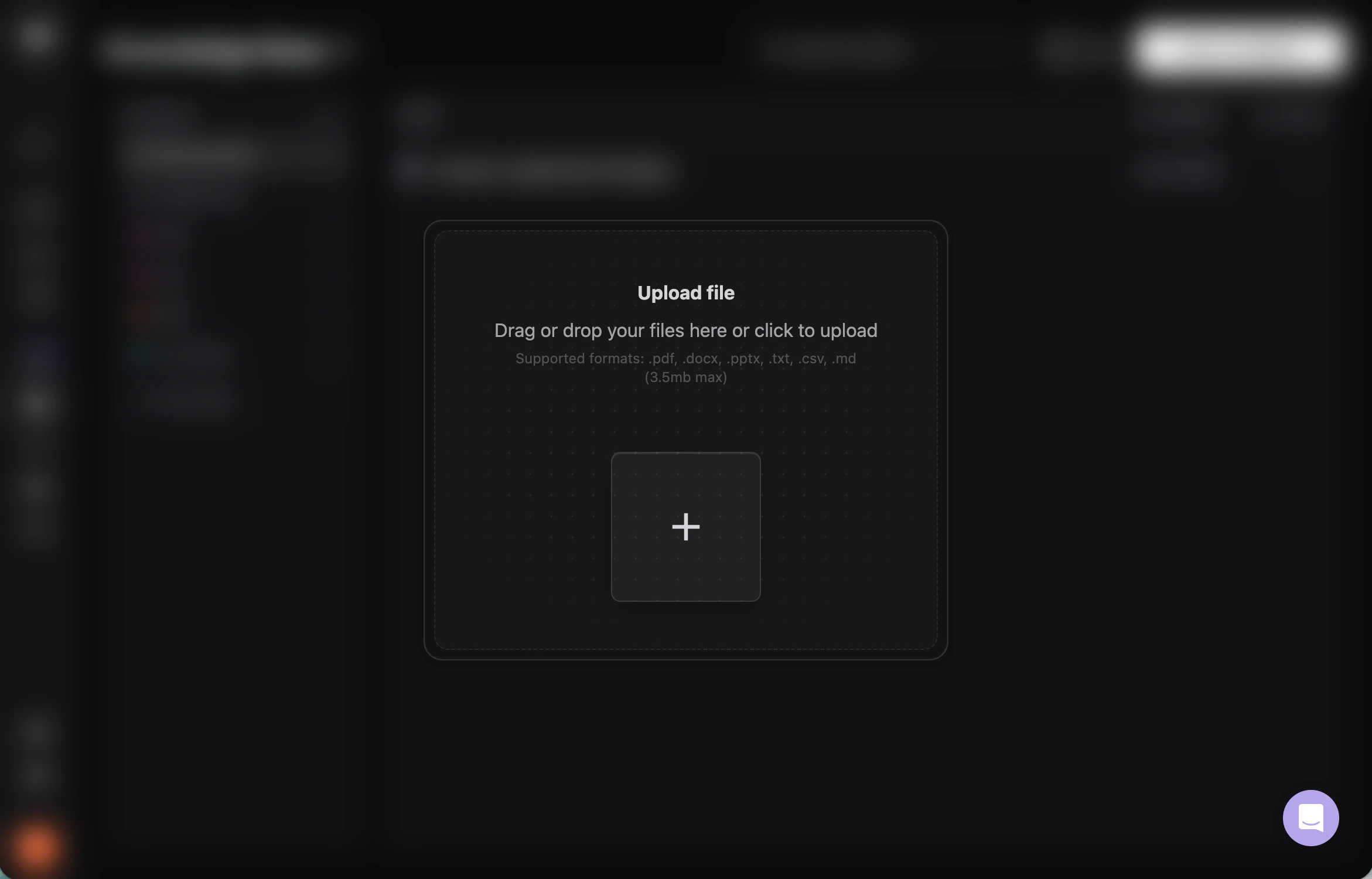
Supported formats: .pdf, .docx, .pptx, .txt, .csv, .md — up to 3.5 MB per file.
What to Upload
- Company Research: Information about the company, culture, products, or recent news
- Technical Specs: Technical documentation, architecture diagrams, or technology overviews
- Portfolio Summaries: Project summaries, case studies, or work samples relevant to the role
- Industry Reports: Market research, trends, or industry-specific knowledge
- Product Documentation: Product guides, user manuals, or feature specifications you should know
- Study Materials: Interview prep notes, coding patterns, or domain-specific guides
Organize with Folders
Folders let you group related documents — for example, by role, company, or interview type — so you can keep your Knowledge Base tidy and load only the relevant context into each Copilot session.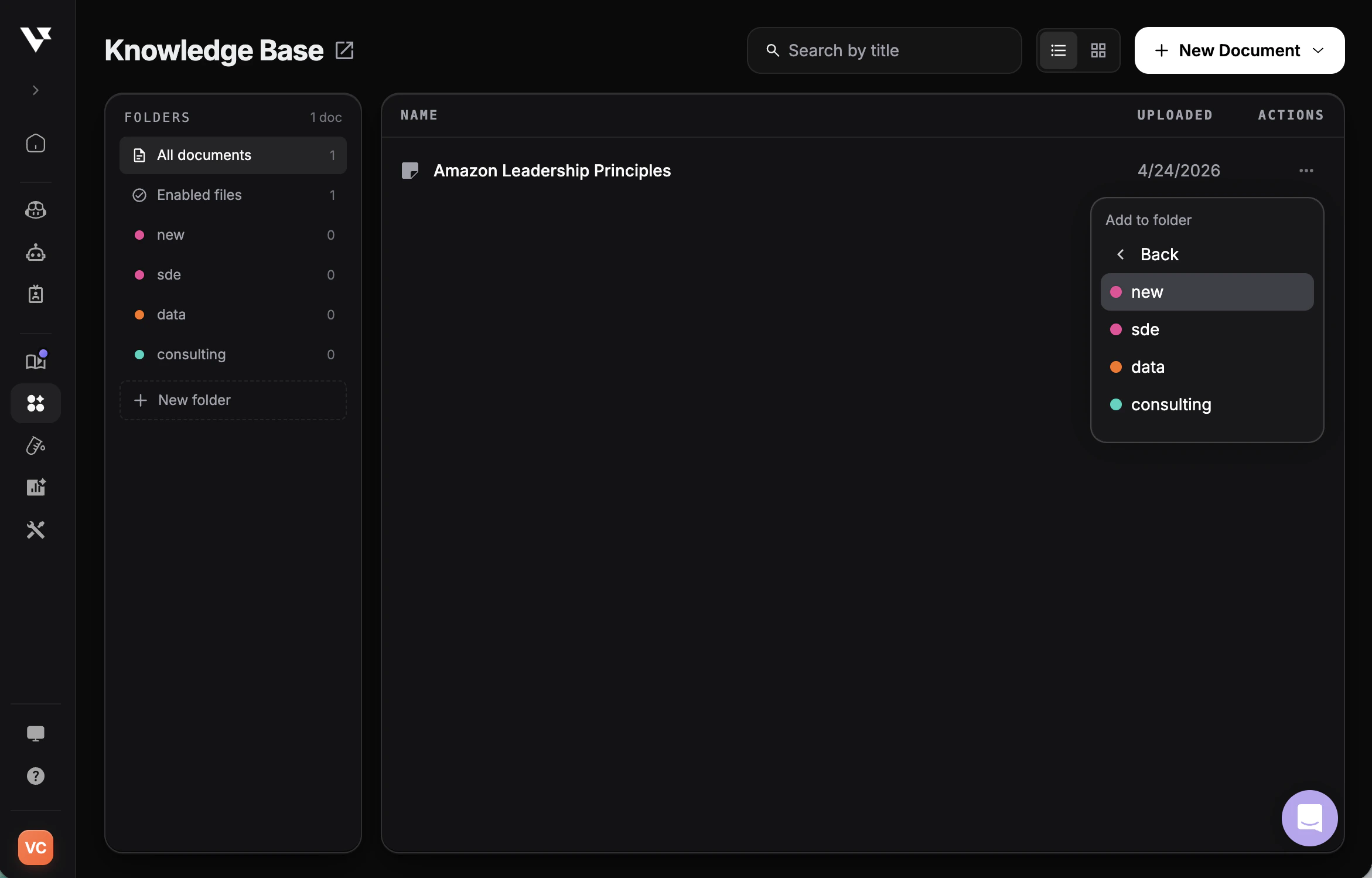
1
Create a folder
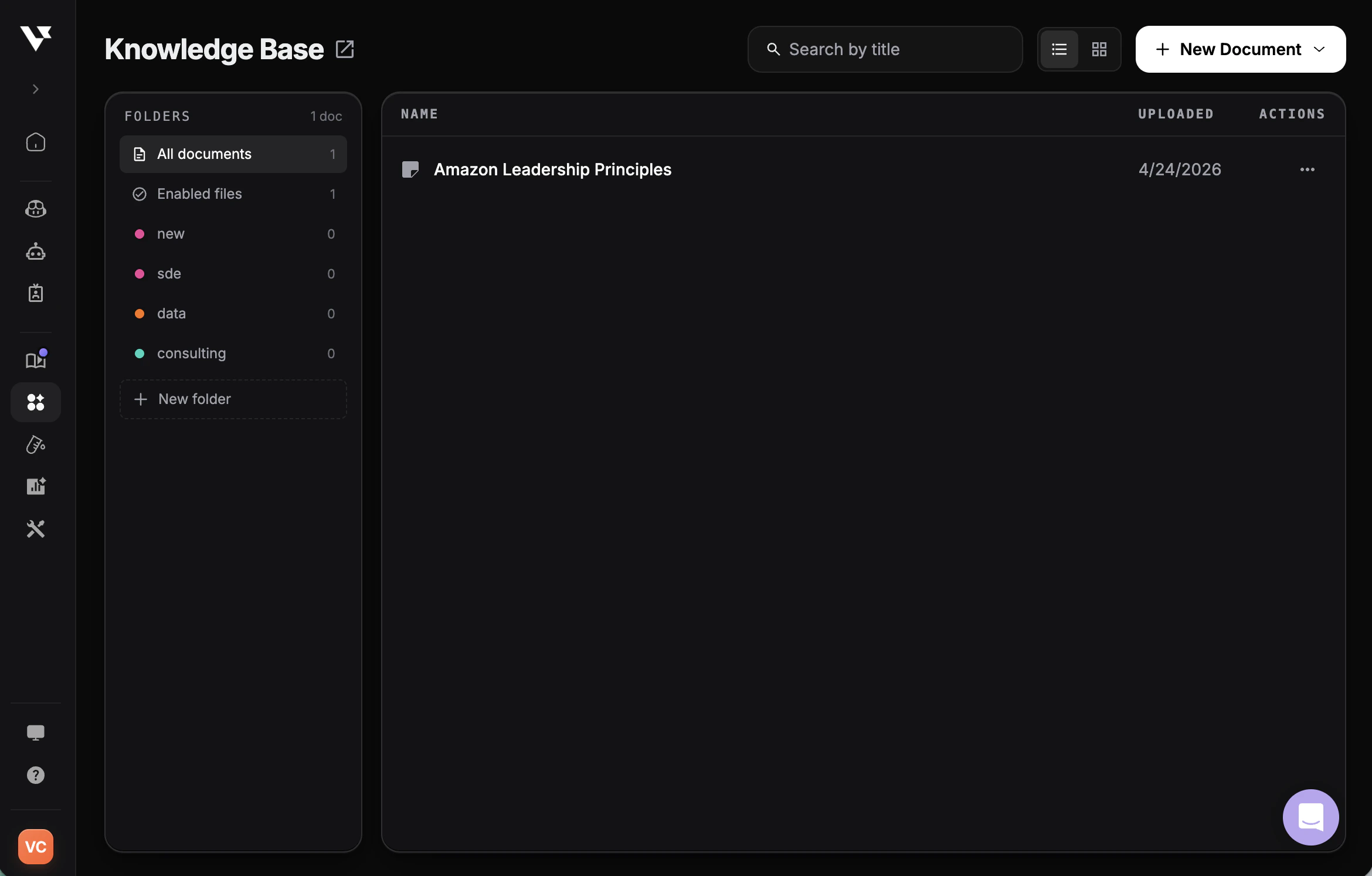
In the Knowledge Base sidebar, click + New folder and give it a name (e.g., sde, data, consulting).
2
Add documents to a folder
Open the ⋯ action menu on any document, choose Add to folder, and pick the destination folder.
3
Filter by folder
Click any folder in the sidebar to view only its documents. Use All documents to see everything, or Enabled files to see only what’s active.
Create from Scratch
If you do not want to upload a file, you can create a document directly inside Knowledge Base. This is the right option for interview stories, prepared answers, project summaries, and other context you want Copilot to use.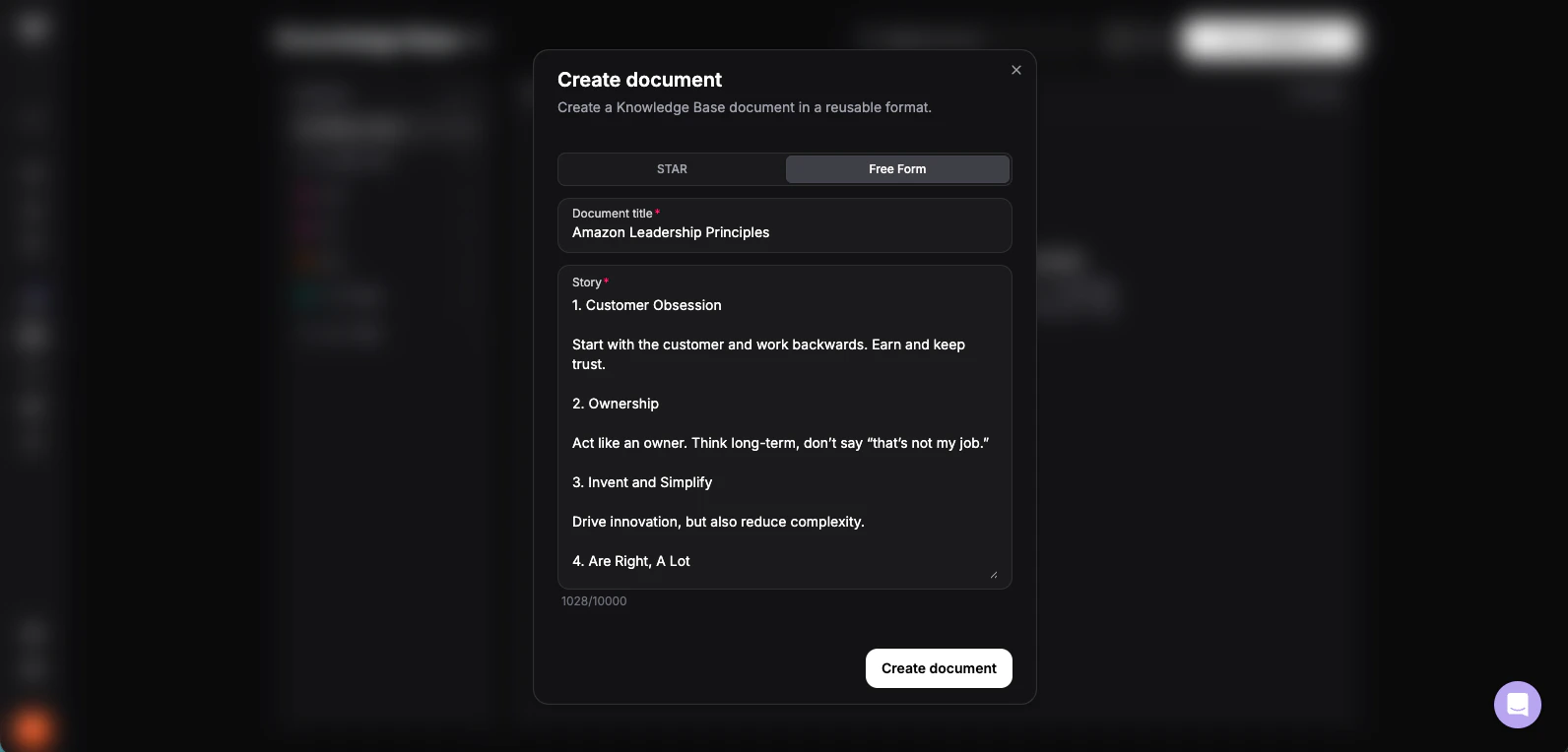
1
Open Knowledge Base
Go to the Knowledge Base and choose the option to create a document from scratch.
2
Start a new document
Click to create a new document instead of uploading an existing file.
3
Choose your input style
Pick either the STAR format or a free-form message, depending on how structured you want the content to be.
4
Save the document
Add a title, fill in your content, and save it so the document becomes part of your Copilot response context.
When to Create from Scratch
- Behavioral stories: STAR examples for leadership, conflict, delivery, or ownership
- Prepared answers: Common interview prompts you want to answer consistently
- Project summaries: Highlights you want Copilot to reference without uploading a separate file
- Role-specific talking points: Domain knowledge, priorities, or examples tailored to one interview
Example STAR Entry
Situation: Our e-commerce platform was experiencing slow checkout times, causing a 15% cart abandonment rate.Task: As the lead developer, I needed to optimize the checkout flow while maintaining all security and payment integrations.Action: I conducted performance profiling, identified database query bottlenecks, implemented Redis caching for session data, and optimized the payment gateway API calls. I also worked with the UX team to streamline the user interface.Result: Reduced checkout time from 45 seconds to 12 seconds, decreasing cart abandonment by 60% and increasing completed purchases by 25% over three months. The solution handled 3x the original traffic capacity.
Input Styles
STAR Format (Recommended)
The STAR method gives both the AI and your interviewer a clean structure to follow:- Situation: Set the context and background
- Task: Describe the challenge or goal
- Action: Explain what you specifically did
- Result: Share the outcome and impact