

What is the Desktop App?
The Verve AI Desktop App is the most powerful version of the platform, built for users who need maximum privacy, advanced features, and native desktop functionality. Download: Desktop AppKey Features
Stealth Mode
Stay completely invisible even during screen sharing. The copilot window remains visible only to you on your screen, but won’t appear to interviewers when they view your shared screen. How to activate: Turn on Stealth Mode at Step 3, confirm your settings, then click Launch Copilot when launching Interview Copilot.Screen Capture Hotkey
Instantly capture anything from your screen and send it directly to Chatbot for immediate support:- Area capture: Cmd + Shift + S (Mac) / Ctrl + Shift + S (Windows), then drag to select
- Full screen capture: Cmd + Shift + C (Mac) / Ctrl + Shift + C (Windows)
Transparent Overlay
Launch a transparent Interview Copilot window that you can drag on top of any other window while being able to see through to the underlying window. Perfect for overlaying on your meeting, IDE, or interview platform - you can view copilot suggestions without blocking your screen content.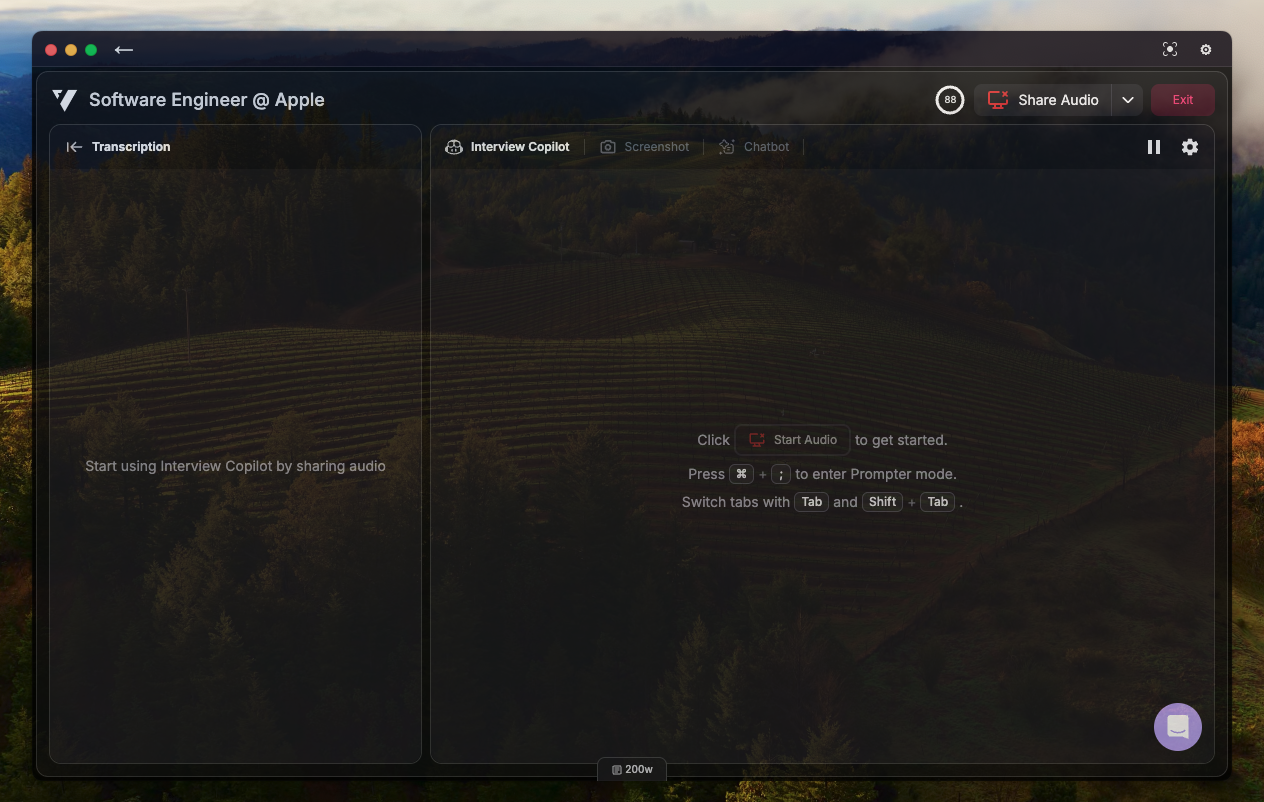
Click-Through Mode
Make the copilot window non-interactive so your clicks pass through to applications behind it. Press Cmd + Shift + P (Mac) / Ctrl + Shift + P (Windows) to toggle click-through mode on/off. Ideal for keeping copilot visible as a reference overlay while fully interacting with your IDE, browser, or other interview tools underneath.Hide from Dock/Taskbar
Remove the Verve AI icon from your Dock (macOS) or Taskbar (Windows) for maximum stealth during interviews. Press Cmd + Shift + D (Mac) / Ctrl + Shift + D (Windows) to hide the app icon. The app continues running in the background with full functionality - you can still access it via hotkeys and restore the icon anytime with the same shortcut.Window Management
Quickly reposition the copilot window using keyboard shortcuts - perfect for multi-monitor setups or when you need to adjust window placement without using your mouse during interviews. Window movement shortcuts:- Cmd + ← (Mac) / Ctrl + ← (Windows) - Move window to the left
- Cmd + → (Mac) / Ctrl + → (Windows) - Move window to the right
- Cmd + ↑ (Mac) / Ctrl + ↑ (Windows) - Move window upward
- Cmd + ↓ (Mac) / Ctrl + ↓ (Windows) - Move window downward
- Cmd + Shift + T (Mac) / Ctrl + Shift + T (Windows) - Hide/show window
Platform Integration
Native integration with all major interview and development platforms:- Video/Meeting Apps - Zoom, Microsoft Teams, Google Meet, Webex, and all desktop meeting applications
- Coding Collaboration Boards - CoderPad, CodeSignal, CodeSandbox, Replit, and similar platforms
- Assessment Sites - HackerRank, Codility, LeetCode, CodeSignal, and any interview assessment platform
- Works with any desktop application — not limited to browsers
Getting Started
- Download the Desktop App from here
- Install following the platform-specific instructions
- Grant permissions for microphone and screen recording when prompted
- Launch and log in with your account
- Test hotkeys - Practice screen capture before your interview