

What is Chatbot?
Available inside your copilot session, Chatbot gives you direct control over what gets supported and answered during your interview—perfect for when you need to manually input questions or get instant help with specific prompts. How to access: Chatbot is available as a tab within any active copilot sessionChatbot is available in all interview domains except for Coding Interview, Data Science & Analytics, Mercor Interview, and Consulting—these domains have their own specialized chatbot features tailored to their specific interview formats.
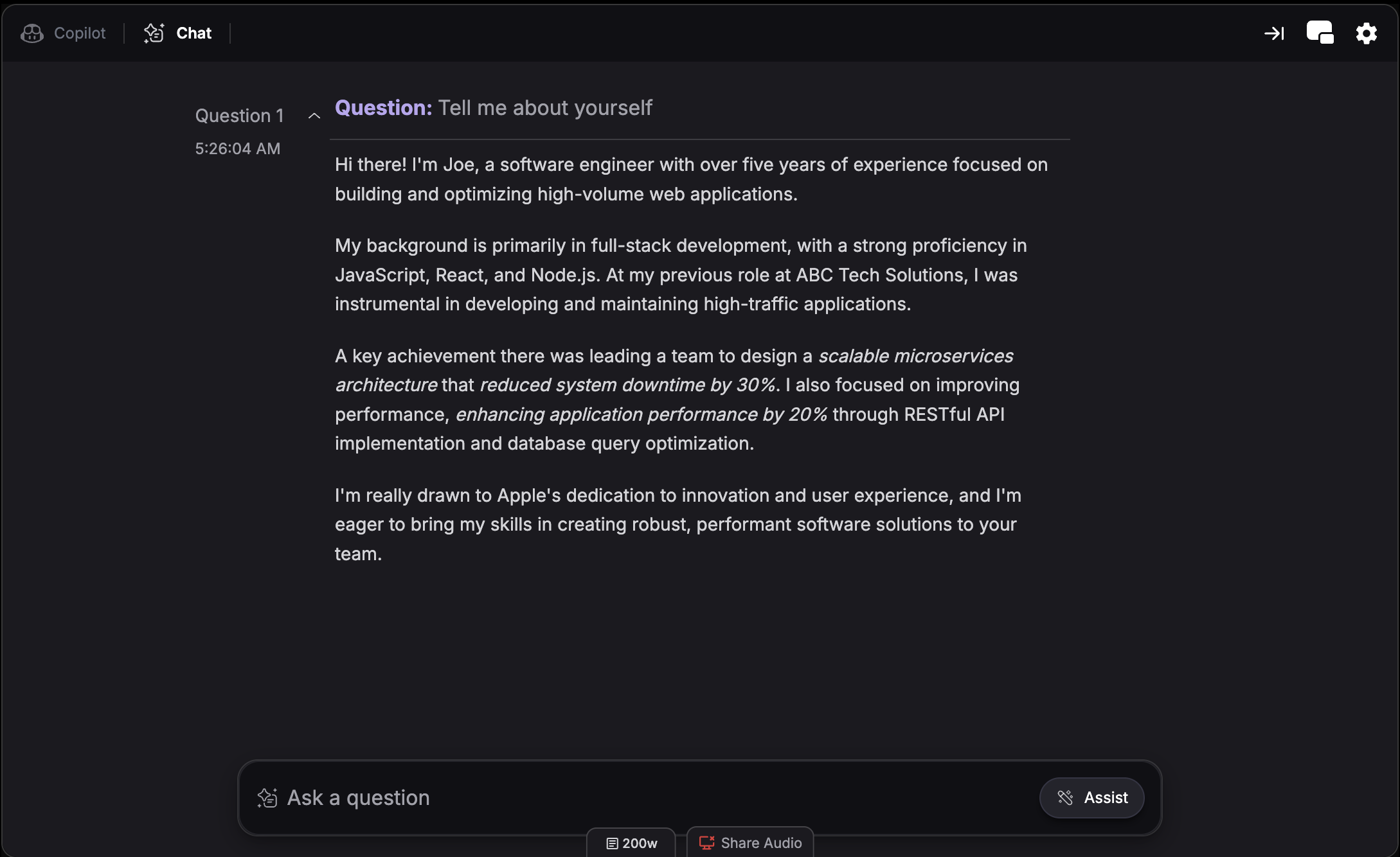
How to Use It
While our copilot automatically detects questions during interviews for a hands-free experience, Chatbot offers five powerful ways to take control: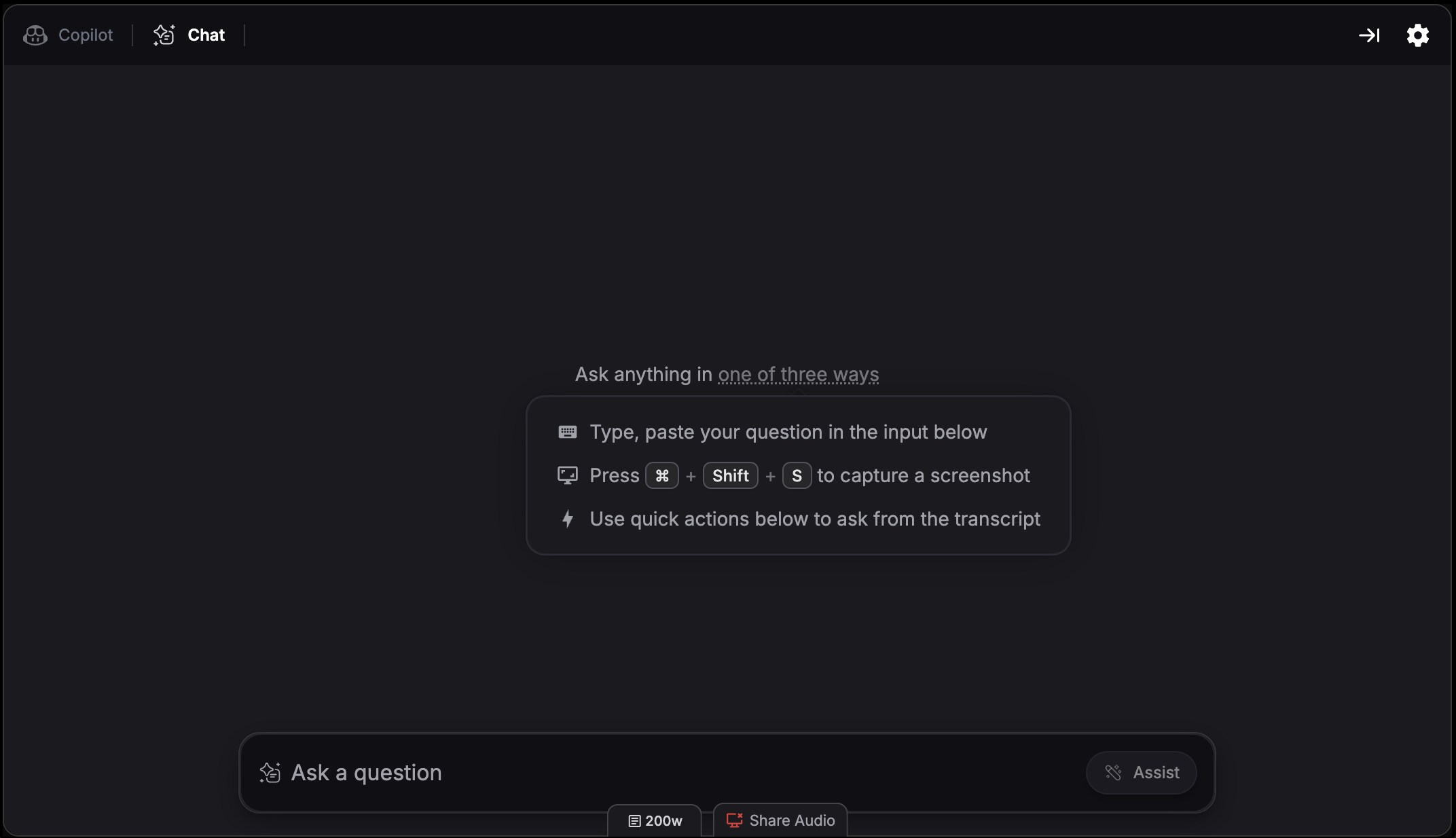
1. Screen Capture
Capture anything on your screen and send it directly to Chatbot for immediate support—the fastest way to get help with visual content. Browser version:- Click the screen capture Chrome extension icon to capture your screen and send it to Chatbot
- Use screen capture hotkeys to capture and send to Chatbot:
- Cmd + Shift + S (Mac) or Ctrl + Shift + S (Windows) - Capture selected area
- Cmd + Shift + C (Mac) or Ctrl + Shift + C (Windows) - Full screen capture
2. Upload Screenshots
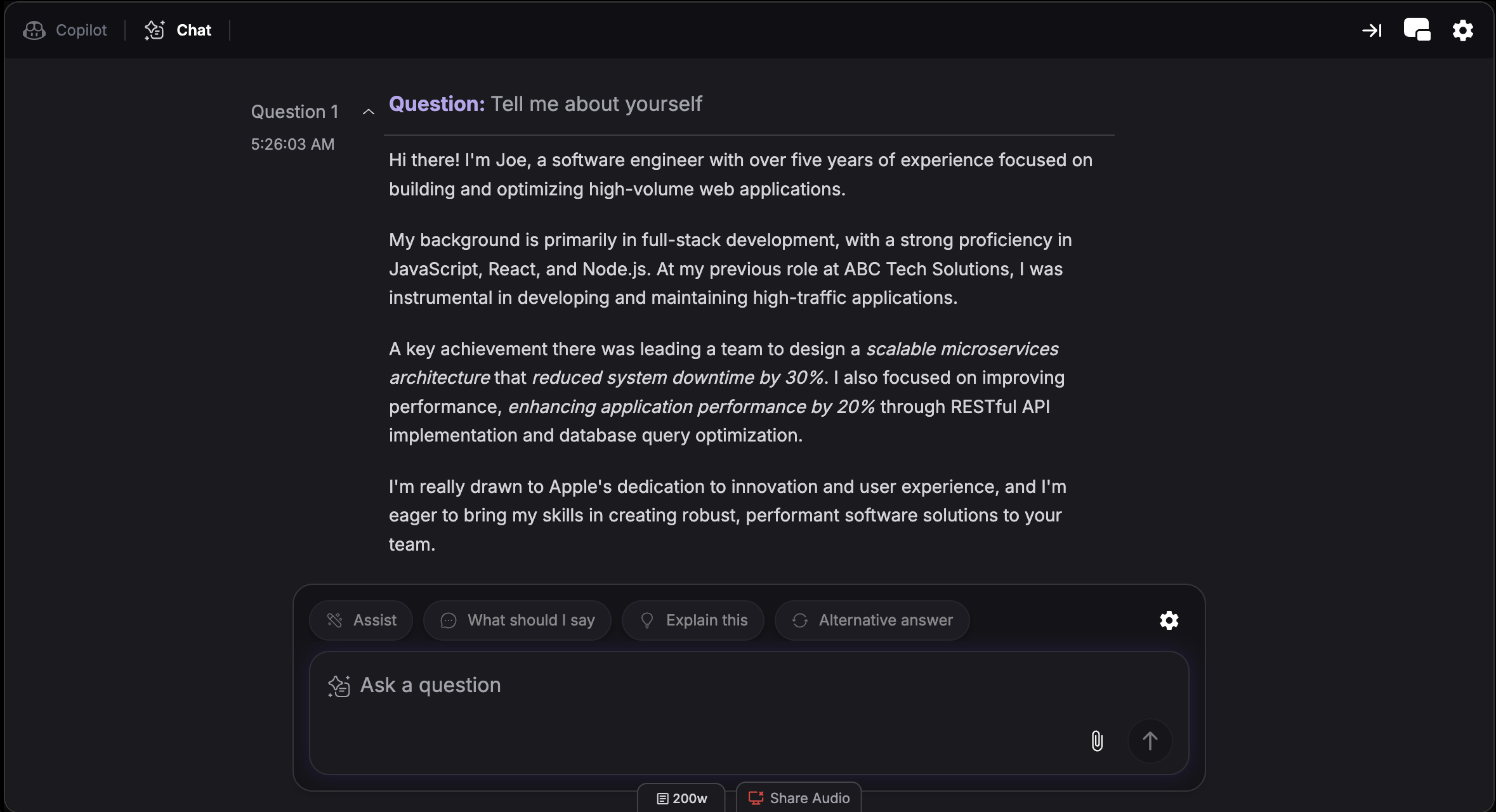
Attach screenshots directly in the chat to get AI-powered assistance on any visual content. This is useful when a single screenshot isn’t enough to capture everything you need help with. How it works:- Click the attachment icon in the chat box to upload screenshots
- Attach one or multiple screenshots in a single message
3. Type Directly
Type any question into the chat box and get an instant, tailored response—whether it’s a technical query, behavioral question, or anything the transcription might have missed.4. Use Quick Actions
Click quick action buttons above the chat box to instantly interact with your most recent conversation:Assist
Assist
Get AI assistance for your current context
What Should I Say
What Should I Say
Get suggested talking points for responding to the interviewer
Explain This
Explain This
Receive a detailed explanation of the solution or concept
Alternative Answer
Alternative Answer
Get a different approach or perspective on the same question
5. Highlight Text
Highlight any text in the Copilot responses or transcription panel, and an “Ask Chatbot” option will appear—letting you instantly send the selected content to Chatbot for further assistance.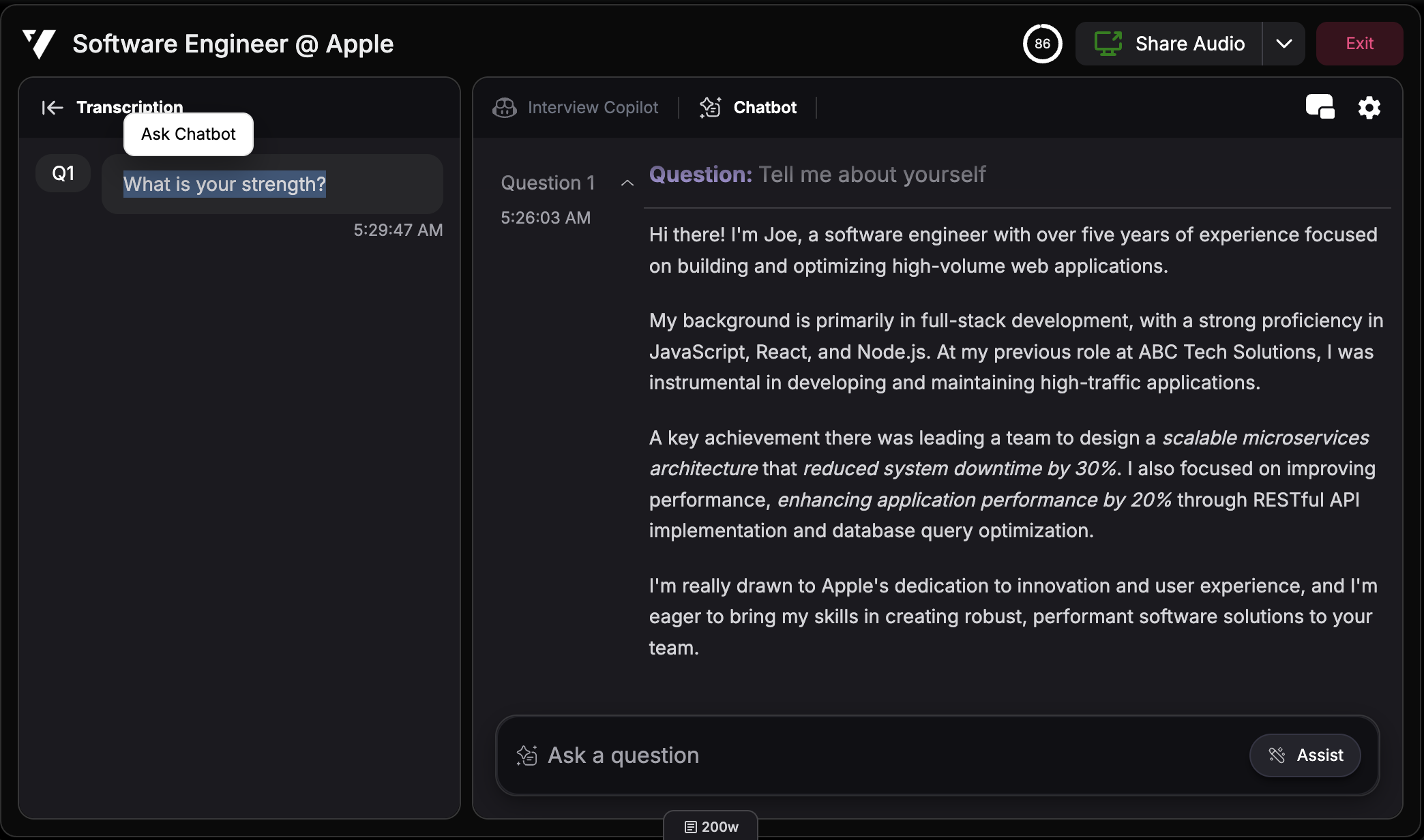
6. Share Context
Hover over the chat box and click the settings icon to toggle Share Context. When enabled, Interview Copilot considers your Chatbot interactions as reference when generating spoken support. Turn off if you don’t want Interview Copilot to elaborate on the content.Split Screen Mode
View Interview Copilot and Chatbot side-by-side instead of switching between tabs. This lets you reference copilot suggestions while typing questions in Chatbot simultaneously. Hotkey: Cmd + / (Mac) or Ctrl + / (Windows) Learn more about split screen mode.When to Use Chatbot
- Visual Content - Upload one or multiple screenshots when you need AI assistance on visual materials
- Missed Transcription - Manually type questions that weren’t captured correctly
- Follow-up Questions - Explore topics or angles not covered by the interviewer
- Quick Refinements - Use quick actions to refine or explain recent answers