

What is Coding Copilot?
Designed specifically for leetcode-style coding interviews, Coding Copilot captures questions from your screen and delivers instant solutions with comprehensive explanations—visible only to you. How to access: Select Coding Copilot as your interview domain in Step 3 of launching interview copilot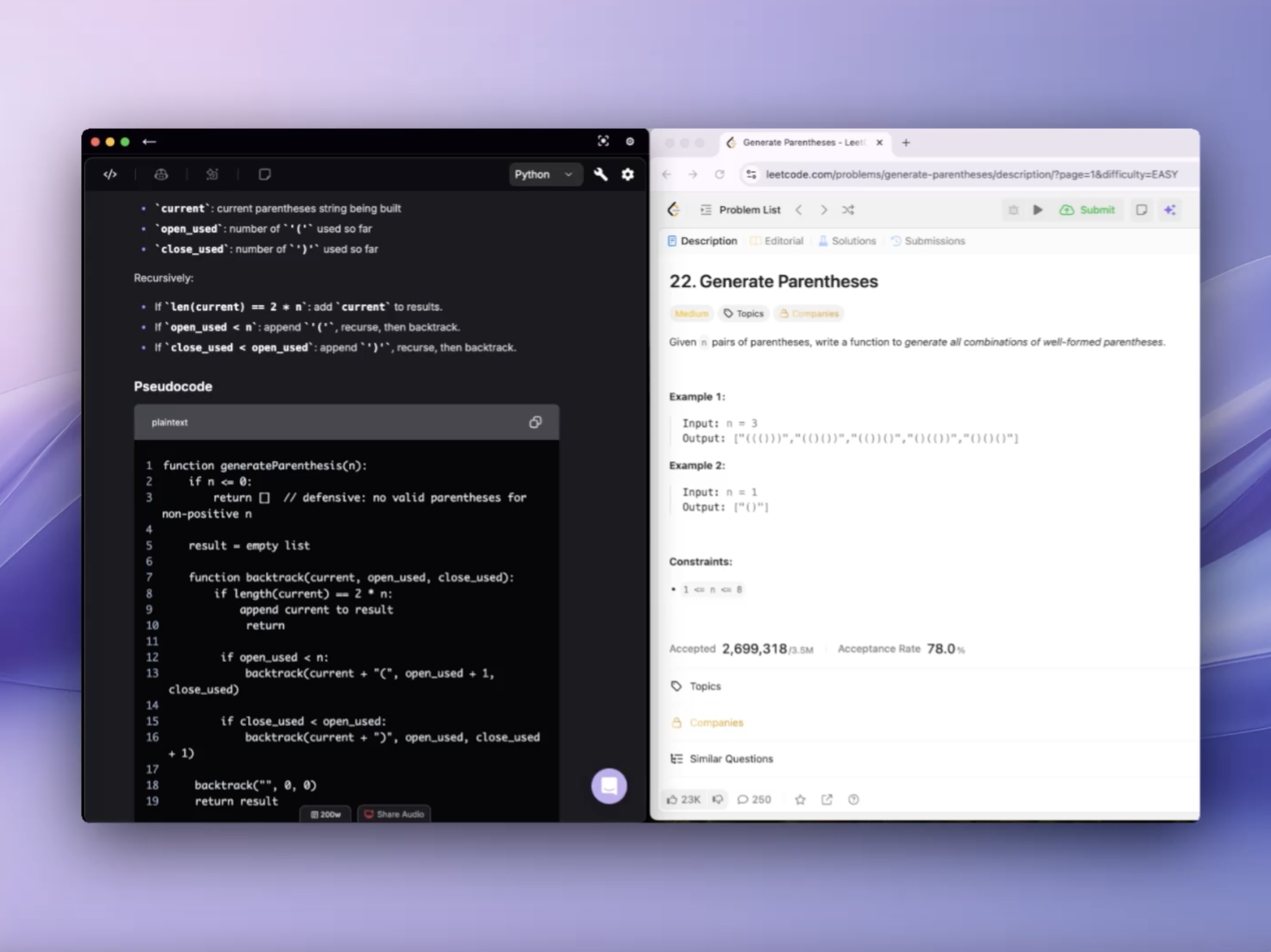
Coding Interpreter
While Interview Copilot generates responses based on detected questions in verbal conversation, Coding Interpreter is a secondary assistant that allows you to capture or send screenshots to solve coding problems on screen. How to access: Coding Interpreter is available as a tab within any active Coding Copilot session1. Setup
Choose between browser or desktop experience: Browser version:- Chrome only - Other browsers are not supported
- Install the Verve AI Chrome extension
- Download and install the Desktop App
- Greater flexibility - works with any application, not limited to Chrome browser
2. Screen Capture
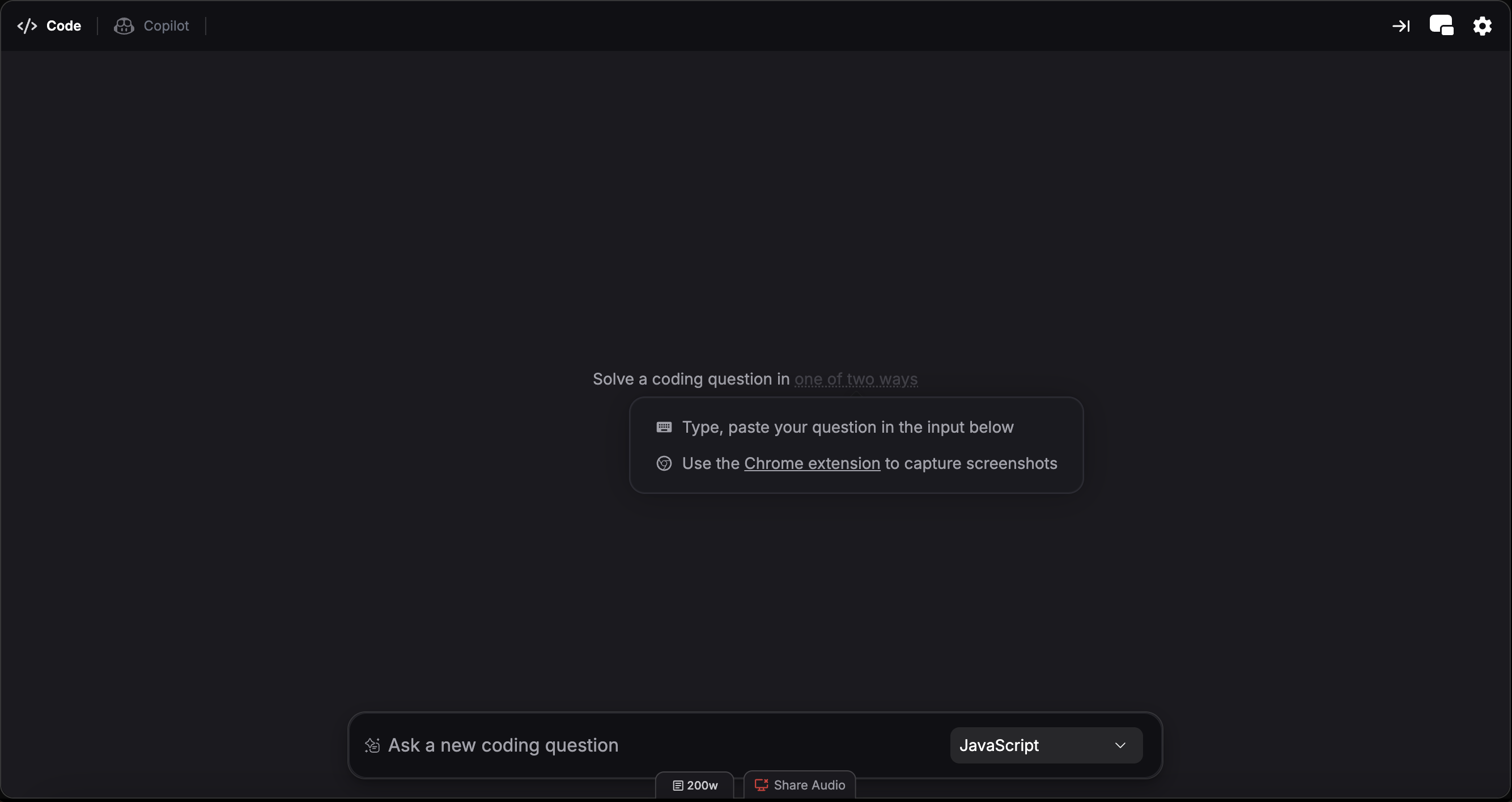
- Navigate to the coding question page with full question visibility
- Click the Verve AI Chrome extension to capture the question and get an instant solution
- Use screen capture hotkeys to capture and solve:
- Cmd + Shift + S (Mac) or Ctrl + Shift + S (Windows) - Capture selected area
- Cmd + Shift + C (Mac) or Ctrl + Shift + C (Windows) - Full screen capture
3. Select Coding Language
Use the dropdown on the chat box to select the programming language you want your solution to be in.4. Use Quick Actions
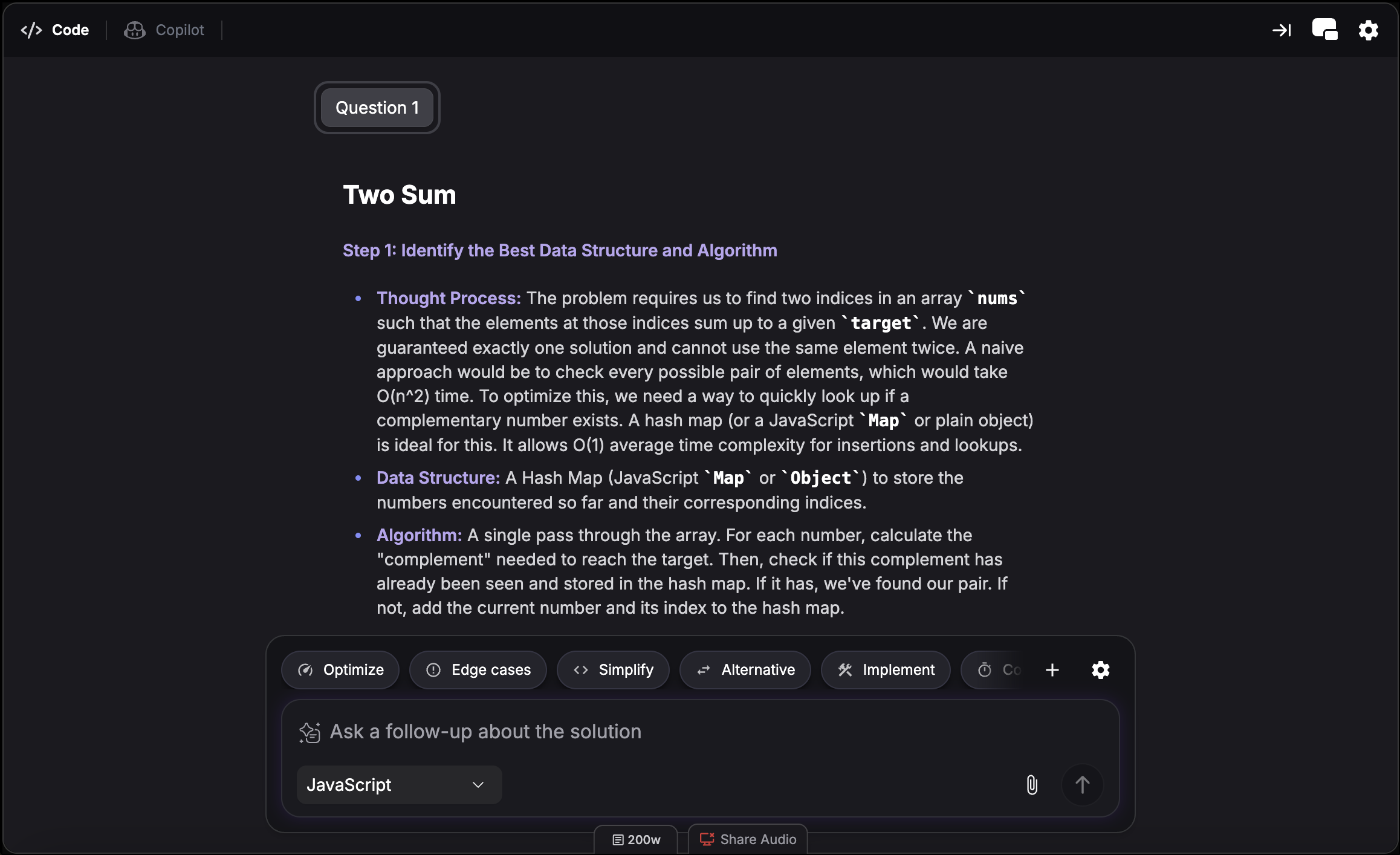
Optimize
Optimize
Suggest a more efficient or faster solution
Edge Case
Edge Case
Suggest improvements to handle tricky or unusual input cases
Simplify
Simplify
Provide a more concise or readable version of the solution
Alternative
Alternative
Offer a different algorithm or method to solve the problem
Implement
Implement
Implement a fully working solution
Complexity
Complexity
Give an analysis of the solution’s efficiency in Big-O notation
5. Share Context
Hover over the chat box and click the settings icon to toggle Share Context. When enabled, Interview Copilot considers your Coding Interpreter interactions as reference when generating spoken support. Turn off if you don’t want Interview Copilot to elaborate on the content.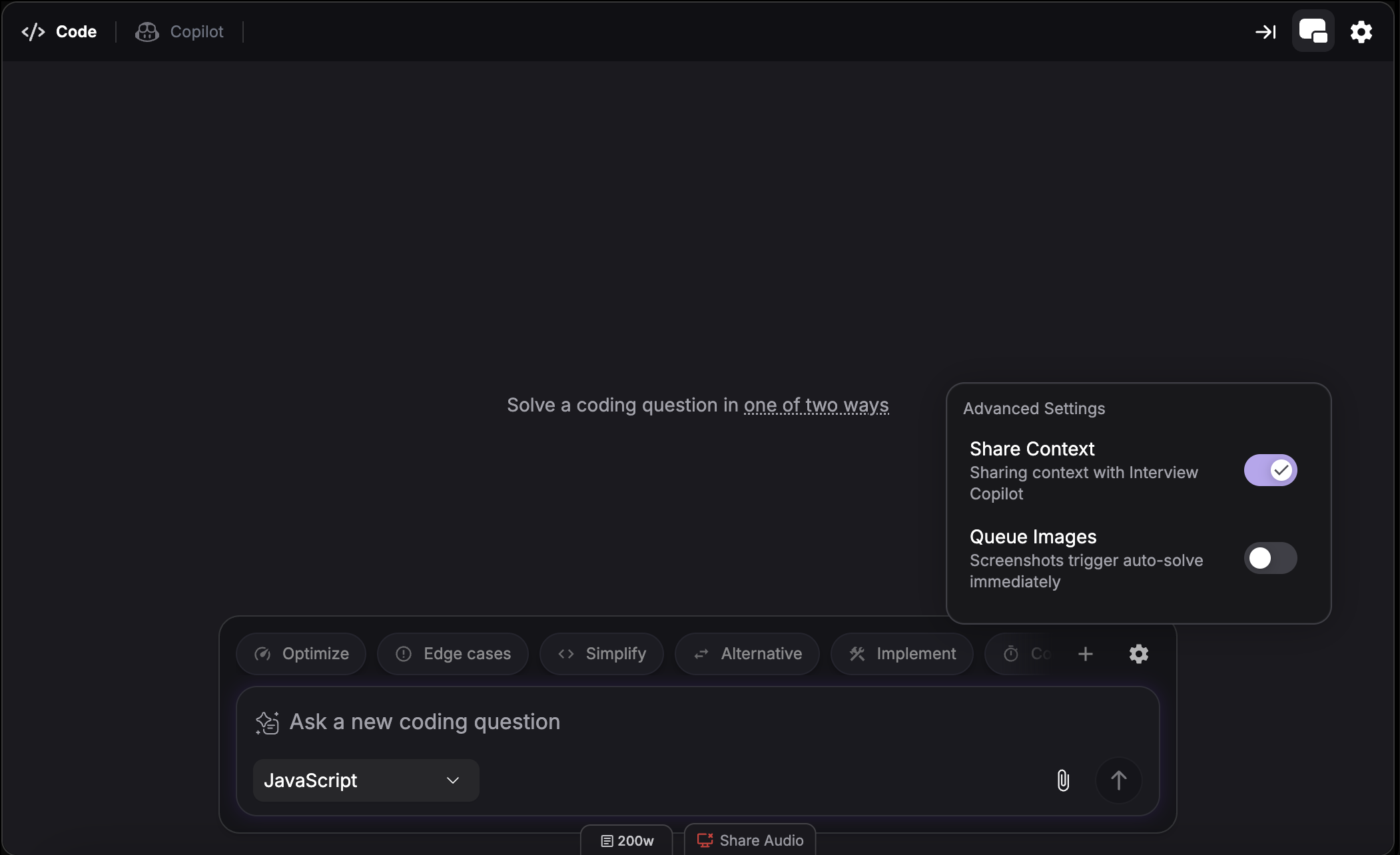
6. View Outline
Open the outline view to jump between sections of the solution quickly. This makes it easier to navigate long answers and revisit the exact part you need during the interview.
Split Screen Mode
View Interview Copilot and Coding Interpreter side-by-side instead of switching between tabs. This lets you reference copilot suggestions while working on coding problems simultaneously. Hotkey: Cmd + / (Mac) or Ctrl + / (Windows) Learn more about split screen mode.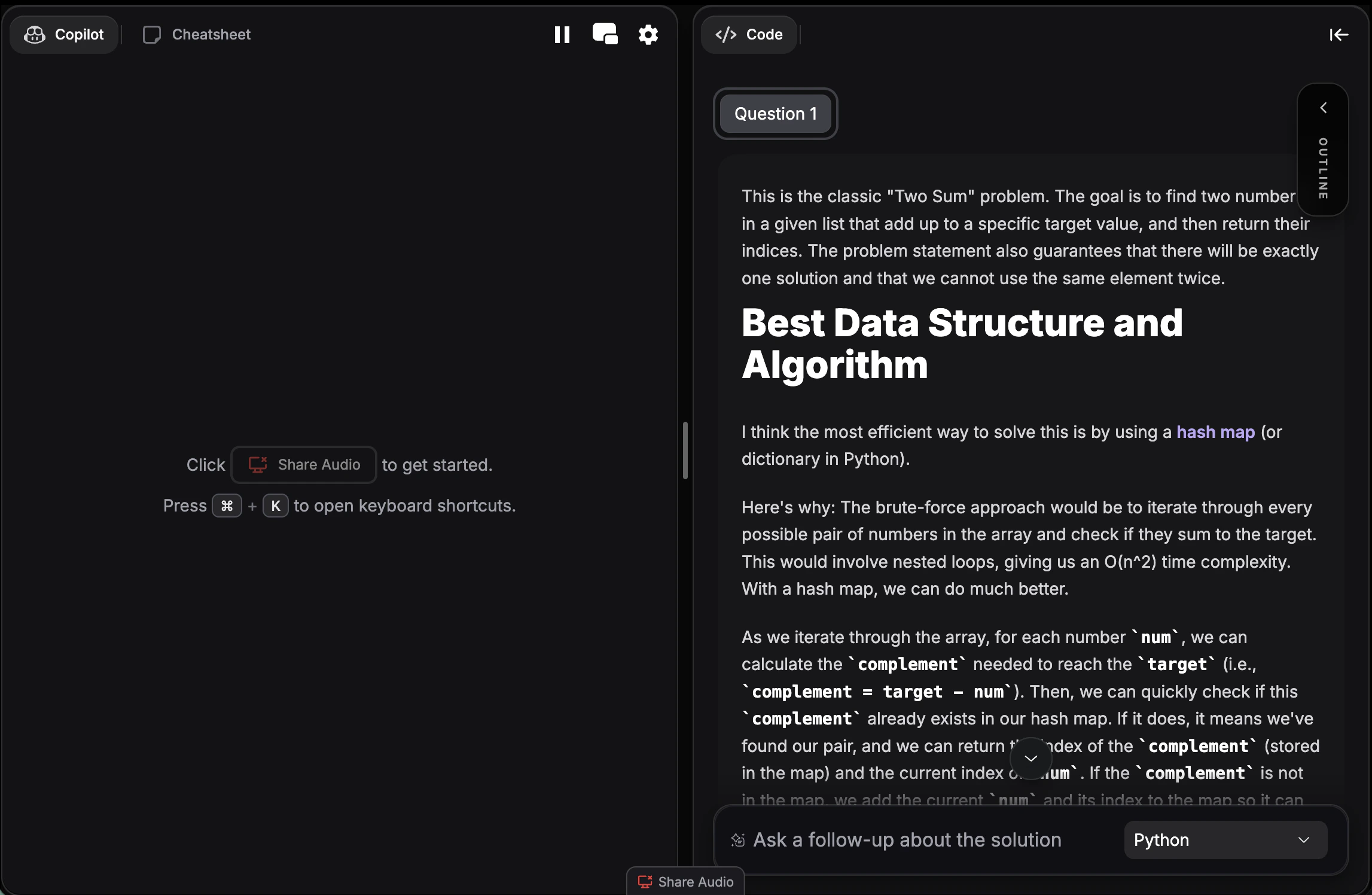
What Problems Does It Solve?
- Algorithms - Arrays, strings, search algorithms
- Data Structures - Trees, graphs, hash tables, heaps, linked lists
- Dynamic Programming - Memoization, tabulation, optimization
- Recursion & Backtracking - Recursive solutions, backtracking
- Sorting & Searching - Binary search, merge sort, quicksort
- System Design - Class design, API implementation
Supported Languages (21+)
Supported Languages (21+)
Coding Copilot supports the following programming languages:
- Python
- JavaScript
- TypeScript
- Java
- C
- C++
- C#
- Go
- Swift
- Kotlin
- PHP
- Ruby
- Rust
- R
- MATLAB
- Scala
- Dart
- Perl
- Lua
- SQL
- Apex
Troubleshooting
Screen capture not working
Screen capture not working
For browser: check that the extension is installed and enabled in your extensions menu, then refresh and try again; for desktop: make sure the app is running and try the hotkey again—that usually does the trick!
Solutions don't match problem
Solutions don't match problem
Ensure full question is visible when capturing, including constraints and examples.
Solutions too complex
Solutions too complex
Use “Simplify” follow-up action or adjust settings for beginner-friendly approaches.