

What is the Mobile Experience?
Yes, you can use Verve AI for phone interviews on your mobile device. The mobile experience is designed specifically for interviews conducted over the phone, providing discreet real-time support on a separate device. Access: Use your mobile browser at Verve AI web appHow It Works
Setup Process
1
Open mobile browser
Use Chrome, Safari or Firefox
2
Navigate to Verve AI web app
Go to Verve AI web app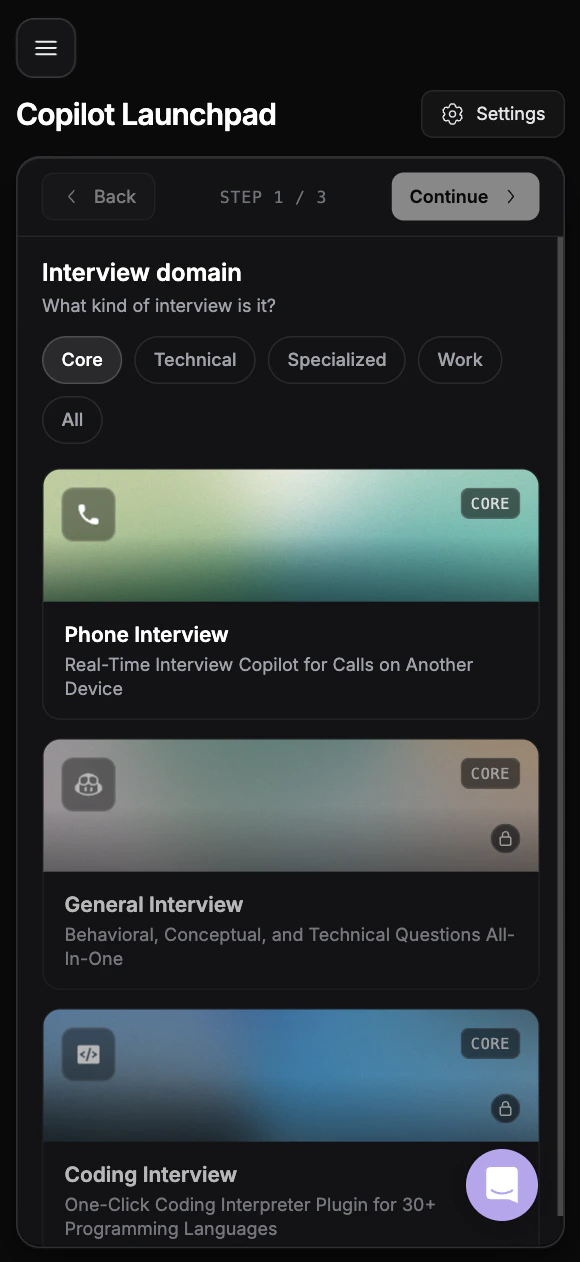
3
Select Phone Interview Copilot
Choose Phone Interview Copilot from your dashboard
4
Start your session
Begin your session while conducting the interview on another device
The Separate Device Advantage
The mobile experience works best when used as a separate device from your phone interview:- Interview on your primary device
- Run Verve AI Copilot on your tablet, second phone, or mobile device
- Glance at suggestions discreetly during the conversation
Important Limitations
Audio Quality Tradeoffs
Mobile browsers capture both interviewer and interviewee audio from the same source, making it harder to:- Distinguish between speakers clearly
- Maintain consistent audio levels
- Filter background noise effectively
Using the Mobile Experience
Once you’ve launched your session, follow these steps to get AI assistance during your interview:1
Select your microphone device
After launching the session, select your microphone device so the AI can hear the interview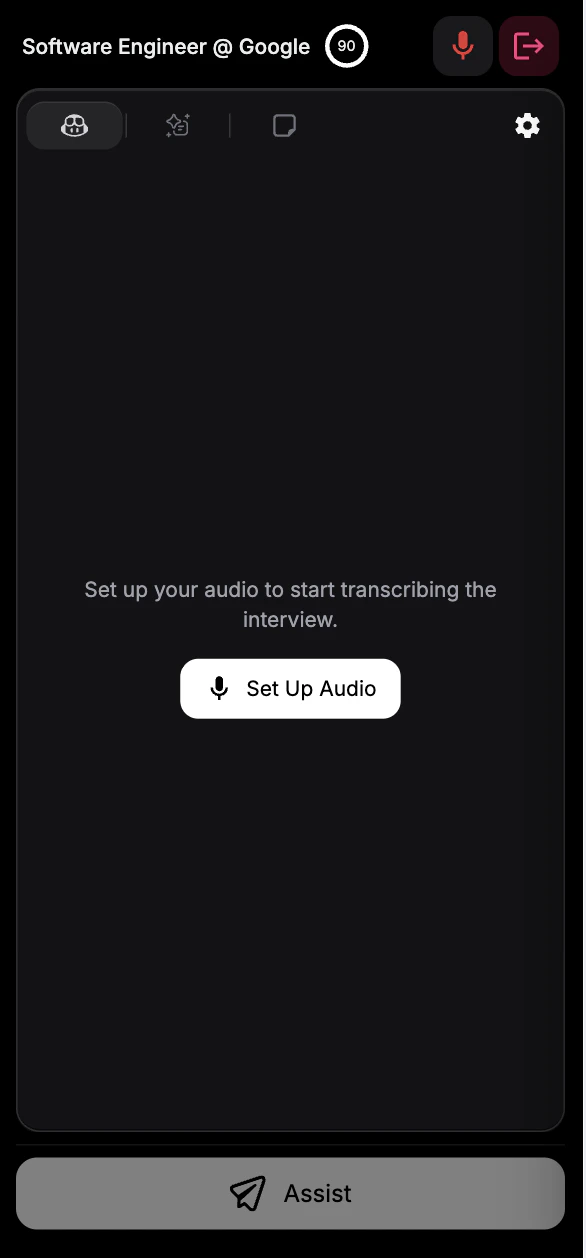
2
Press Assist when you need help
When you need assistance during the interview, press the Assist button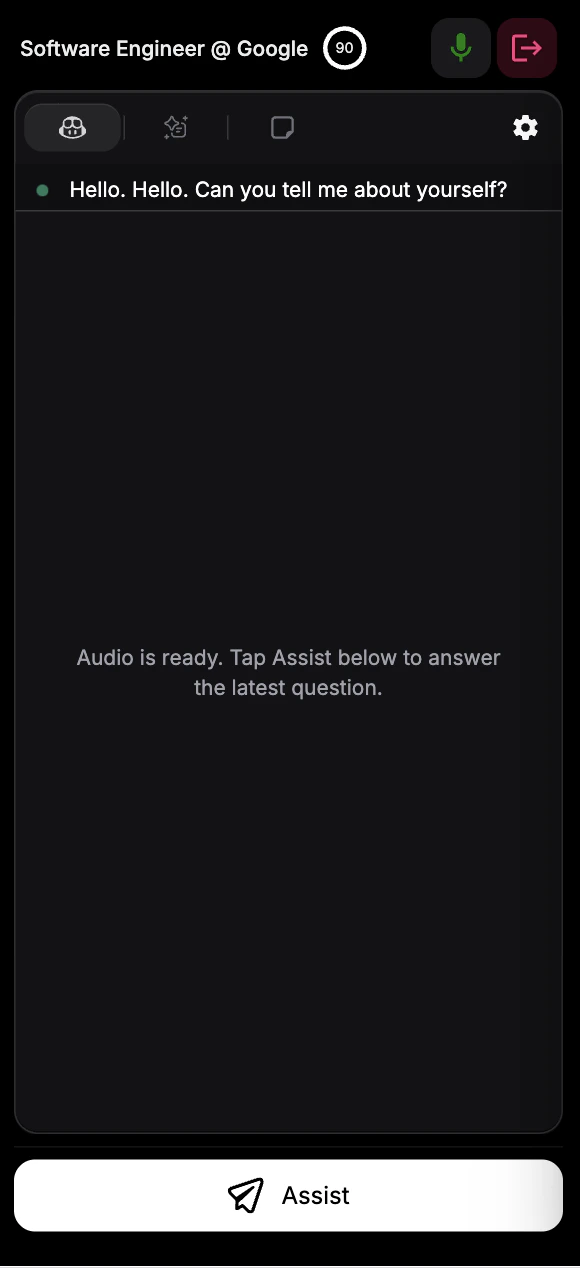
3
Get AI-powered answers
The AI analyzes the recent transcription and provides relevant answers to help you respond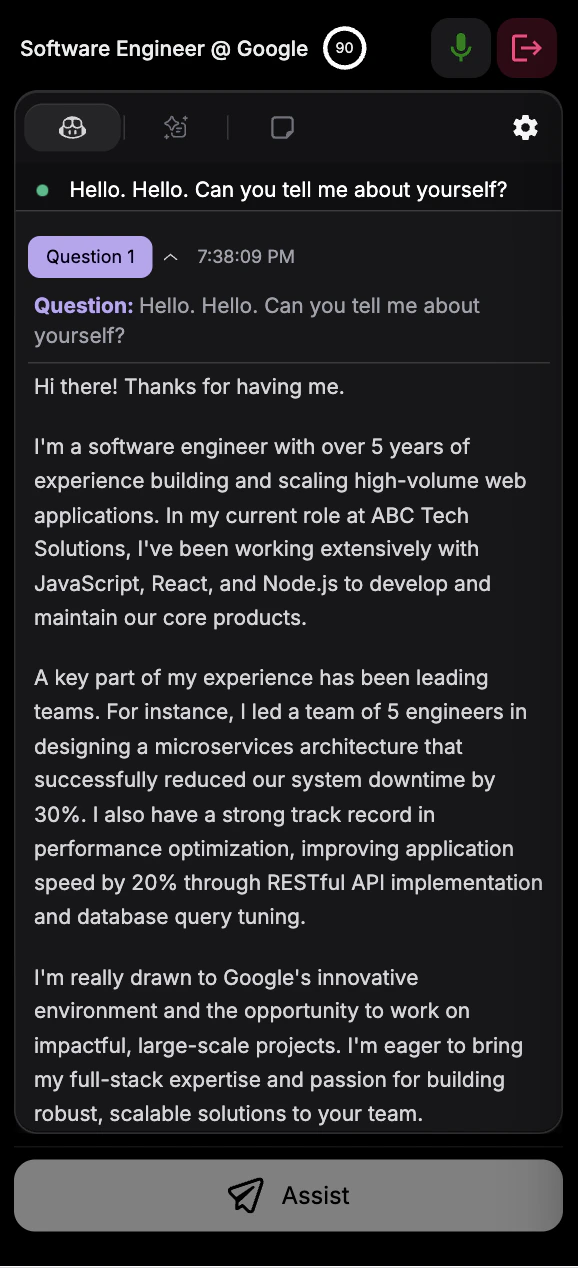
When to Use
Phone-Only Interviews
When the interview must be conducted via phone call
Backup Device
Using a tablet or second phone for discreet support
No Desktop Access
When you can’t use a computer for the interview
On-the-Go
Interviews conducted while traveling or away from desk
Mobile vs. Desktop vs. Browser
Troubleshooting
Audio not being captured
Audio not being captured
Check mobile browser permissions. Go to Settings > [Browser] > Microphone and ensure access is granted. Try refreshing and restarting the session.
Poor transcription quality
Poor transcription quality
This is a known limitation of mobile audio capture. Ensure you’re in a quiet environment, speak clearly, and manually verify speaker selection. Consider using Desktop App for better quality.
Copilot responses don't make sense
Copilot responses don't make sense
Compromised audio transcription affects response quality. Manually select the correct speaker as interviewer. If issues persist, switch to Desktop or Browser version.
Can I use other copilot types on mobile?
Can I use other copilot types on mobile?
Currently, only Phone Interview Copilot is supported on mobile. For Coding, OA, or General Interview Copilots, use the Browser Version or Desktop App.
Real-time support not starting
Real-time support not starting
You must manually select which speaker is the interviewer for real-time support to activate. Check your session settings and speaker selection.