

What is Interview Copilot?
Interview Copilot provides real-time guidance during live interviews. It listens to conversations and displays suggestions visible only to you, or captures questions from your screen for instant solutions. How to access: launch interview copilotHow to Use Interview Copilot
For detailed setup and usage instructions, visit the quickstart guide.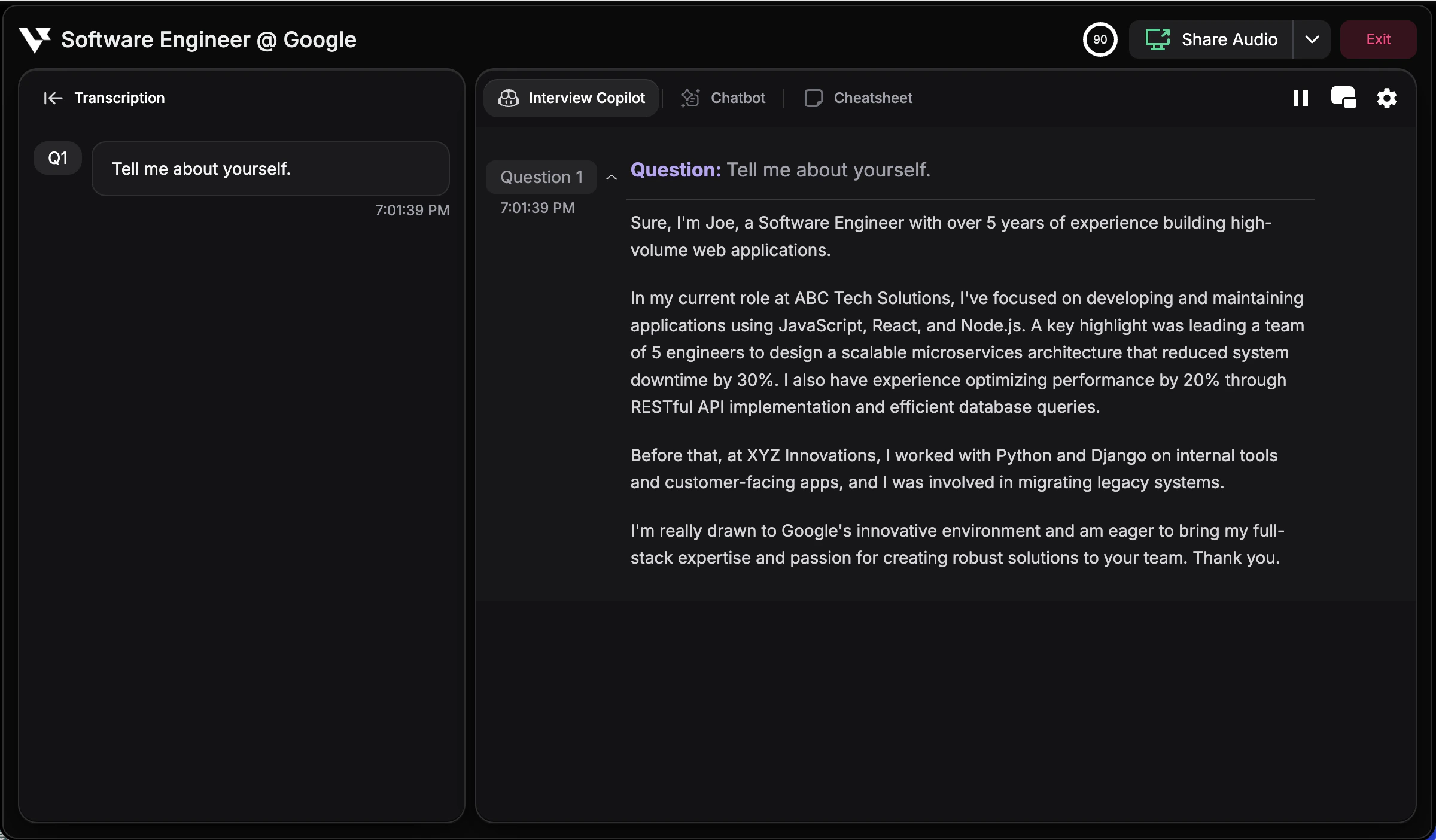
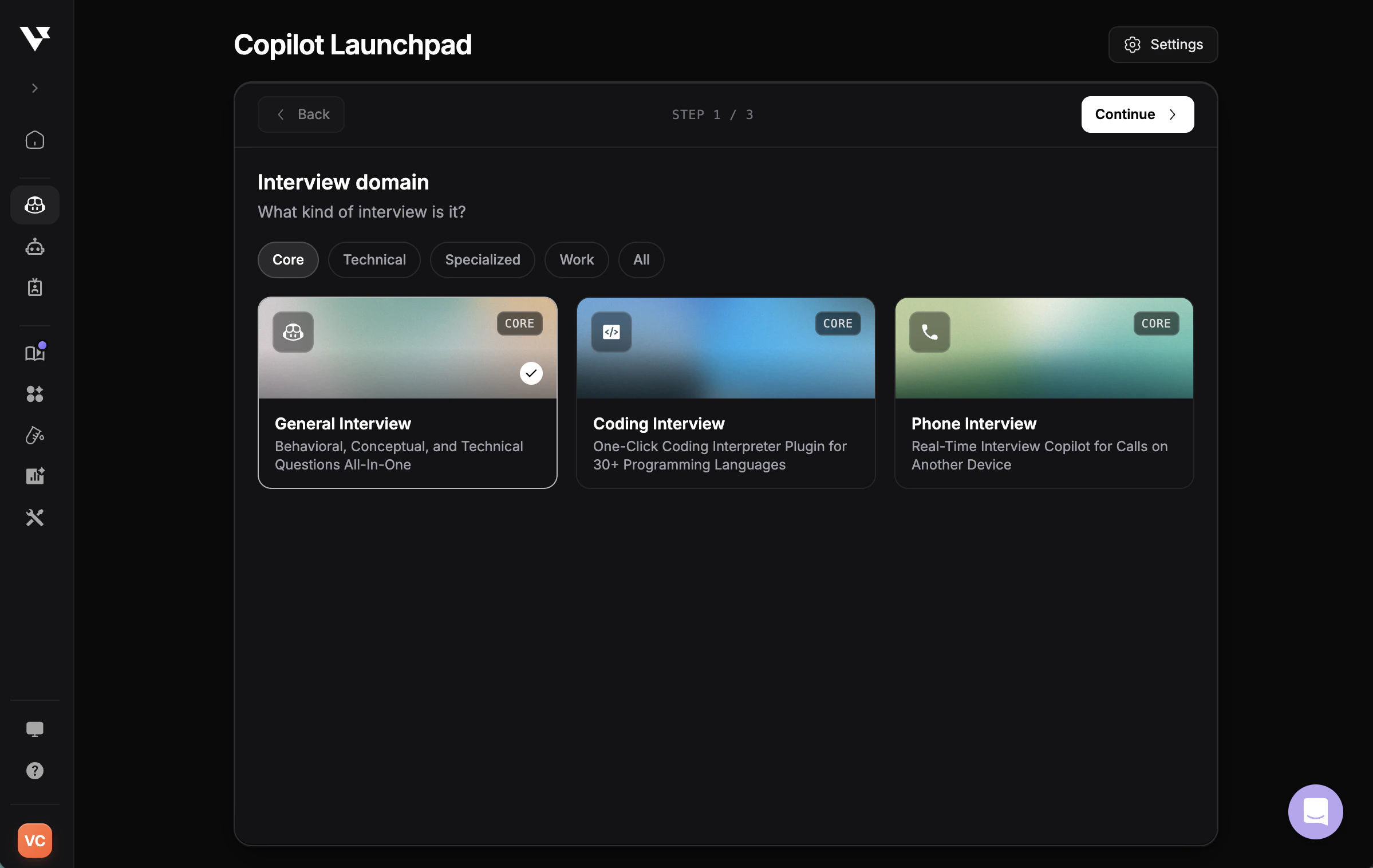
Interview Domains
Interview Copilot supports 20+ specialized domains, each tailored with relevant knowledge and frameworks. Select your domain when launching to get context-aware guidance.Technical Copilot
Coding Copilot
One-click interpreter for 30+ programming languages
Online Assessment Copilot
Crack tests instantly with LLM vision technology
Phone Interview
Real-time copilot for calls on another device
Mercor Interview
Optimized for Mercor’s AI interview system
Industry & Role Domains
Technical & Engineering (5 domains)
Technical & Engineering (5 domains)
Software Engineering - Algorithms, system design, DevOps standardsData Science & Analytics - SQL, statistical methods, ML models, visualizationCloud & Infrastructure Engineering - Scalable systems, cloud architecture, reliabilityCyber Security - Network security, threat analysis, security architectureAI Security & Governance - AI risk management, model security, compliance
Business & Strategy (6 domains)
Business & Strategy (6 domains)
General Interview - Behavioral, conceptual, and technical questions all-in-oneProduct Management - Product lifecycles, market research, agile methodologiesConsulting - Case studies, business strategy, market analysisMarketing - Marketing strategies, digital marketing, brand managementSales & Customer Relations - CRM, sales processes, negotiation, retentionSupply Chain Management - Procurement, logistics, inventory, demand planning
Professional Services (3 domains)
Professional Services (3 domains)
Finance - Financial theories, investment strategies, analysisLegal & Compliance - Regulatory reasoning, risk assessment, frameworksHealthcare - Medical terminologies, healthcare policies, patient care
Specialized (2 domains)
Specialized (2 domains)
Professional Meeting - AI copilot and meeting notes for professional meetingsCollege Application - Admissions, scholarships, and internship interviews
In-Session Controls
Access powerful session controls via the dropdown menu in the top-right corner during active interviews. These features help you customize the copilot experience in real-time.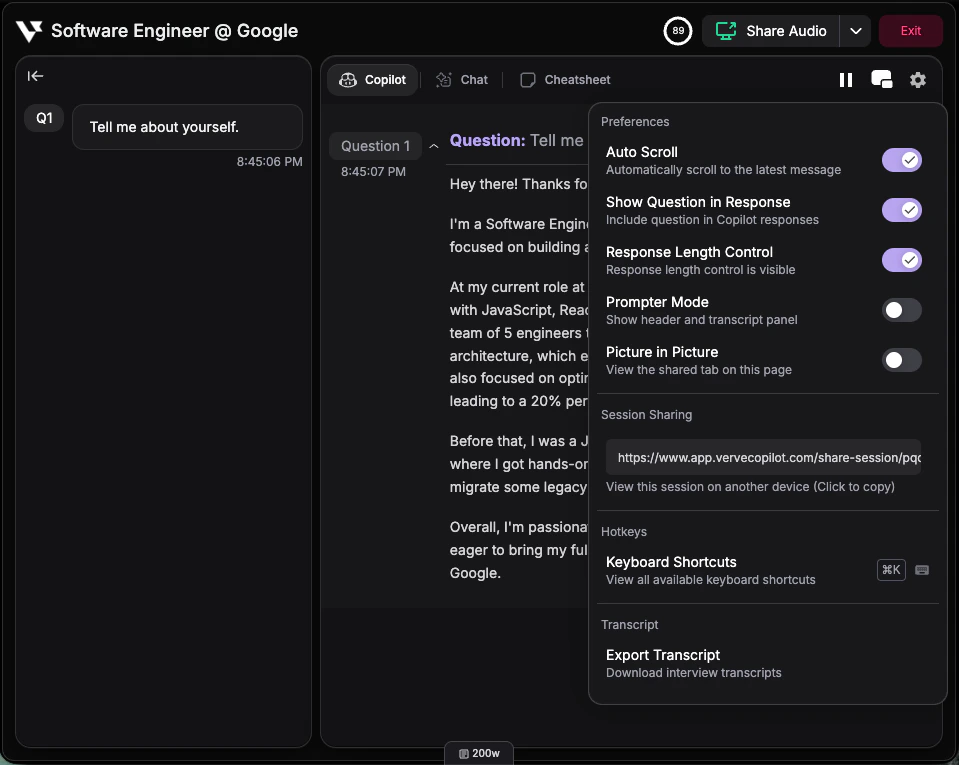
- Auto Scroll - Automatically scroll to the latest AI suggestions as they appear. Turn this on for hands-free real-time updates, or off when you need to review earlier responses at your own pace.
- Show Question in Response - Display the interviewer’s question above each AI response for better context and reference during the conversation.
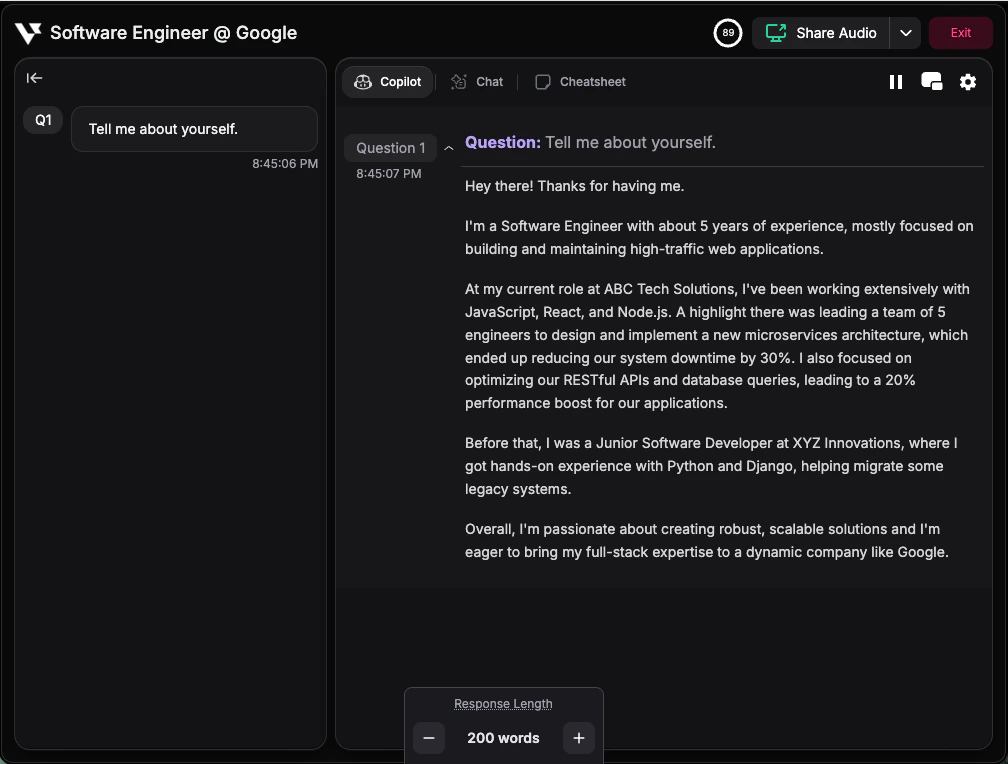
- Response Length Control - Adjust how detailed AI responses are using Cmd + ↑ / ↓ (Mac) or Ctrl + ↑ / ↓ (Windows). Increase for more comprehensive answers or decrease for concise talking points.
- Prompter Mode - Switch to a distraction-free single-panel view that shows only the copilot content, maximizing screen space for reading suggestions.
- Picture in Picture - View the shared tab directly within the copilot interface, allowing you to see what the copilot is capturing and hearing.
- Session Sharing - Generate a shareable link to your interview session for collaborative review or coaching purposes.
- Keyboard Shortcuts - View and reference all available hotkeys for quick access during interviews. Essential for mastering efficient copilot control.
- Export Transcript - Download a complete record of your interview conversation including questions, responses, and timestamps for post-interview review.
Platform Options
Browser Version
- Chrome, Edge, Opera supported for general interviews
- screen capture Chrome extension enables screen capture for all copilot domains
- Real-time transcription and basic hotkeys
Desktop App (Recommended)
- Stealth Mode - Invisible during screen sharing
- Screen capture hotkey - Capture anything and send to Chatbot for instant support
- Transparent overlay - See-through display option
- Platform-agnostic - Works with any application, not just browsers
- Enhanced performance - Better resource optimization
Tips for Success
Use suggestions as talking points
Use suggestions as talking points
Don’t read word-for-word. Glance at structure and key points, then speak naturally.
Practice with hotkeys first
Practice with hotkeys first
Get comfortable showing and hiding the panel instantly. Smooth control looks more natural during interviews.
Take the wheel with Chatbot when you need it
Take the wheel with Chatbot when you need it
If transcription misses something or you want to dig into specific topics, just switch to the Chatbot tab and type your question directly. You can also upload screenshots—Interview Copilot will factor this content into its responses, so your answers stay relevant to any materials being discussed. Learn more about Chatbot.
Troubleshooting
Copilot isn't hearing questions
Copilot isn't hearing questions
Ensure audio sharing is properly configured. Learn how to share audio →
Responses feel generic
Responses feel generic
Upload your resume and add context in Knowledge Base. You can also customize the response style and tone in Custom Response Style settings.
Copilot responds too quickly or too slowly
Copilot responds too quickly or too slowly
Adjust the pause interval to control how long the copilot waits before responding. You can also switch to Manual Mode to trigger responses only when you’re ready.
Session time ran out
Session time ran out
Check your plan limits and remaining sessions. Upgrade if you need longer or more sessions.
Language isn't transcribing correctly
Language isn't transcribing correctly
Verify you selected the right language in interview language settings. Enable multilingual support for non-Latin languages.