Browser Audio Sharing
When using Verve AI in your browser, you need to share your meeting tab’s audio so the copilot can listen to the interview. The process varies depending on your operating system.- Windows
- MacOS
On Windows, you have full flexibility when enabling audio capture in supported browsers like Chrome, Edge, or Brave:Windows allows audio capture regardless of whether you’re sharing a tab, window, or full screen.
1
Share screen with Verve AI
In Verve AI, click the screen sharing button to share your meeting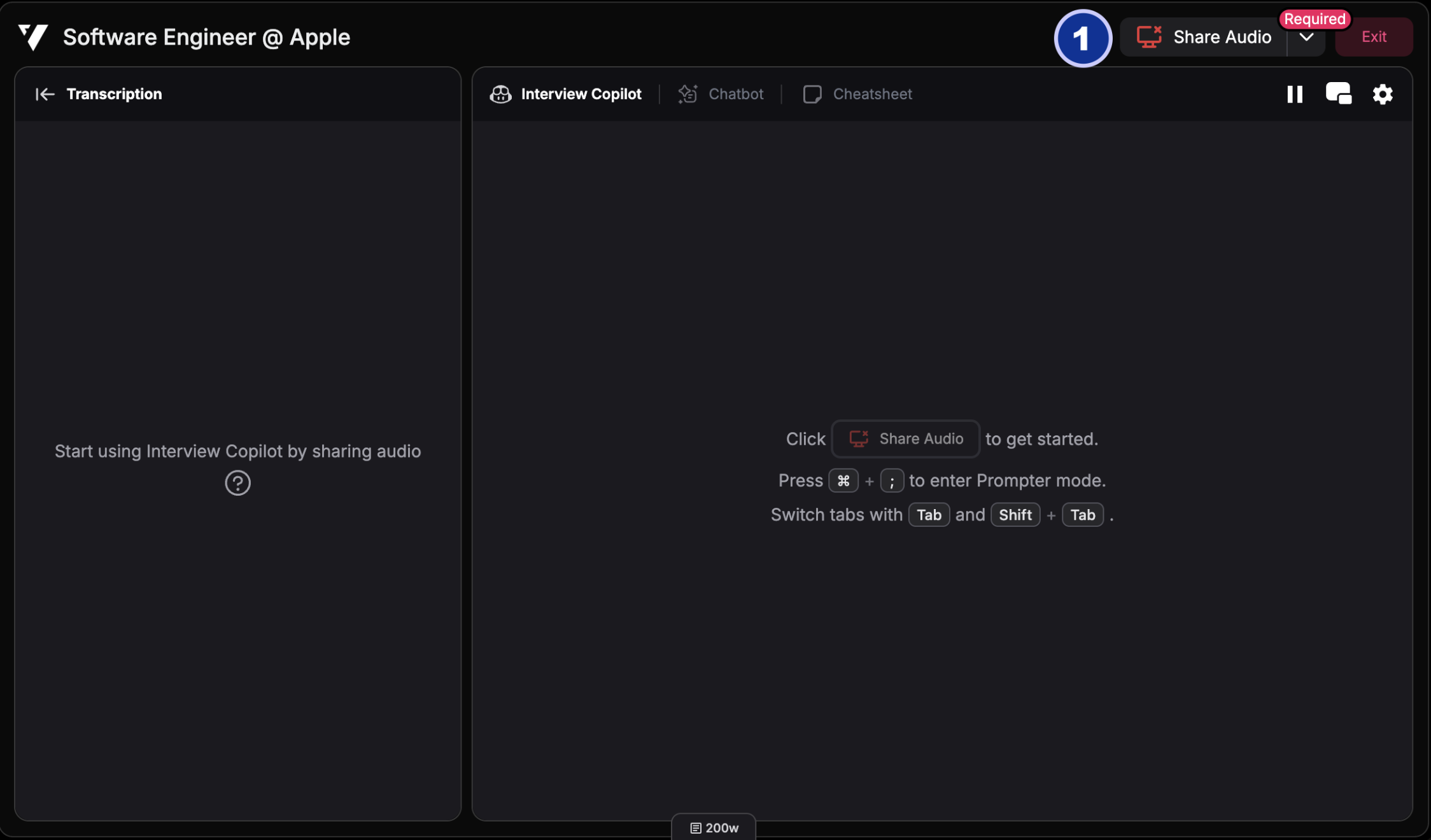
2
Choose what to share
Choose to share either a tab, window, or entire screen containing your meeting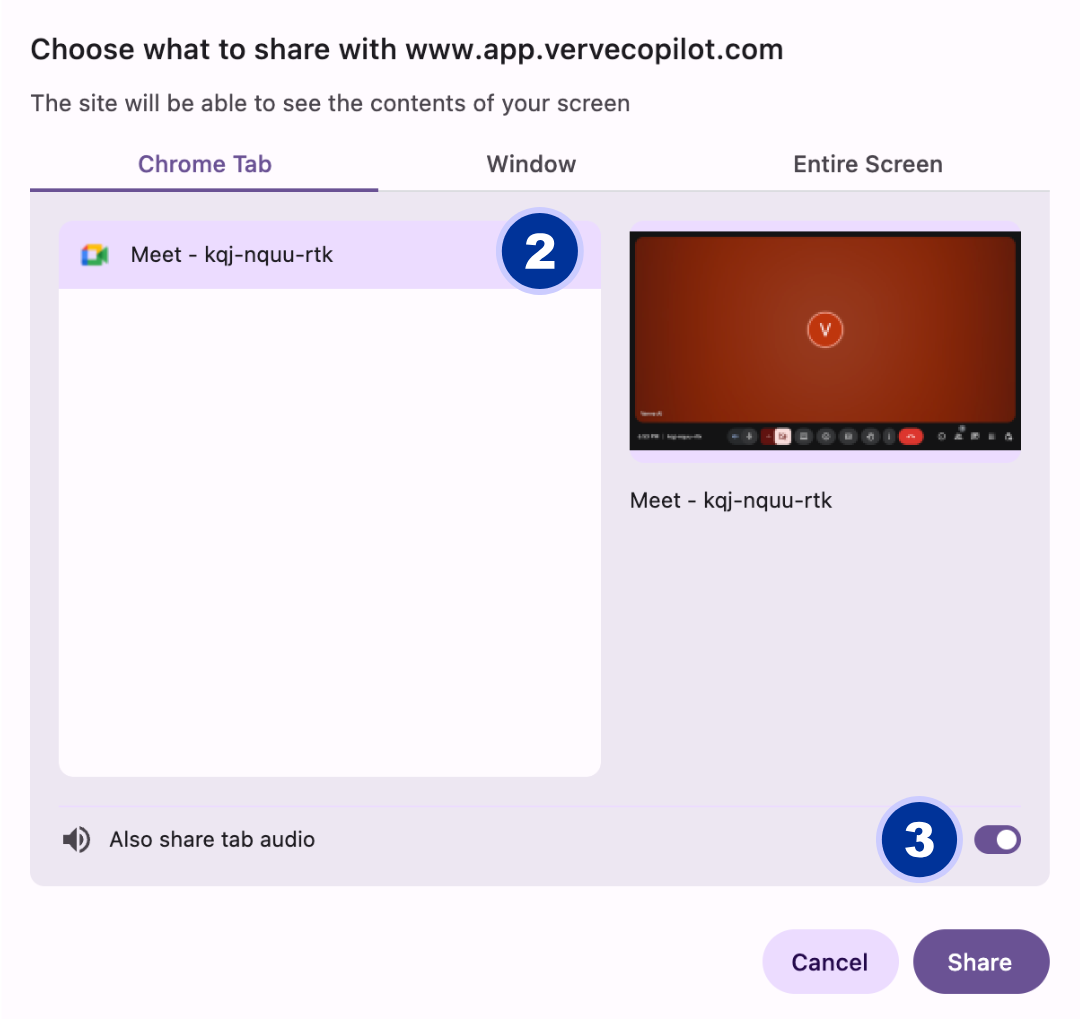
3
Enable audio (Required!)
Check the “Share audio” or “Share tab audio” checkbox - this allows the copilot to hear the interviewer
4
Start sharing
Click “Share” to enable audio capture
Desktop App Audio Sharing
The Desktop App provides the simplest and most flexible way to enable audio capture across both Windows and MacOS. It works seamlessly with desktop meeting applications like Zoom, Teams, and Google Meet.How to Enable Audio Capture on Desktop App
1
Launch Interview Copilot
Open the Verve AI Desktop App and launch Interview Copilot
2
Click Share Audio
Click the “Share Audio” button in the copilot interface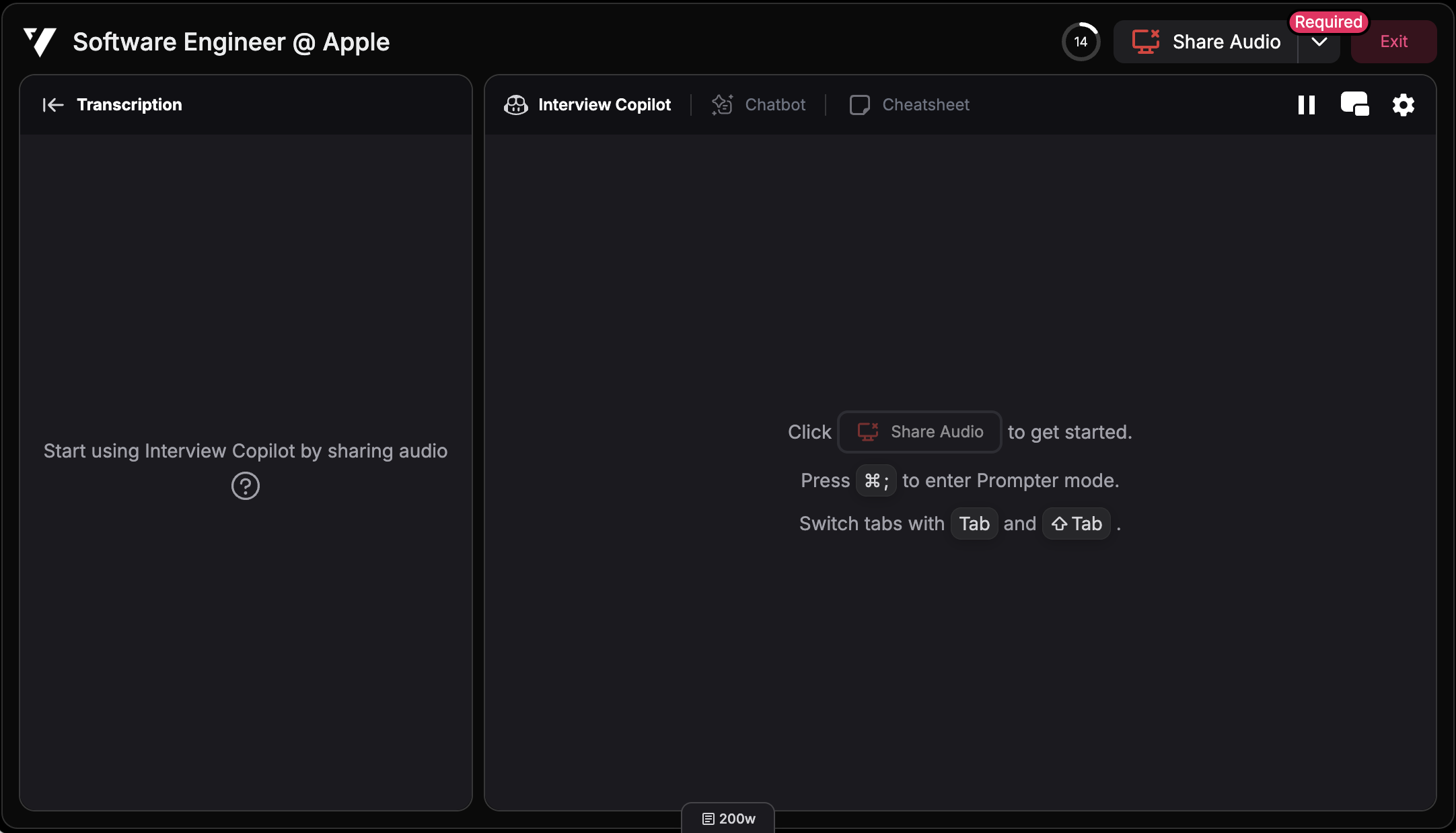
3
Done!
That’s it! The copilot can now hear your interviewer and provide real-time assistance
Sharing Your Audio (Optional)
In addition to sharing interviewer audio with the copilot, you may also need to share your own audio (microphone) with the copilot. This is separate from the audio sharing setup above.How to Share Your Audio with the Copilot
1
Open Verve AI
Navigate to Verve AI in your browser or desktop app
2
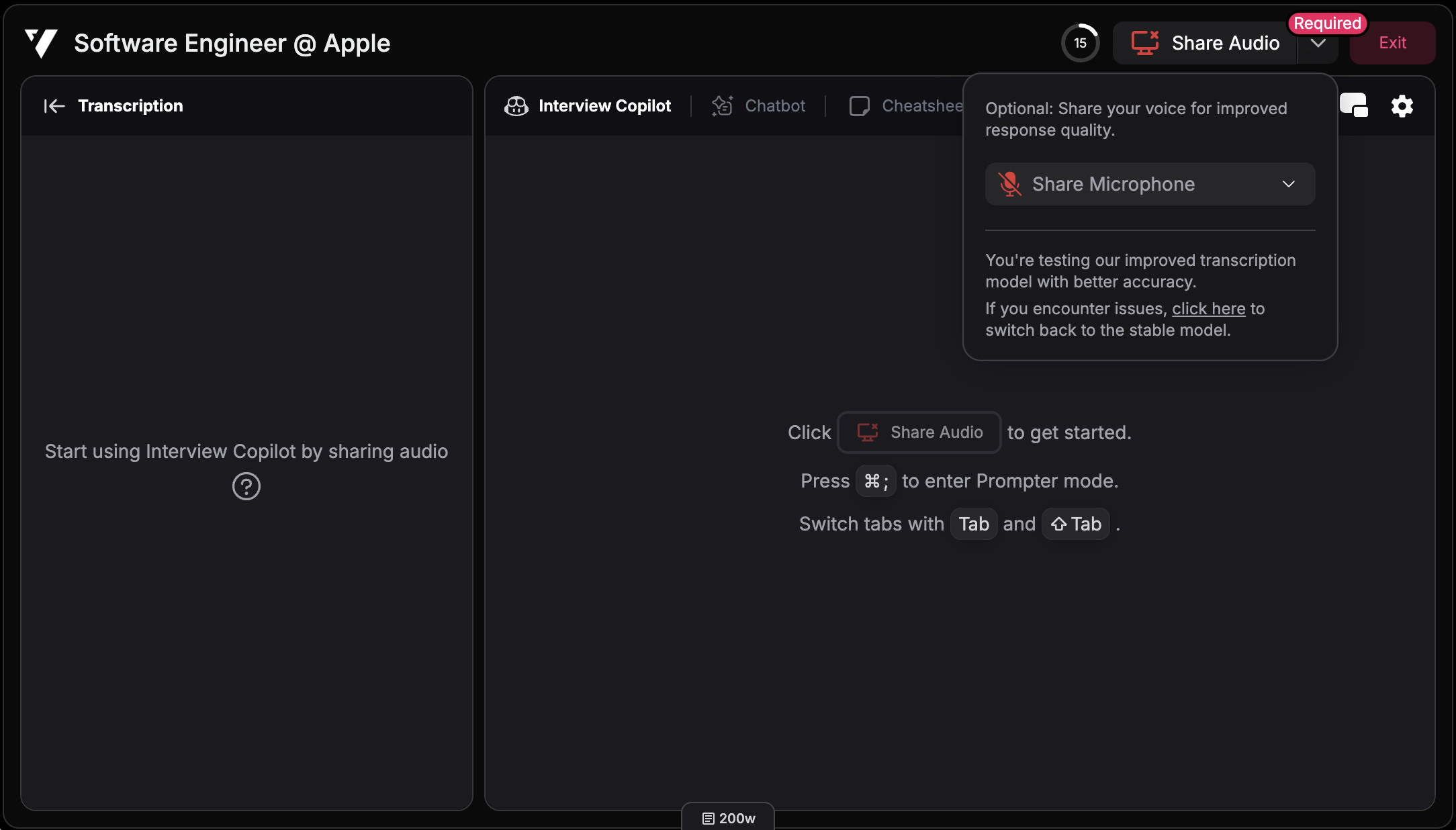
Select your microphone device
Click the down arrow to the right of the share audio button and select your microphone device