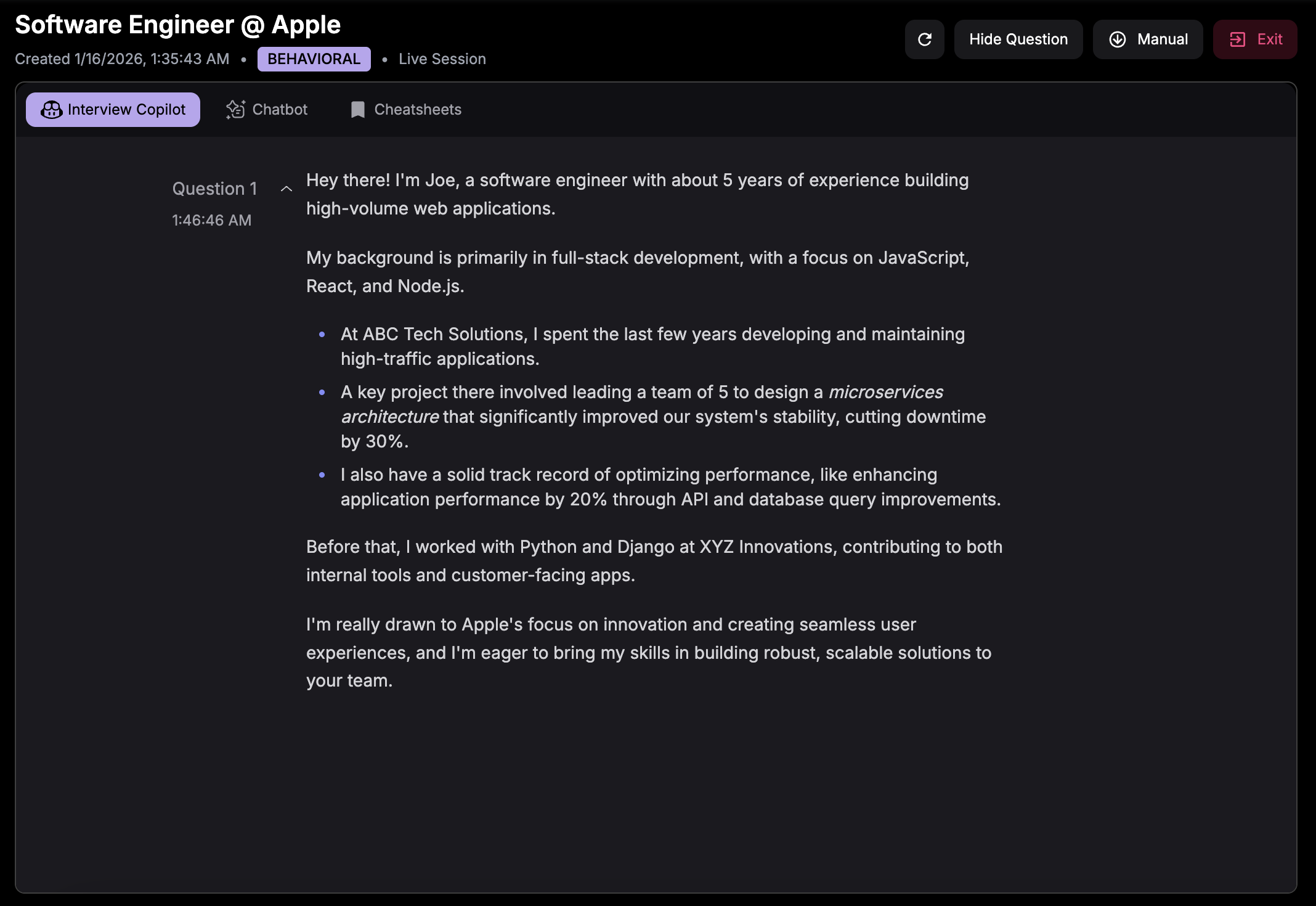
What is Session Sharing?
Session Sharing lets you copy a link to your active Interview Copilot session and open it on another device. Both devices stay in sync with the same real-time suggestions, so you’re always seeing the latest copilot responses.Common Use Cases
Single monitor setup
Single monitor setup
If you don’t have a second monitor, use your phone as an extra screen. Keep the video call fullscreen on your laptop while viewing copilot suggestions on your phone beside your keyboard.
Screen sharing safety
Screen sharing safety
When the interviewer asks you to share your entire screen, having the copilot on your phone keeps it completely off your computer—nothing to hide or minimize.
Backup device
Backup device
If your laptop has audio issues or crashes mid-interview, your phone already has the session open and ready to continue without interruption.
How to Share Your Session
1
Start an Interview Session
Begin an active Interview Copilot session.
2
Open Settings
Click the Settings gear icon in your active session.
3
Copy the Session Link
Find the Session Sharing section and click to copy the session link.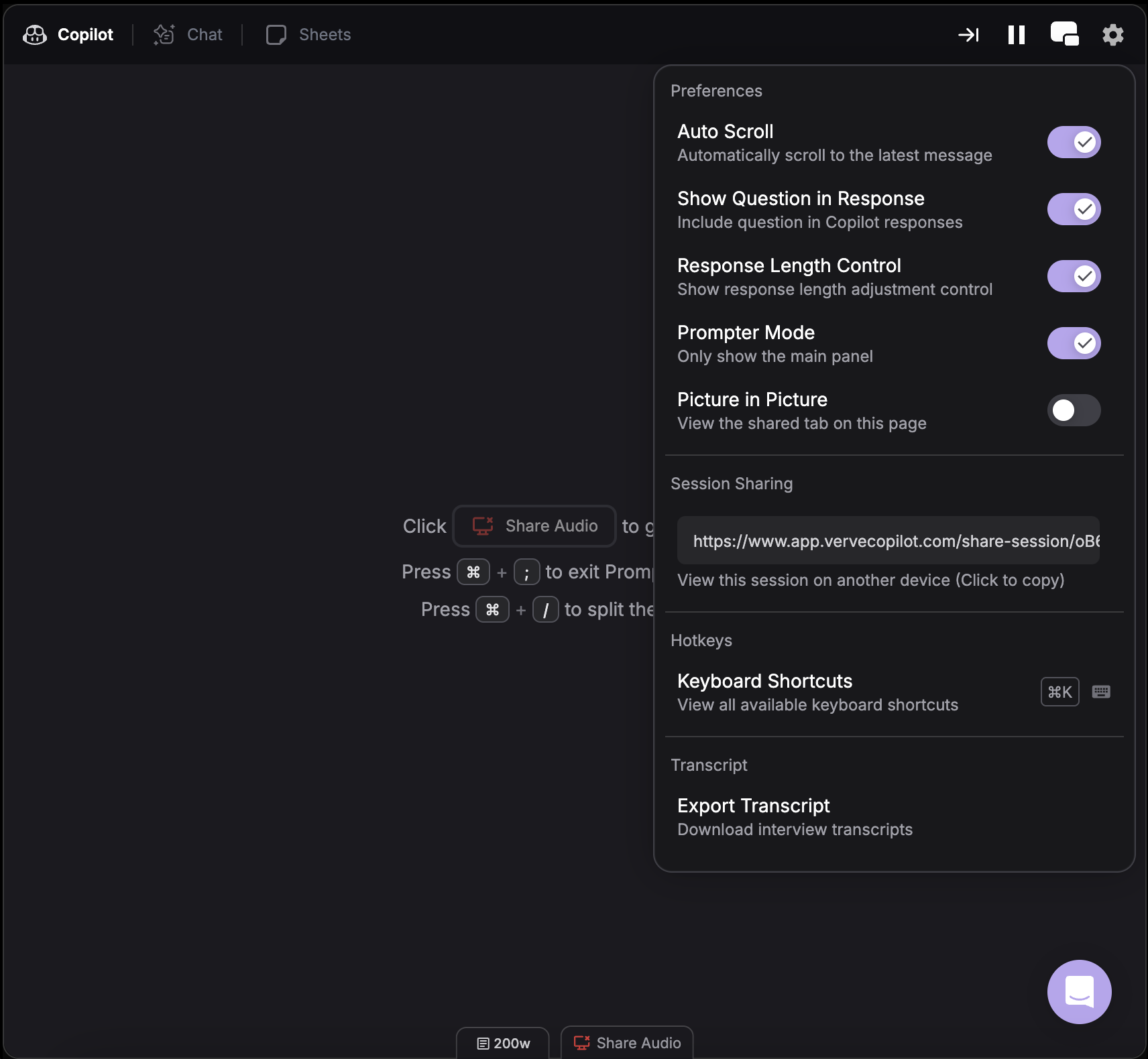
4
Open on Your Other Device
Paste the link in your phone’s browser (or any other device) to access the live session.