

What is Window Transparency?
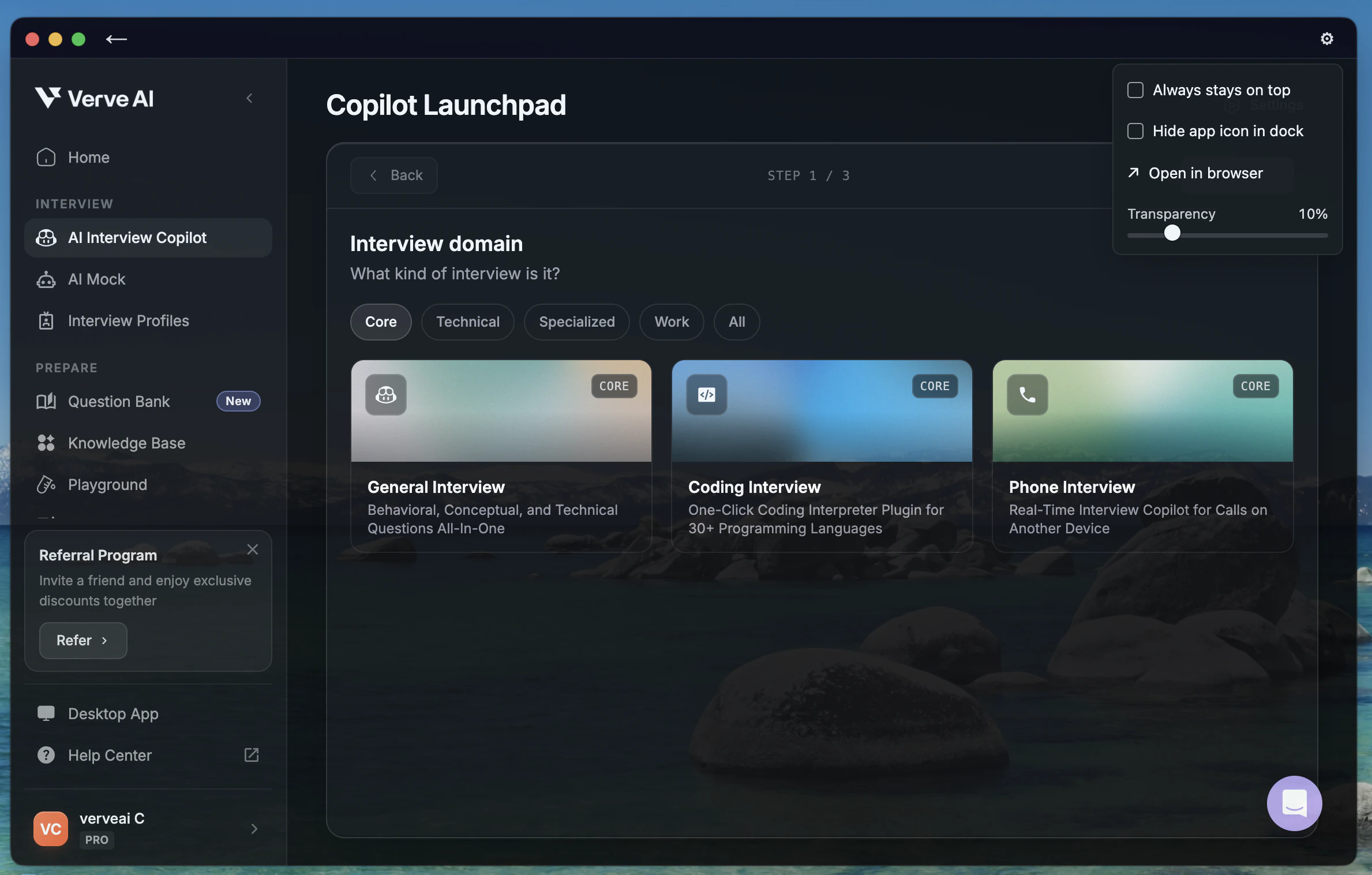
Window Transparency lets you control how see-through the Verve AI Floating Window appears on your screen. Adjust it to make the copilot more discreet or more visible, depending on your preference.How to Adjust Transparency
- Launch an AI Interview Copilot session in the Desktop App
- Click Settings (gear icon in top-right corner)
- Find the Transparency Slider in the dropdown menu
- Adjust the slider:
- Move left → More transparent (see-through)
- Move right → Less transparent (more visible)
Haven't launched a session yet?
Haven't launched a session yet?
To start a session:
- Go to AI Interview Copilot on the Verve AI Dashboard
- Select an Interview Profile
- Choose the Domain of Interview
- Verify the checklist and launch your session
Troubleshooting
Can't find the Transparency Slider
Can't find the Transparency Slider
Make sure you have the latest Desktop App installed:
- Update to the latest version if needed
- Ensure you’re in an active copilot session
- Look for the Settings button (gear icon) in the top-right corner
Slider doesn't respond
Slider doesn't respond
If the transparency slider isn’t working:
- Restart the Desktop App
- End your current session and start a new one
- Clear the app cache from Settings
Not available in browser or mobile?
Not available in browser or mobile?
Correct - Window Transparency is only available in the Desktop App. Download it here.