

Overview
The Test Audio tab helps you confirm that your audio setup is working before you start a real interview session. Use it from the copilot launcher to verify that Verve AI can detect the audio input you expect.How to Test Audio
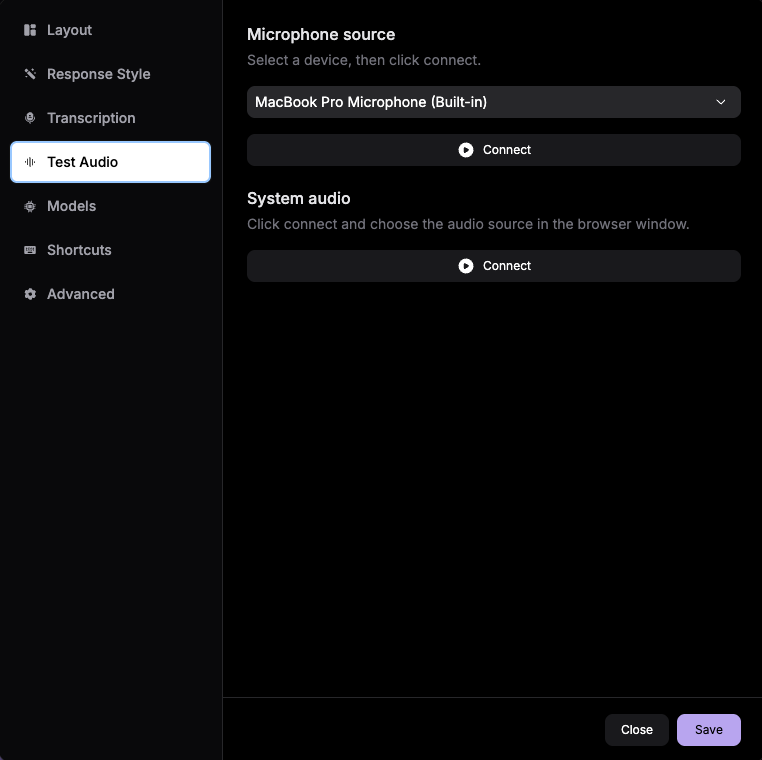
1
Open the Copilot Launcher
Go to Interview Copilot and open the launcher.
2
Open Launcher Settings
Click Settings in the launcher before starting your session.
3
Go to Test Audio
Open the Test Audio tab in the settings panel.
4
Run an Audio Check
Speak into your microphone or play sample meeting audio to confirm Verve AI is receiving sound.
5
Review the Result
Make sure the test shows the expected input activity before you launch the real session.
Troubleshooting
No audio activity appears
No audio activity appears
Check your input device, confirm microphone or system audio permissions are granted, and retry the test. If needed, review Audio Permissions.
The wrong audio source is detected
The wrong audio source is detected
Switch to the correct microphone, headset, or meeting output device in your system settings, then run the test again before launching.
Audio works in test but not in session
Audio works in test but not in session
Re-open launcher settings and confirm the same device setup is still selected. If your meeting platform changed devices after launch, restart the launcher and test again.
Need help sharing interview audio?
Need help sharing interview audio?
Review Share Audio for platform-specific guidance on getting interview sound into Verve AI.