

Overview
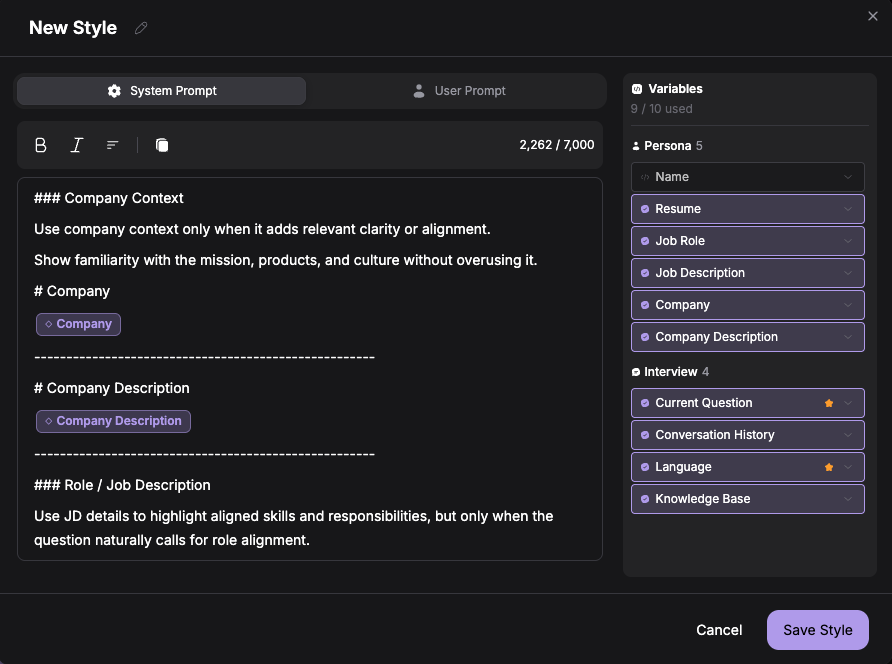
Custom Response Style lets you customize exactly how your AI Interview Copilot generates responses by modifying the system and user prompts that power the AI. This advanced feature gives you complete control over the AI’s behavior, tone, structure, and focus—allowing you to tailor responses to your specific interview style and needs. How to access: Click the settings gear icon on the copilot launch page, then select the Response Style tab. This can also be accessed on Playground → Custom Styles tab.How to Create a Custom Response Style
1
Navigate to Response Style Settings
Go to the copilot launch page and click the settings gear icon. Select the Response Style tab.
2
Create New Style
Click Create New Style to start building a custom response configuration.
3
Name Your Style
Give your style a descriptive name (e.g., “Technical Interview - Concise”, “Behavioral STAR Format”, “System Design Deep Dive”).
4
Customize System Prompt
Modify the system prompt to define how the AI should behave. This controls the AI’s role, tone, and general instructions.Example: “You are a technical interview assistant. Provide concise, code-focused answers with minimal explanation. Always include time/space complexity analysis.”
5
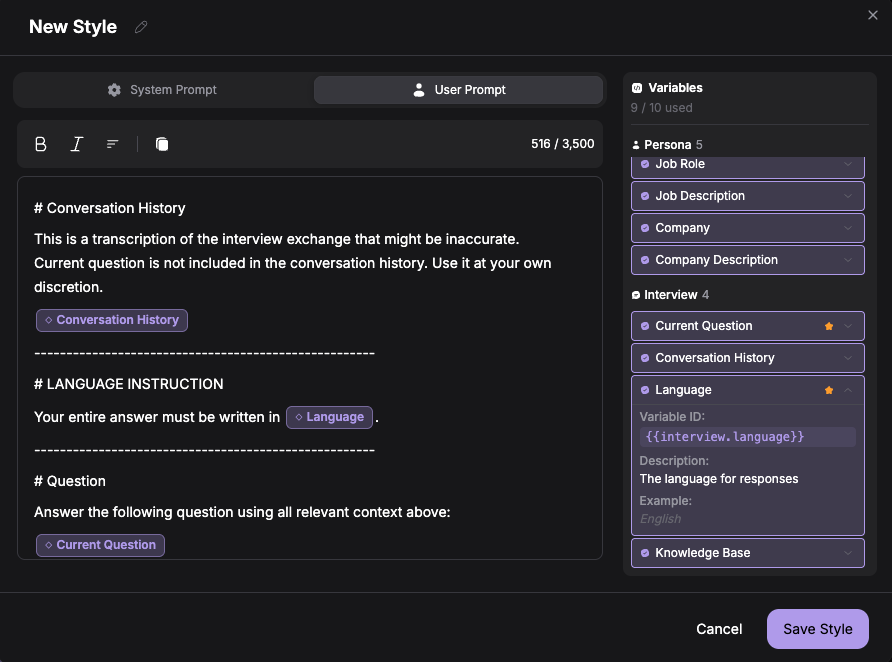
Customize User Prompt
Define how user input is formatted when sent to the AI. Insert variables using double curly braces like
{{variableName}}.Example: Question: {{interview.question}} with Candidate Background: {{interview.question}} and Target Role: {{interview.question}}6
Save Your Style
Once complete, click Save to add your custom style to your library. It will now appear in your style selection dropdown.
How to Manage Custom Styles
The Playground is your central hub for testing, managing, and refining custom response styles before using them in real interviews.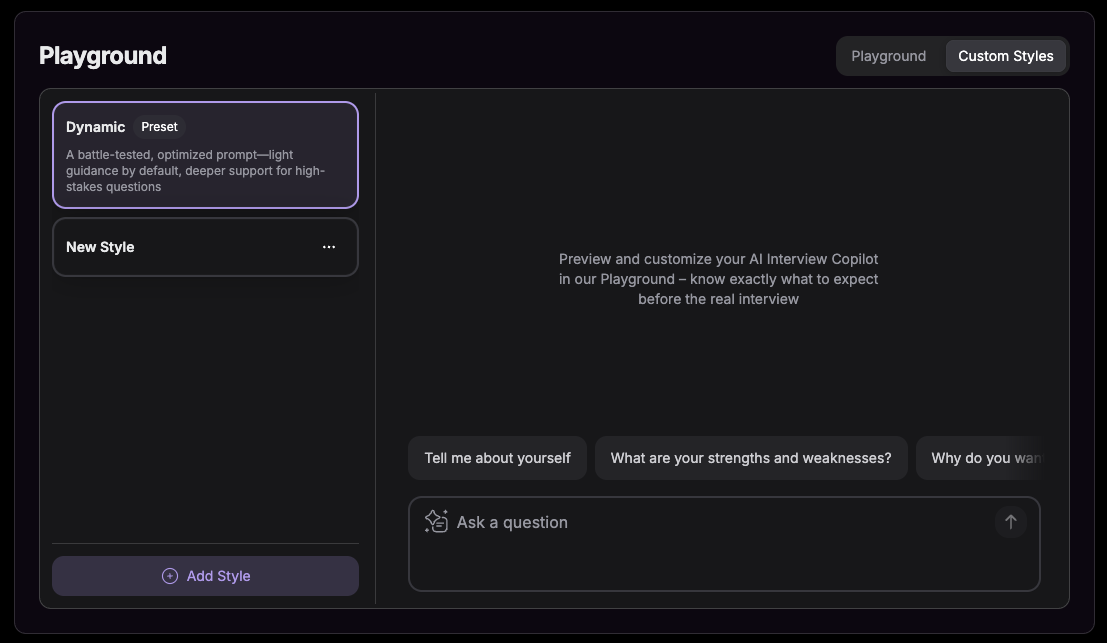
Test Your Custom Styles
1
Access Playground
Navigate to Playground from your dashboard.
2
Select Your Style
In the left panel, find and select the custom style you want to test from the dropdown menu.
3
Ask Test Questions
Type interview questions in the right-side chat box to see how your custom style generates responses.
4
Evaluate Responses
Review the AI’s answers to ensure they match your expectations in terms of tone, structure, and content.
5
Iterate and Refine
Return to settings to adjust your prompts based on test results, then re-test until responses feel perfect.
Available Variables
When creating custom prompts, you can insert dynamic variables that automatically populate with your personal information. This makes responses more contextual and relevant to your specific interview.Persona Variables
These variables pull from your active interview profile:Interview Variables
These variables are dynamically updated during your interview session:Troubleshooting
Variables aren't being replaced with actual data
Variables aren't being replaced with actual data
Ensure you’re using the exact variable names with correct spelling:
{{persona.name}}, {{persona.resume}}, {{interview.question}}, etc. Variables use camelCase formatting.The AI isn't following my custom instructions
The AI isn't following my custom instructions
Make your system prompt more specific and directive. Use clear language like “Always include…” or “Never mention…” instead of suggestions like “Try to…” or “Consider…”.
My style works in Playground but not in live interviews
My style works in Playground but not in live interviews
Ensure you’ve selected the correct custom style before launching your interview session. Check the Response Style dropdown in copilot settings before clicking “Start Interview.”
My custom style isn't appearing in the dropdown
My custom style isn't appearing in the dropdown
After creating a style in settings, refresh the page or navigate back to the Copilot Launch Page. If it still doesn’t appear, check that you clicked “Save” after creating the style.
Frequently Asked Questions
Can I use custom styles with any AI model?
Can I use custom styles with any AI model?
Yes! Custom Response Styles work with all 21 AI models available in Verve AI. Test different combinations in Playground to find your ideal pairing.
Will my custom styles sync across devices?
Will my custom styles sync across devices?
Yes, your custom styles are tied to your account and will be available on Desktop App, Browser, and Mobile platforms.
How many custom styles can I create?
How many custom styles can I create?
There is no hard limit on the number of custom styles you can create. Build as many as you need for different interview types.
What happens if I delete the default Dynamic Style?
What happens if I delete the default Dynamic Style?
You cannot delete the default system style—it will always be available as a fallback option. You can only delete custom styles you’ve created.
Do custom styles affect response speed?
Do custom styles affect response speed?
Custom styles themselves don’t impact response speed, but longer or more complex prompts may slightly increase processing time. AI model selection has a bigger impact on speed than prompt customization.