> ## Documentation Index
> Fetch the complete documentation index at: https://docs.vervecopilot.com/llms.txt
> Use this file to discover all available pages before exploring further.

# 介绍

> 使用 Verve AI 的实时面试辅助，在行为、技术与编码面试中获得实时支持，并可搭配隐身模式。

## 什么是 Verve AI？

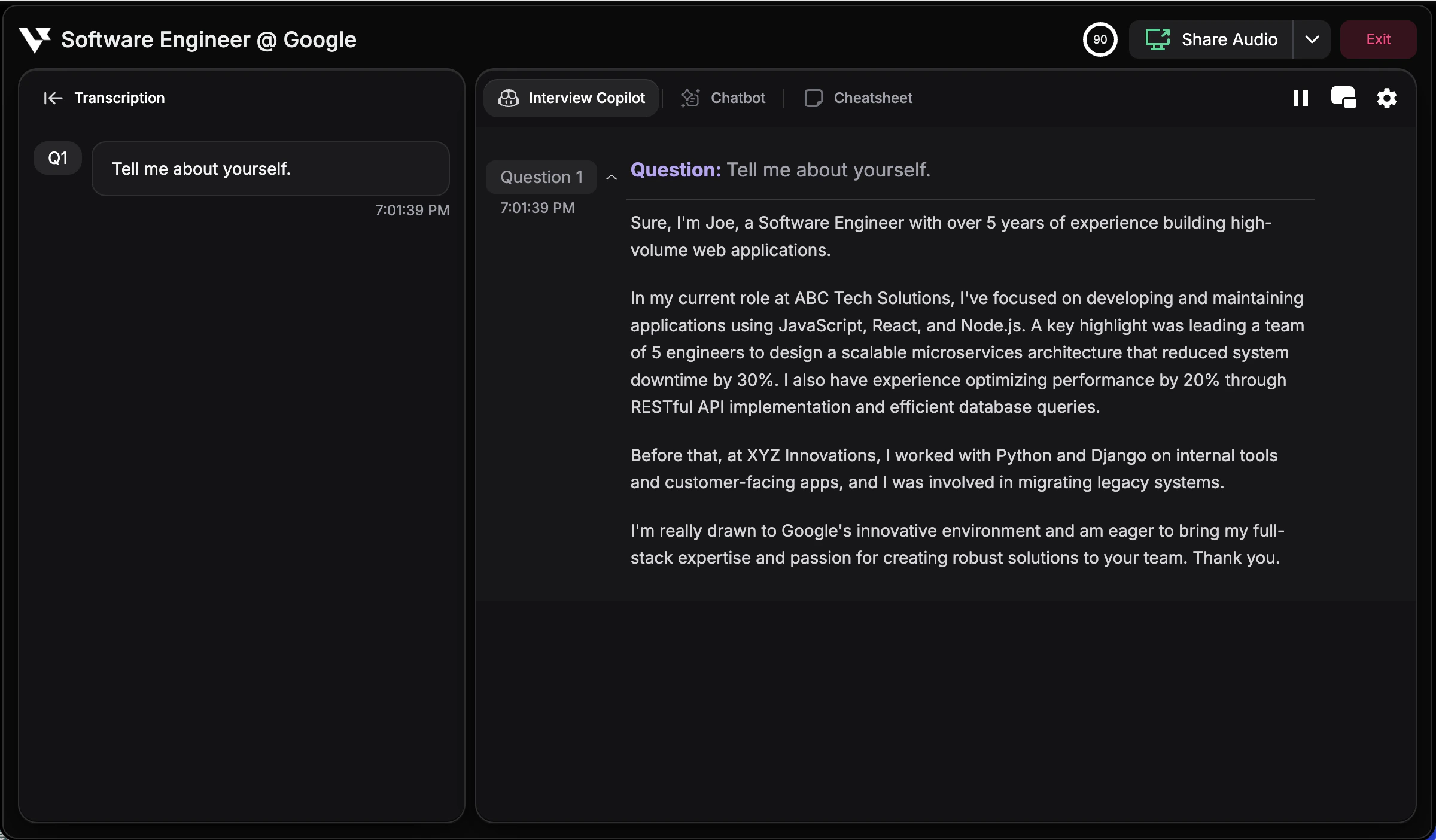
Verve AI 是一款智能面试助手，可在面试过程中提供实时支持。无论你面对的是行为面试题、技术挑战还是编码问题，Verve AI 都会聆听你的面试对话、理解上下文，并给出个性化建议——且仅你可见。

<div
  style={{
background: 'url(https://mintcdn.com/verveai/4DDDE1_YTFGlwOxG/images/background.jpg?fit=max&auto=format&n=4DDDE1_YTFGlwOxG&q=85&s=5b8212ed290246edc77dab246edf4fc6)',
backgroundSize: 'cover',
backgroundPosition: 'center',
padding: '1rem',
borderRadius: '12px',
marginTop: '1rem',
marginBottom: '1rem'
}}
>
  <img src="https://mintcdn.com/verveai/QJL4eGuyUaXRRBy4/images/index-image.png?fit=max&auto=format&n=QJL4eGuyUaXRRBy4&q=85&s=08e4c907fa2e54b37a82a8e8e55d68ff" alt="Verve AI 面试助手实战画面" style={{borderRadius: '12px', width: '100%', border: '1px solid rgba(0, 0, 0, 0.1)', boxShadow: '0 8px 16px rgba(0, 0, 0, 0.15)'}} width="2400" height="1404" data-path="images/index-image.png" />
</div>

***

## 快速开始

<Card title="5 步快速上手" icon="rocket" href="/zh/quickstart" horizontal>
  几分钟内启动你的第一场面试
</Card>

***

## 可用平台

在你偏好的设备上访问 Verve AI：

<CardGroup cols={3}>
  <Card title="桌面端" icon="desktop" href="/zh/features/desktop-app">
    完整功能：隐身模式、快捷键截图、透明度控制等
  </Card>

  <Card title="浏览器版" icon="browser" href="/zh/features/browser-app">
    在 Chrome、Edge 或 Opera 中快速使用，适合通用面试
  </Card>

  <Card title="移动端" icon="mobile" href="/zh/features/mobile-experience">
    为电话面试提供随时随地的辅助
  </Card>
</CardGroup>

***

## 核心功能

选择与你的面试类型匹配的面试助手 模式：

<CardGroup cols={2}>
  <Card title="面试助手" icon="briefcase" href="/zh/features/interview-copilot">
    覆盖 20+ 专业面试域，为行为与技术面试提供实时支持
  </Card>

  <Card title="编码面试" icon="code" href="/zh/features/coding-copilot">
    支持截图，快速解决 LeetCode 风格的代码题
  </Card>

  <Card title="在线测评" icon="clock" href="/zh/features/online-assessment-copilot">
    一键支持限时编程测评与技术测试
  </Card>

  <Card title="隐身模式" icon="eye-slash" href="/zh/features/stealth-mode">
    使用桌面端 在屏幕共享时保持“不可见”
  </Card>
</CardGroup>

***

## 面试前准备

面试开始前做好准备，提高表现稳定性：

<CardGroup cols={2}>
  <Card title="创建面试档案" icon="user" href="/zh/features/create-first-persona">
    上传简历与岗位信息，获取更个性化的 AI 回复
  </Card>

  <Card title="在模型调试中测试" icon="flask" href="/zh/features/what-is-playground">
    面试前预览并自定义面试助手 的回复风格
  </Card>

  <Card title="添加文档" icon="file-lines" href="/zh/features/knowledge-base#documents">
    上传公司调研、作品集等材料，提供更充分的上下文
  </Card>

  <Card title="从零创建" icon="book" href="/zh/features/knowledge-base#create-from-scratch">
    直接在知识库中编写 STAR 内容或自由消息作为面试上下文
  </Card>
</CardGroup>

***

## 常用设置与自定义

微调你的面试助手 体验：

<AccordionGroup>
  <Accordion title="性能" icon="gauge-high">
    * [选择 AI 模型](/zh/guides/choose-ai-model-for-interview) - 根据速度与质量需求，从多种模型中选择
    * [自定义回复风格](/zh/features/custom-response-style) - 使用自定义提示词与变量，创建个性化回复风格
  </Accordion>

  <Accordion title="显示与界面" icon="desktop">
    * [布局与回复模式](/zh/features/copilot-layout-response-settings) - 为新面试设置默认布局与回复模式
    * [分屏模式](/zh/guides/split-screen-mode) - 在面试过程中与面试助手 并排查看
    * [调整窗口透明度](/zh/guides/adjust-window-transparency) - 控制窗口不透明度
    * [键盘快捷键](/zh/features/keyboard-shortcuts) - 熟悉快捷键，快速操作常用功能
  </Accordion>

  <Accordion title="音频与语音转录" icon="microphone">
    * [面试前测试音频](/zh/guides/test-audio) - 在启动前确认音频设置
    * [共享音频](/zh/guides/share-audio) - 面试期间与 Verve AI 共享音频
    * [停顿间隔](/zh/guides/pause-interval) - 控制回复节奏与生成时机
    * [面试语言](/zh/guides/change-interview-language) - 设置语音转录语言
    * [面试转录文本](/zh/guides/interview-transcription) - 回看完整对话记录
  </Accordion>

  <Accordion title="隐私与隐身" icon="shield">
    * [隐身模式](/zh/features/stealth-mode) - 屏幕共享时保持“不可见”
    * [屏幕共享通知](/zh/guides/screen-sharing-notifications) - 共享开始时获取提醒
    * [更换桌面端图标](/zh/guides/change-desktop-app-icon) - 自定义应用外观
    * [从 Dock 隐藏](/zh/guides/hide-app-from-dock) - 从任务栏移除
  </Accordion>
</AccordionGroup>
