> ## Documentation Index
> Fetch the complete documentation index at: https://docs.vervecopilot.com/llms.txt
> Use this file to discover all available pages before exploring further.
# Quickstart
> Get started with Verve AI interview copilot in 5 simple steps for real-time behavioral and technical interview support.
## Get started with Interview Copilot
Launch your first interview copilot session and get real-time support during your interview.
***
## Step 1: Access the Platform
Copilot runs in supported browsers or Desktop App:
**[Browser App](/features/browser-app):**
* Chrome, Edge, Opera supported for general interviews
* [Verve AI Chrome extension](https://chromewebstore.google.com/detail/verve-ai/eaelmnmhehmblclgjjkhjmbkabaenpjp?hl=en) enables screen capture for all copilot domains
**[Desktop App](/features/desktop-app):**
* Offers exclusive features including stealth mode, hotkey screen capture, and transparent mode
* Works with any platform or application
***
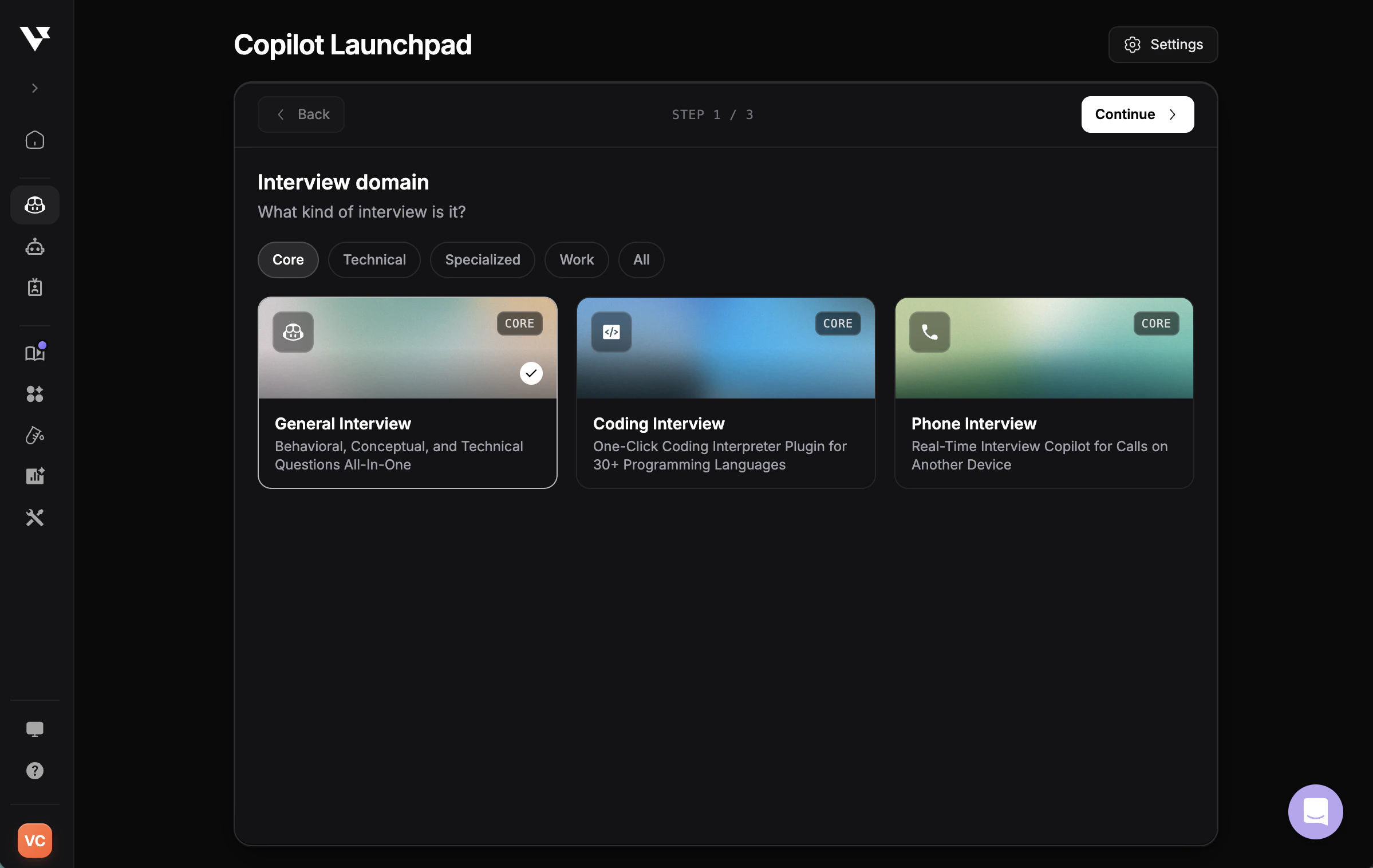
## Step 2: Choose Your Interview Domain
Your interview domain tells Copilot what type of interview you're in and determines the type of support you'll receive.
Visit the [interview copilot launch pad](https://www.app.vervecopilot.com/copilot) to get started.
Domains are grouped into four categories so you can find the right fit quickly:
* **Core** — General Interview, Coding Interview, Phone Interview
* **Technical** — Software Engineering, Data Science & Analytics, Cloud & Infrastructure Engineering, AI Security & Governance, Online Assessment
* **Specialized** — Cyber Security, Mercor, and other domain-specific tracks
* **Work** — Product Management, business and professional meeting support
Support for leetcode-style coding interviews with screen-capture features
One-click solution for online tests with instant capture
Explore all 20+ interview domains and features
***
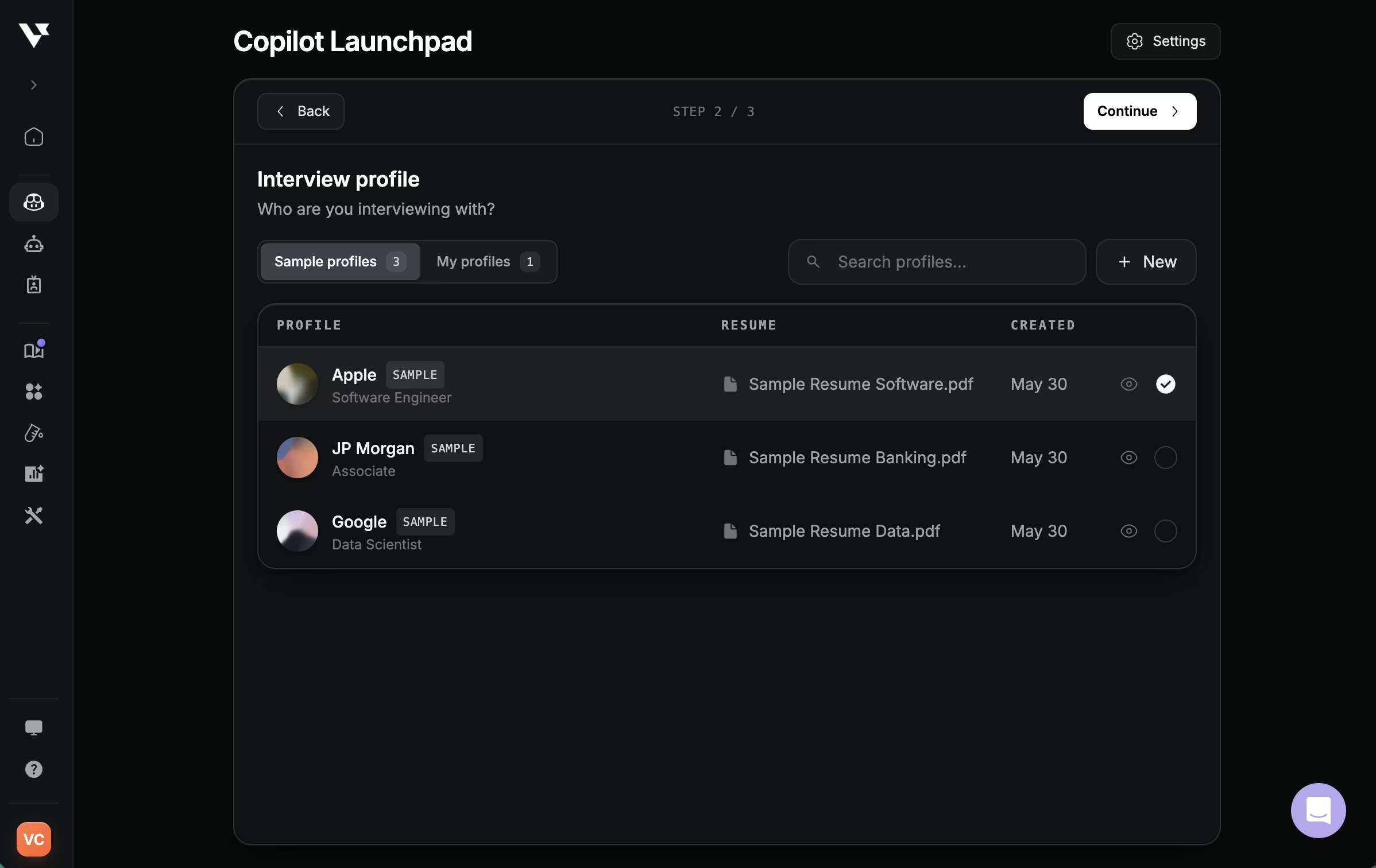
## Step 3: Select Your Interview Profile
Your interview profile defines who you are in the interview: your role, experience level, and background.
Pick an existing profile or create a new one:
* **Sample profiles** — pre-configured profiles for popular companies and roles so you can try Copilot instantly
* **My profiles** — your saved profiles, reusable across sessions
* **+ New** — build a profile from scratch by uploading your resume, setting your role and seniority, and adding the company
Learn how to set up your interview profile
Preview and customize AI responses before your interview
Copilot references your actual projects and achievements. More background context improves response quality.
***
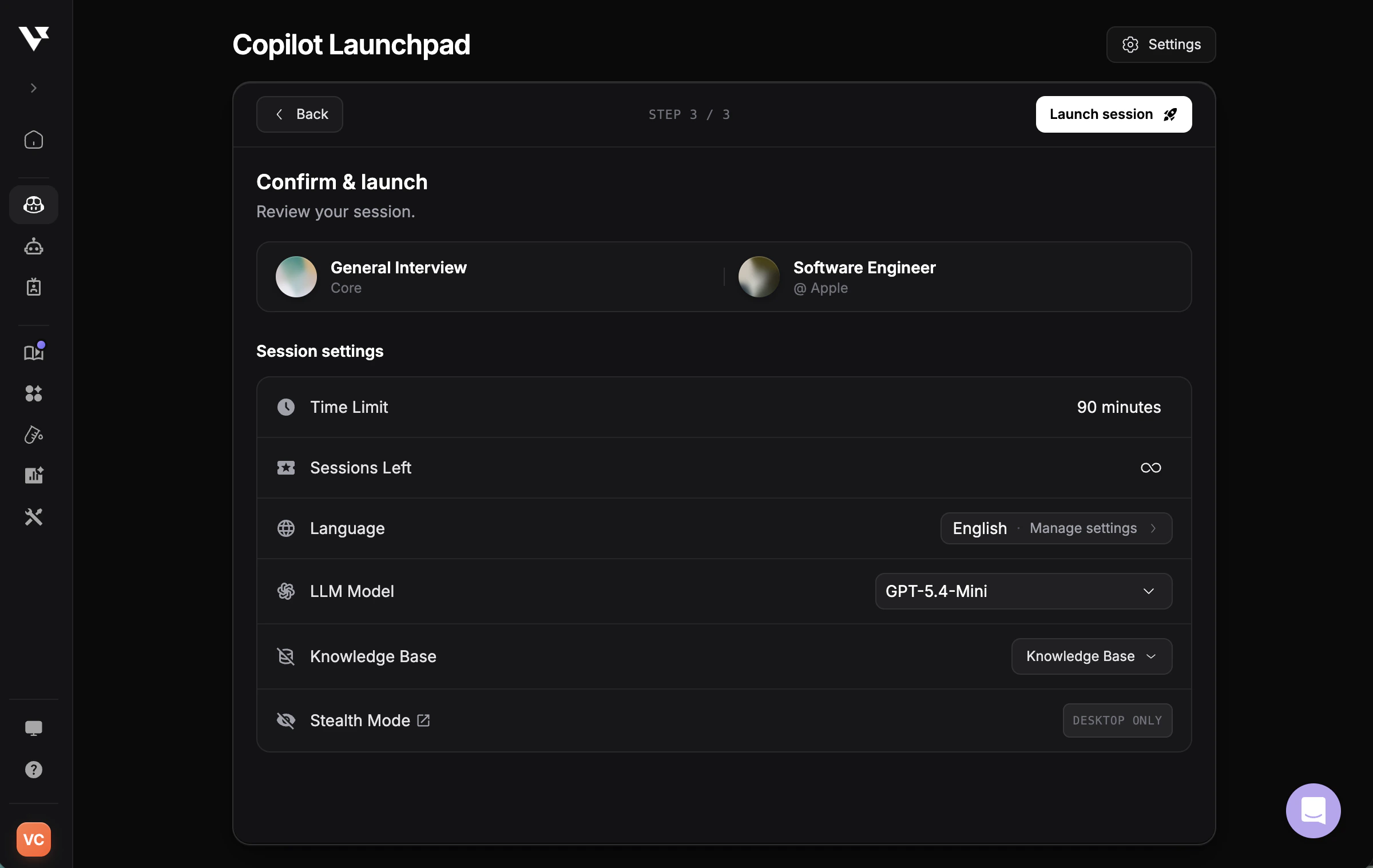
## Step 4: Configure Settings
Review your launch settings before starting.
### Session
* **Time limit:** Varies by subscription plan (e.g., 90 minutes)
* **Sessions remaining:** Shows available session count
### Language
Set interview language for transcription and copilot response.
Multilingual support is available in transcription for interviews conducted in certain languages. [Learn more](guides/change-interview-language#multilingual-support)
### Audio Permission
Grant [audio access](/guides/audio-permissions) when prompted to allow Copilot to understand the full interview context.
### Model Selection
* Choose the AI model of your choice
* Check out all available [AI models]()
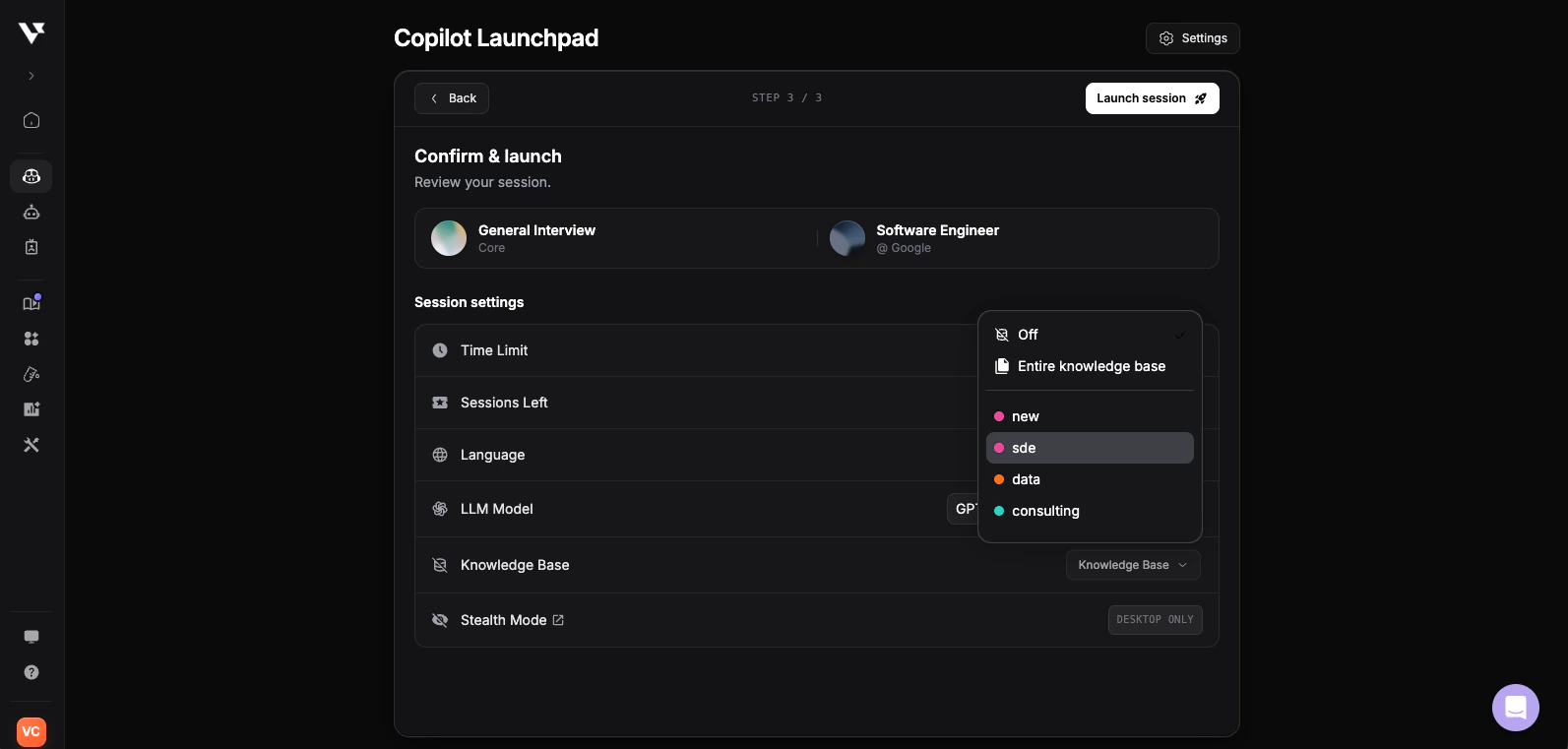
### Knowledge Base
Upload additional materials to personalize responses, including but not limited to:
* Project portfolios
* Company research
* Recent news
* Prepared questions and answers
Use the **Knowledge Base** dropdown in the launcher to control how much context the Copilot pulls in:
* **Off** — don't reference any Knowledge Base documents in this session
* **Entire knowledge base** — use every enabled document
* **Specific folder** — scope the session to a single [folder](/features/knowledge-base#folders) (e.g., *sde*, *data*, *consulting*) so only role-relevant notes are loaded
Learn more about [creating documents from scratch in Knowledge Base](/features/knowledge-base#create-from-scratch) and [Cheatsheet](/features/cheatsheet).
### Stealth Mode
* [Stealth Mode](/features/stealth-mode) is available in the Desktop App only and keeps Copilot invisible during screen sharing
***
## Step 5: Share Interview Audio
Grant audio access when prompted to allow Copilot to understand the full interview context and provide real-time support.
Learn how to share your audio on different platforms and troubleshoot common issues in the [Share Audio guide](/guides/share-audio).