> ## Documentation Index
> Fetch the complete documentation index at: https://docs.vervecopilot.com/llms.txt
> Use this file to discover all available pages before exploring further.
# Introduction
> Ace interviews with Verve AI's real-time interview copilot for behavioral, technical, and coding interviews with stealth mode support.
## What is Verve AI?
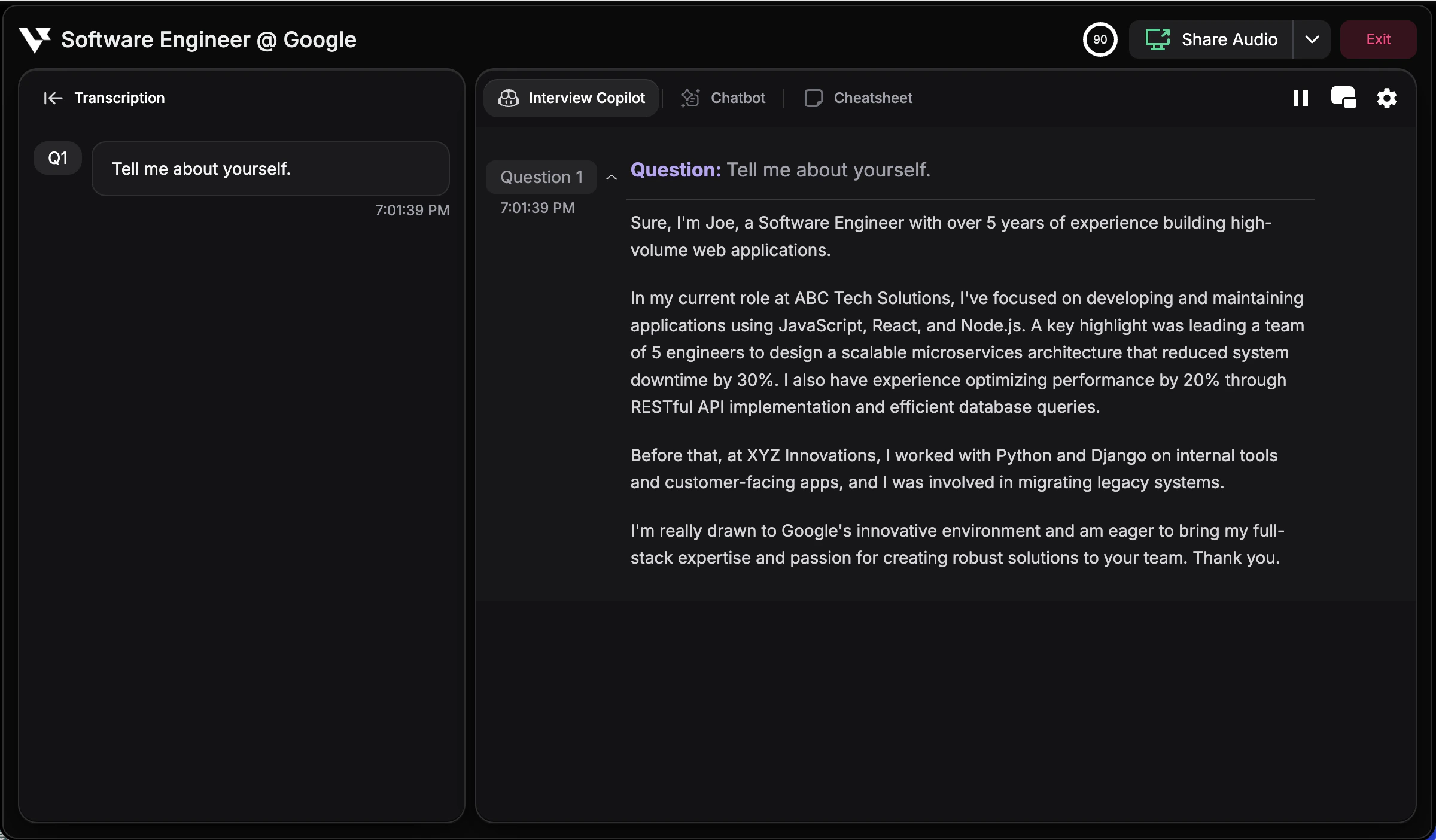
Verve AI is an intelligent interview copilot that provides real-time support during your interviews. Whether you're facing behavioral questions, technical challenges, or coding problems, Verve AI listens to your interview, understands the context, and delivers tailored suggestions—visible only to you.
***
## Quick Start
Launch your first interview copilot session in minutes
***
## Available Platforms
Access Verve AI from your preferred device:
Full features including Stealth Mode, hotkey screen capture, and transparency controls
Quick access from Chrome, Edge, or Opera for general interviews
On-the-go support for phone interviews
***
## Core Features
Choose the copilot mode that matches your interview type:
Real-time support for behavioral and technical interviews across 20+ domains
Instant solutions for leetcode-style coding questions with screen capture
One-click support for timed coding assessments and technical tests
Stay invisible during screen sharing with Desktop App
***
## Preparation Tools
Set yourself up for success before the interview starts:
Upload your resume and job details for personalized AI responses
Preview and customize copilot responses before your interview
Upload company research and project portfolios for better context
Write STAR stories or free-form interview context directly in Knowledge Base
***
## Popular Settings & Customization
Fine-tune your copilot experience:
* [Choose AI Model](/guides/choose-ai-model-for-interview) - Select from multiple AI models based on speed and quality needs
* [Custom Response Style](/features/custom-response-style) - Create personalized AI response styles with custom prompts and variables
* [Layout and Response Mode](/features/copilot-layout-response-settings) - Set default layout and response mode for new sessions
* [Split Screen Mode](/guides/split-screen-mode) - View copilot alongside your interview
* [Adjust Window Transparency](/guides/adjust-window-transparency) - Control window opacity
* [Keyboard Shortcuts](/features/keyboard-shortcuts) - Master hotkeys for quick actions
* [Test Audio Before Interview](/guides/test-audio) - Verify your audio setup before launch
* [Share Audio](/guides/share-audio) - Share audio with Verve AI during interviews
* [Pause Interval](/guides/pause-interval) - Control response timing
* [Interview Language](/guides/change-interview-language) - Set transcription language
* [Interview Transcription](/guides/interview-transcription) - Review full conversation history
* [Stealth Mode](/features/stealth-mode) - Stay invisible during screen sharing
* [Screen Sharing Notifications](/guides/screen-sharing-notifications) - Get alerts when sharing starts
* [Change Desktop Icon](/guides/change-desktop-app-icon) - Customize app appearance
* [Hide from Dock](/guides/hide-app-from-dock) - Remove from taskbar