> ## Documentation Index
> Fetch the complete documentation index at: https://docs.vervecopilot.com/llms.txt
> Use this file to discover all available pages before exploring further.
# Test audio before interview
> Check your audio setup from the launcher before starting a real Verve AI copilot session
## Overview
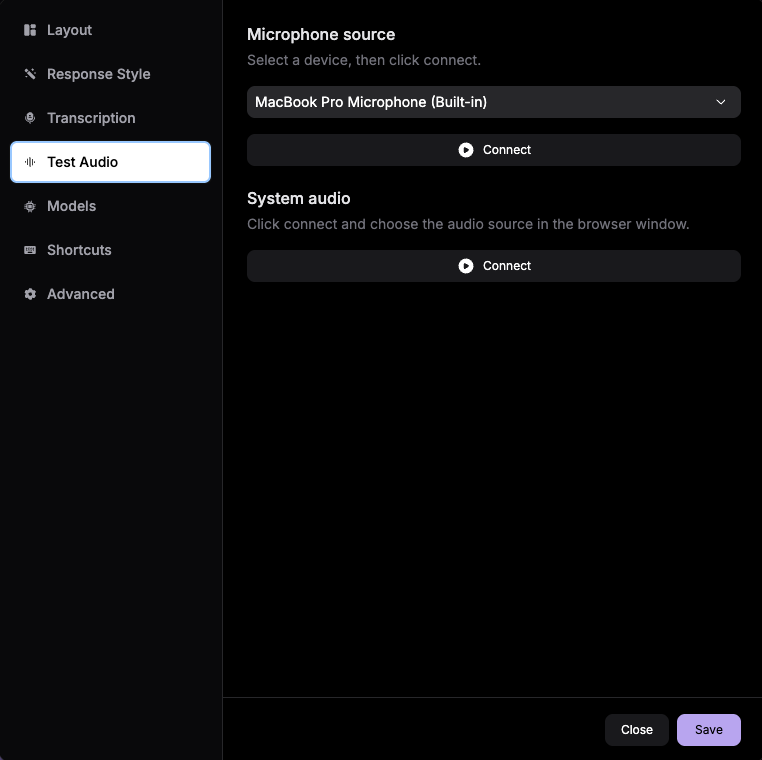
The **Test Audio** tab helps you confirm that your audio setup is working before you start a real interview session. Use it from the copilot launcher to verify that Verve AI can detect the audio input you expect.
Testing audio before launch helps you catch permission, device, or routing issues early so you do not lose time during the actual interview.
***
## How to Test Audio
Go to [Interview Copilot](https://www.app.vervecopilot.com/copilot) and open the launcher.
Click **Settings** in the launcher before starting your session.
Open the **Test Audio** tab in the settings panel.
Speak into your microphone or play sample meeting audio to confirm Verve AI is receiving sound.
Make sure the test shows the expected input activity before you launch the real session.
***
## Troubleshooting
Check your input device, confirm microphone or system audio permissions are granted, and retry the test. If needed, review [Audio Permissions](/guides/audio-permissions).
Switch to the correct microphone, headset, or meeting output device in your system settings, then run the test again before launching.
Re-open launcher settings and confirm the same device setup is still selected. If your meeting platform changed devices after launch, restart the launcher and test again.
Review [Share Audio](/guides/share-audio) for platform-specific guidance on getting interview sound into Verve AI.