> ## Documentation Index
> Fetch the complete documentation index at: https://docs.vervecopilot.com/llms.txt
> Use this file to discover all available pages before exploring further.

# Share Audio

> Learn how to enable audio sharing so Verve AI Copilot can hear your interviewer

**Audio sharing is required for Verve AI Copilot to work.** By sharing your meeting tab's audio, the copilot can hear what the interviewer is saying and provide you with real-time assistance during your interview.

<Warning>
  **This is a required step!** Without audio sharing enabled, the copilot cannot hear the interviewer and will not be able to assist you.
</Warning>

***

## Browser Audio Sharing

When using Verve AI in your browser, you need to share your meeting tab's audio so the copilot can listen to the interview. The process varies depending on your operating system.

<Tabs>
  <Tab title="Windows" icon="windows">
    On Windows, you have full flexibility when enabling audio capture in supported browsers like Chrome, Edge, or Brave:

    <Steps>
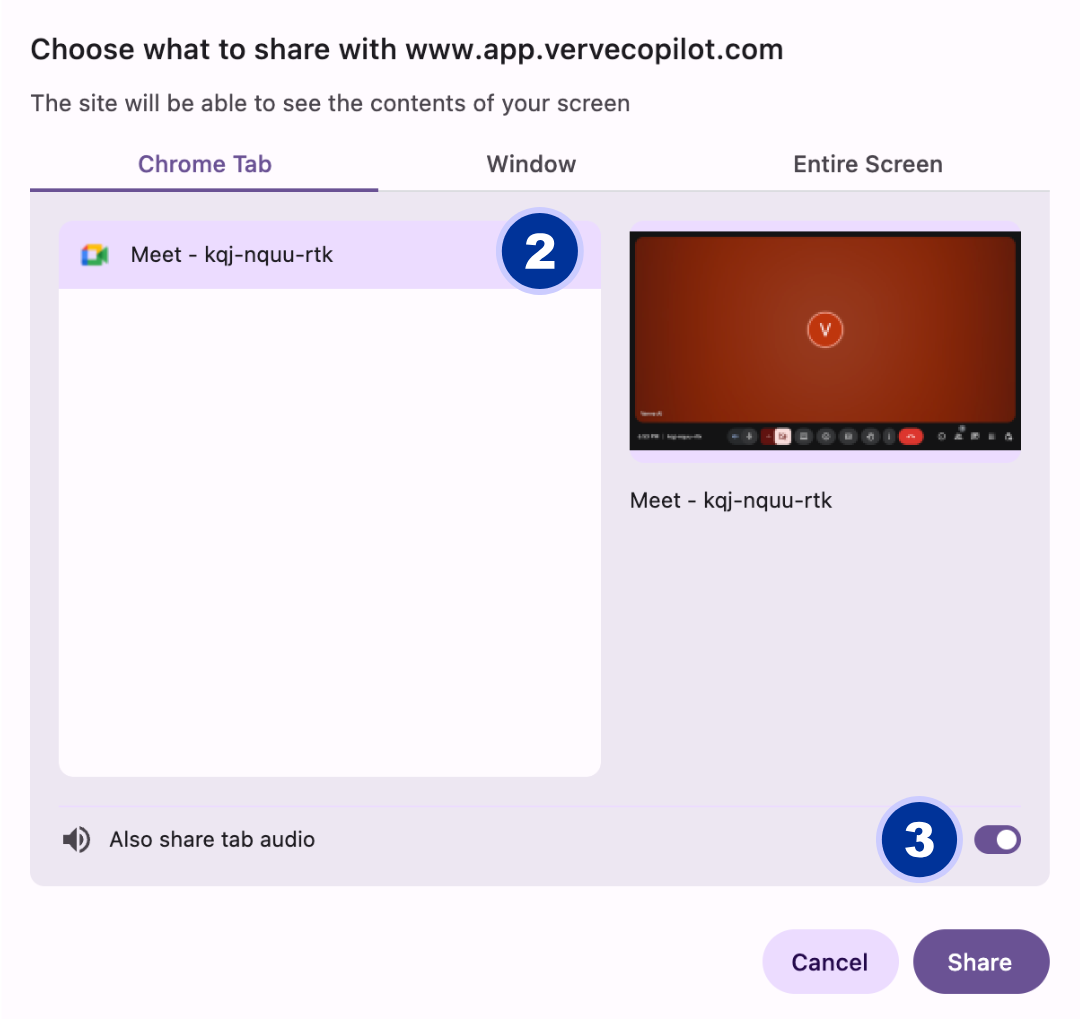
      <Step title="Share screen with Verve AI">
        In Verve AI, click the screen sharing button to share your meeting

        <div
          style={{
      background: 'url(https://mintcdn.com/verveai/4DDDE1_YTFGlwOxG/images/background.jpg?fit=max&auto=format&n=4DDDE1_YTFGlwOxG&q=85&s=5b8212ed290246edc77dab246edf4fc6)',
backgroundSize: 'cover',
backgroundPosition: 'center',
      padding: '1rem',
      borderRadius: '12px',
      marginTop: '1rem',
      marginBottom: '1rem'
    }}
        >
          <img src="https://mintcdn.com/verveai/4DDDE1_YTFGlwOxG/images/audio-sharing-1.png?fit=max&auto=format&n=4DDDE1_YTFGlwOxG&q=85&s=9c1b9f89fd17f062979f7c87892d60d6" alt="Audio sharing setup step 1" style={{borderRadius: '12px', width: '100%', border: '1px solid rgba(0, 0, 0, 0.1)', boxShadow: '0 8px 16px rgba(0, 0, 0, 0.15)'}} width="2248" height="1320" data-path="images/audio-sharing-1.png" />
        </div>
      </Step>

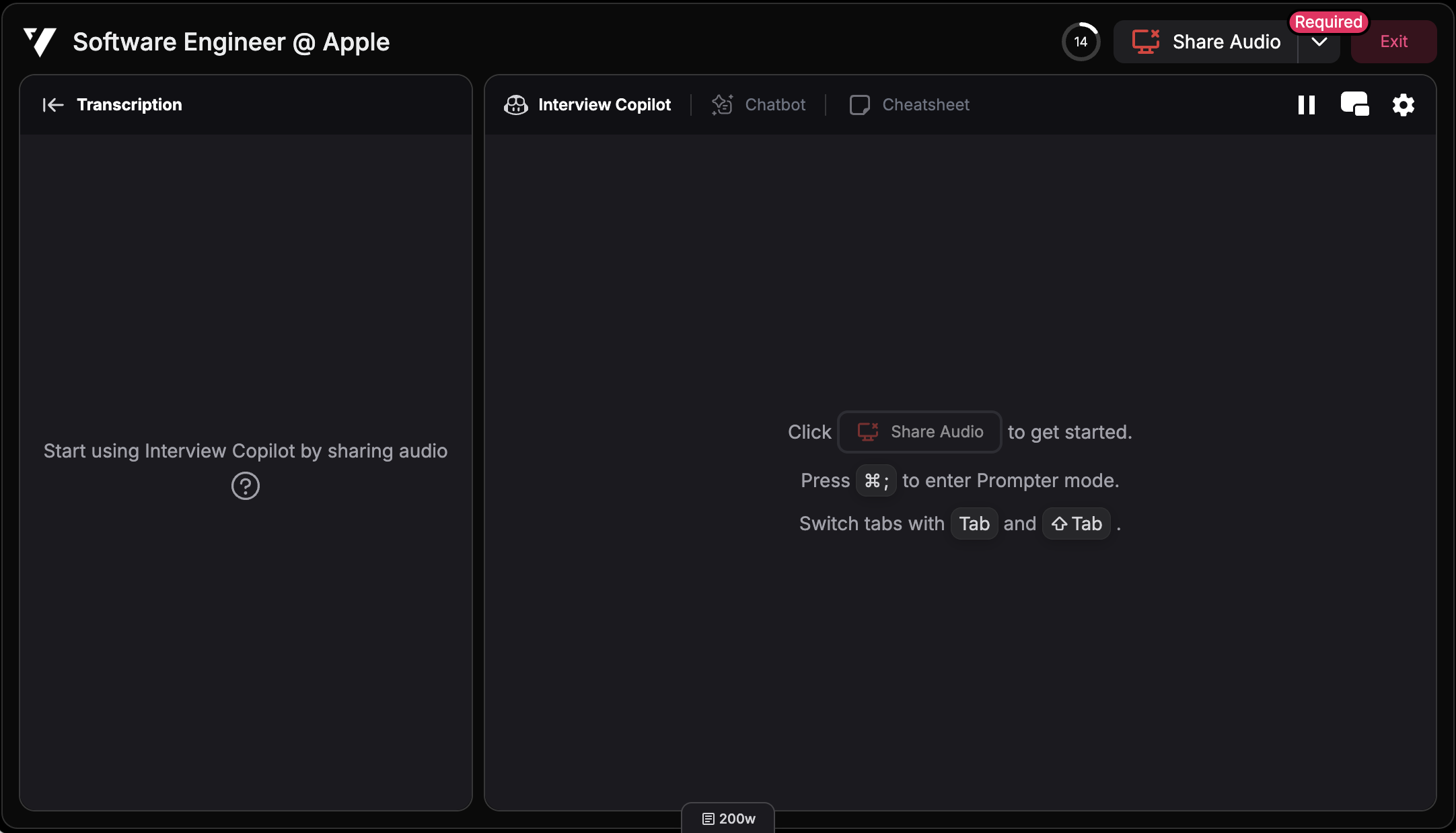
      <Step title="Choose what to share">
        Choose to share either a **tab**, **window**, or **entire screen** containing your meeting

        <div
          style={{
      background: 'url(https://mintcdn.com/verveai/4DDDE1_YTFGlwOxG/images/background.jpg?fit=max&auto=format&n=4DDDE1_YTFGlwOxG&q=85&s=5b8212ed290246edc77dab246edf4fc6)',
backgroundSize: 'cover',
backgroundPosition: 'center',
      padding: '1rem',
      borderRadius: '12px',
      marginTop: '1rem',
      marginBottom: '1rem'
    }}
        >
          <img src="https://mintcdn.com/verveai/4DDDE1_YTFGlwOxG/images/audio-sharing-2.png?fit=max&auto=format&n=4DDDE1_YTFGlwOxG&q=85&s=e611d9d17bf2d2a2642e068f2100739c" alt="Audio sharing setup step 2" style={{borderRadius: '12px', width: '100%', border: '1px solid rgba(0, 0, 0, 0.1)', boxShadow: '0 8px 16px rgba(0, 0, 0, 0.15)'}} width="1080" height="1020" data-path="images/audio-sharing-2.png" />
        </div>
      </Step>

      <Step title="Enable audio (Required!)">
        **Check the "Share audio" or "Share tab audio" checkbox** - this allows the copilot to hear the interviewer
      </Step>

      <Step title="Start sharing">
        Click "Share" to enable audio capture
      </Step>
    </Steps>

    Windows allows audio capture regardless of whether you're sharing a tab, window, or full screen.
  </Tab>

  <Tab title="MacOS" icon="apple">
    On MacOS, you have full flexibility when enabling audio capture in supported browsers like Chrome, Edge, or Brave:

    <Steps>
      <Step title="Share screen with Verve AI">
        In Verve AI, click the screen sharing button to share your meeting

        <div
          style={{
      background: 'url(https://mintcdn.com/verveai/4DDDE1_YTFGlwOxG/images/background.jpg?fit=max&auto=format&n=4DDDE1_YTFGlwOxG&q=85&s=5b8212ed290246edc77dab246edf4fc6)',
backgroundSize: 'cover',
backgroundPosition: 'center',
      padding: '1rem',
      borderRadius: '12px',
      marginTop: '1rem',
      marginBottom: '1rem'
    }}
        >
          <img src="https://mintcdn.com/verveai/4DDDE1_YTFGlwOxG/images/audio-sharing-1.png?fit=max&auto=format&n=4DDDE1_YTFGlwOxG&q=85&s=9c1b9f89fd17f062979f7c87892d60d6" alt="Audio sharing setup step 1" style={{borderRadius: '12px', width: '100%', border: '1px solid rgba(0, 0, 0, 0.1)', boxShadow: '0 8px 16px rgba(0, 0, 0, 0.15)'}} width="2248" height="1320" data-path="images/audio-sharing-1.png" />
        </div>
      </Step>

      <Step title="Choose what to share">
        Choose to share either a **tab**, **window**, or **entire screen** containing your meeting

        <div
          style={{
      background: 'url(https://mintcdn.com/verveai/4DDDE1_YTFGlwOxG/images/background.jpg?fit=max&auto=format&n=4DDDE1_YTFGlwOxG&q=85&s=5b8212ed290246edc77dab246edf4fc6)',
backgroundSize: 'cover',
backgroundPosition: 'center',
      padding: '1rem',
      borderRadius: '12px',
      marginTop: '1rem',
      marginBottom: '1rem'
    }}
        >
          <img src="https://mintcdn.com/verveai/4DDDE1_YTFGlwOxG/images/audio-sharing-2.png?fit=max&auto=format&n=4DDDE1_YTFGlwOxG&q=85&s=e611d9d17bf2d2a2642e068f2100739c" alt="Audio sharing setup step 2" style={{borderRadius: '12px', width: '100%', border: '1px solid rgba(0, 0, 0, 0.1)', boxShadow: '0 8px 16px rgba(0, 0, 0, 0.15)'}} width="1080" height="1020" data-path="images/audio-sharing-2.png" />
        </div>
      </Step>

      <Step title="Enable audio (Required!)">
        **Ensure the "Share audio" or "Share tab audio" toggle is enabled** - this allows the copilot to hear the interviewer
      </Step>

      <Step title="Start sharing">
        Click "Share" to enable audio capture
      </Step>
    </Steps>

    MacOS now allows audio capture regardless of whether you're sharing a tab, window, or full screen.

    <Tip>
      **Don't see the audio toggle?** This feature requires Chrome version from October 2025 or later. [Download the latest Chrome](https://www.google.com/chrome/) to enable full screen and window audio sharing on MacOS.
    </Tip>
  </Tab>
</Tabs>

***

## Desktop App Audio Sharing

The Desktop App provides the simplest and most flexible way to enable audio capture across both Windows and MacOS. It works seamlessly with desktop meeting applications like Zoom, Teams, and Google Meet.

### How to Enable Audio Capture on Desktop App

<Steps>
  <Step title="Launch Interview Copilot">
    Open the Verve AI Desktop App and launch Interview Copilot
  </Step>

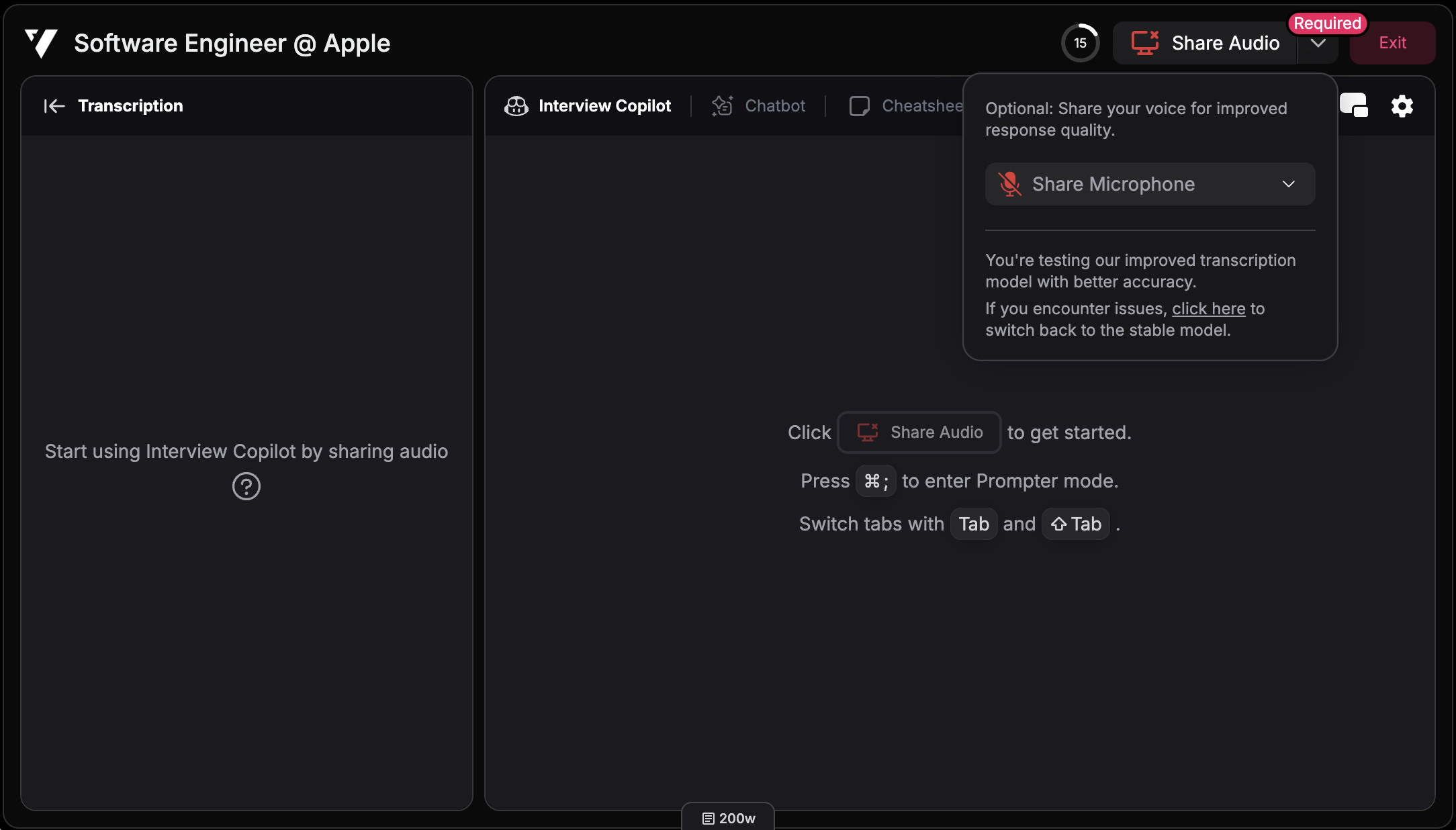
  <Step title="Click Share Audio">
    Click the **"Share Audio"** button in the copilot interface

    <div
      style={{
  background: 'url(https://mintcdn.com/verveai/4DDDE1_YTFGlwOxG/images/background.jpg?fit=max&auto=format&n=4DDDE1_YTFGlwOxG&q=85&s=5b8212ed290246edc77dab246edf4fc6)',
backgroundSize: 'cover',
backgroundPosition: 'center',
  padding: '1rem',
  borderRadius: '12px',
  marginTop: '1rem',
  marginBottom: '1rem'
}}
    >
      <img src="https://mintcdn.com/verveai/4DDDE1_YTFGlwOxG/images/share-audio-desktop.png?fit=max&auto=format&n=4DDDE1_YTFGlwOxG&q=85&s=4a49738784c039dafbba0f5546f44423" alt="Select microphone device" style={{borderRadius: '12px', width: '100%', border: '1px solid rgba(0, 0, 0, 0.1)', boxShadow: '0 8px 16px rgba(0, 0, 0, 0.15)'}} width="2164" height="1238" data-path="images/share-audio-desktop.png" />
    </div>
  </Step>

  <Step title="Done!">
    That's it! The copilot can now hear your interviewer and provide real-time assistance
  </Step>
</Steps>

***

## Sharing Your Audio (Optional)

In addition to sharing interviewer audio with the copilot, you may also need to share your own audio (microphone) with the copilot. This is separate from the audio sharing setup above.

<Warning>
  **Interview report scoring:** To unlock certain scoring on the interview report page, you need to share your microphone so we can know what you said and provide helpful feedback.
</Warning>

### How to Share Your Audio with the Copilot

<Steps>
  <Step title="Open Verve AI">
    Navigate to Verve AI in your browser or desktop app
  </Step>

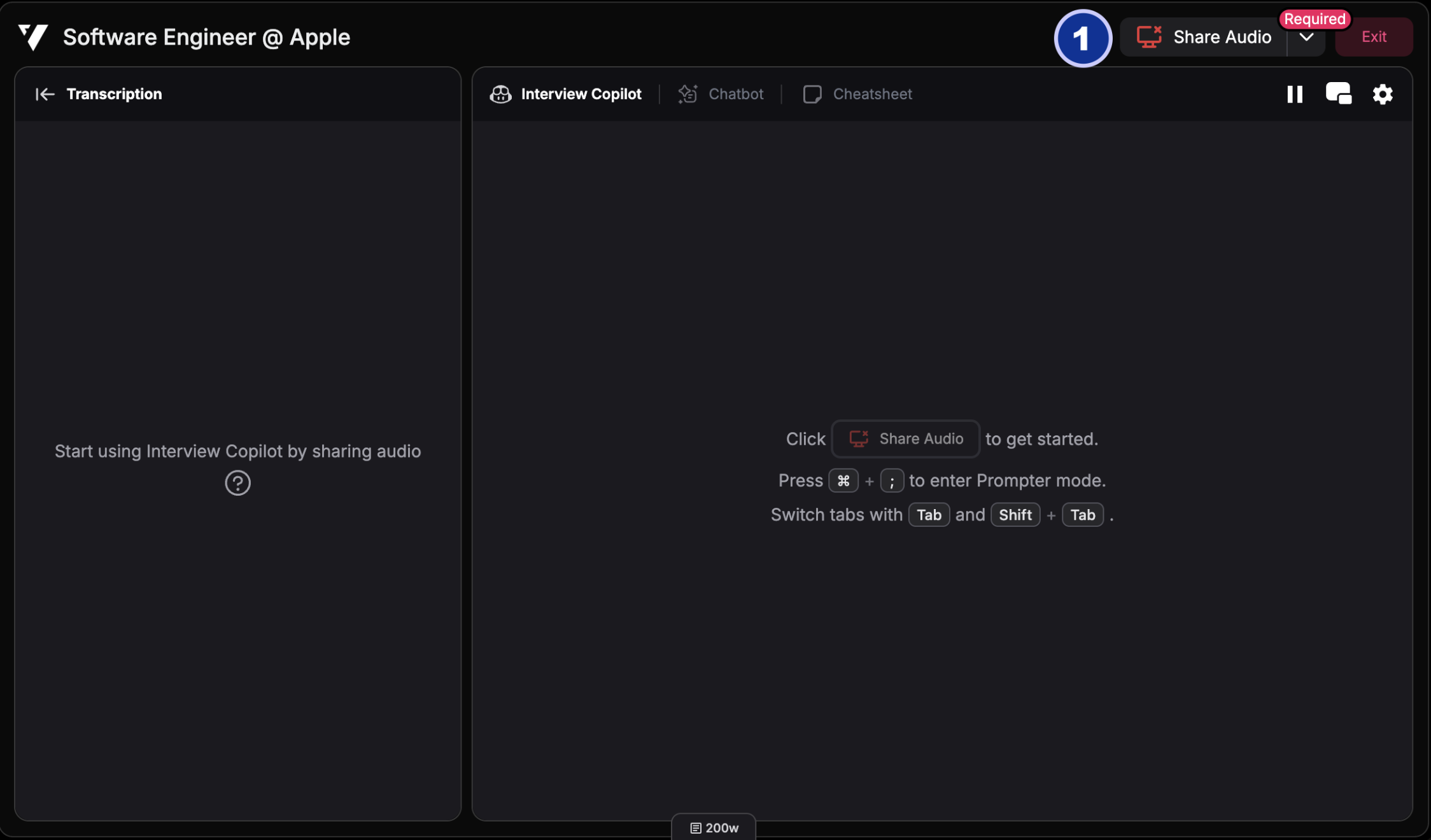
  <Step title="Select your microphone device">
    Click the down arrow to the right of the share audio button and select your microphone device
    <div
      style={{
  background: 'url(https://mintcdn.com/verveai/4DDDE1_YTFGlwOxG/images/background.jpg?fit=max&auto=format&n=4DDDE1_YTFGlwOxG&q=85&s=5b8212ed290246edc77dab246edf4fc6)',
backgroundSize: 'cover',
backgroundPosition: 'center',
  padding: '1rem',
  borderRadius: '12px',
  marginTop: '1rem',
  marginBottom: '1rem'
}}
    >
      <img src="https://mintcdn.com/verveai/4DDDE1_YTFGlwOxG/images/share-audio-candidate.png?fit=max&auto=format&n=4DDDE1_YTFGlwOxG&q=85&s=bf4dbb4163938b0caa6f6f75e0ed0d89" alt="Open Verve AI" style={{borderRadius: '12px', width: '100%', border: '1px solid rgba(0, 0, 0, 0.1)', boxShadow: '0 8px 16px rgba(0, 0, 0, 0.15)'}} width="2168" height="1236" data-path="images/share-audio-candidate.png" />
    </div>
  </Step>
</Steps>