> ## Documentation Index
> Fetch the complete documentation index at: https://docs.vervecopilot.com/llms.txt
> Use this file to discover all available pages before exploring further.
# Adjust window transparency
> Make Verve AI more or less see-through during interviews
## What is Window Transparency?
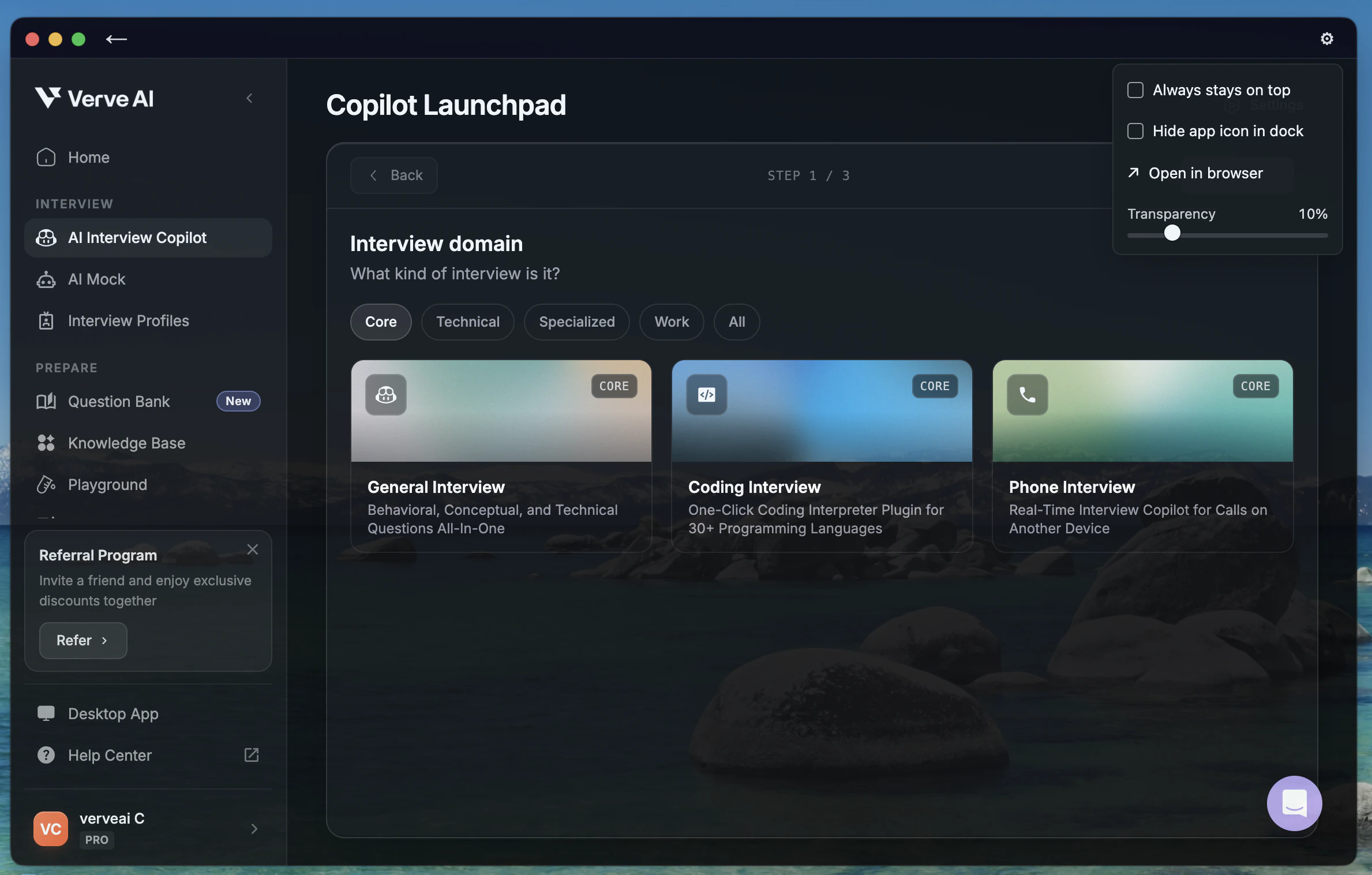
Window Transparency lets you control how see-through the Verve AI Floating Window appears on your screen. Adjust it to make the copilot more discreet or more visible, depending on your preference.
**Desktop App only** - Window Transparency requires the [Desktop App](/features/desktop-app). Not available in Browser or Mobile versions.
***
## How to Adjust Transparency
1. **Launch an AI Interview Copilot session** in the Desktop App
2. **Click Settings** (gear icon in top-right corner)
3. **Find the Transparency Slider** in the dropdown menu
4. **Adjust the slider:**
* Move left → More transparent (see-through)
* Move right → Less transparent (more visible)
The change applies instantly - no restart needed.
To start a session:
1. Go to **AI Interview Copilot** on the Verve AI Dashboard
2. **Select an Interview Profile**
3. **Choose the Domain of Interview**
4. **Verify the checklist** and launch your session
***
## Troubleshooting
Make sure you have the latest Desktop App installed:
* Update to the latest version if needed
* Ensure you're in an active copilot session
* Look for the Settings button (gear icon) in the top-right corner
If the transparency slider isn't working:
* Restart the Desktop App
* End your current session and start a new one
* Clear the app cache from Settings
Correct - Window Transparency is only available in the Desktop App. Download it [here](https://www.vervecopilot.com/app).