> ## Documentation Index
> Fetch the complete documentation index at: https://docs.vervecopilot.com/llms.txt
> Use this file to discover all available pages before exploring further.

# Access session on another device

> Share your active interview session link to access it on your phone or another device

## What is Session Sharing?

Session Sharing lets you copy a link to your active Interview Copilot session and open it on another device. Both devices stay in sync with the same real-time suggestions, so you're always seeing the latest copilot responses.

***

## Common Use Cases

<AccordionGroup>
  <Accordion title="Single monitor setup">
    If you don't have a second monitor, use your phone as an extra screen. Keep the video call fullscreen on your laptop while viewing copilot suggestions on your phone beside your keyboard.
  </Accordion>

  <Accordion title="Screen sharing safety">
    When the interviewer asks you to share your entire screen, having the copilot on your phone keeps it completely off your computer—nothing to hide or minimize.
  </Accordion>

  <Accordion title="Backup device">
    If your laptop has audio issues or crashes mid-interview, your phone already has the session open and ready to continue without interruption.
  </Accordion>
</AccordionGroup>

***

## How to Share Your Session

<Steps>
  <Step title="Start an Interview Session">
    Begin an active [Interview Copilot](/features/interview-copilot) session.
  </Step>

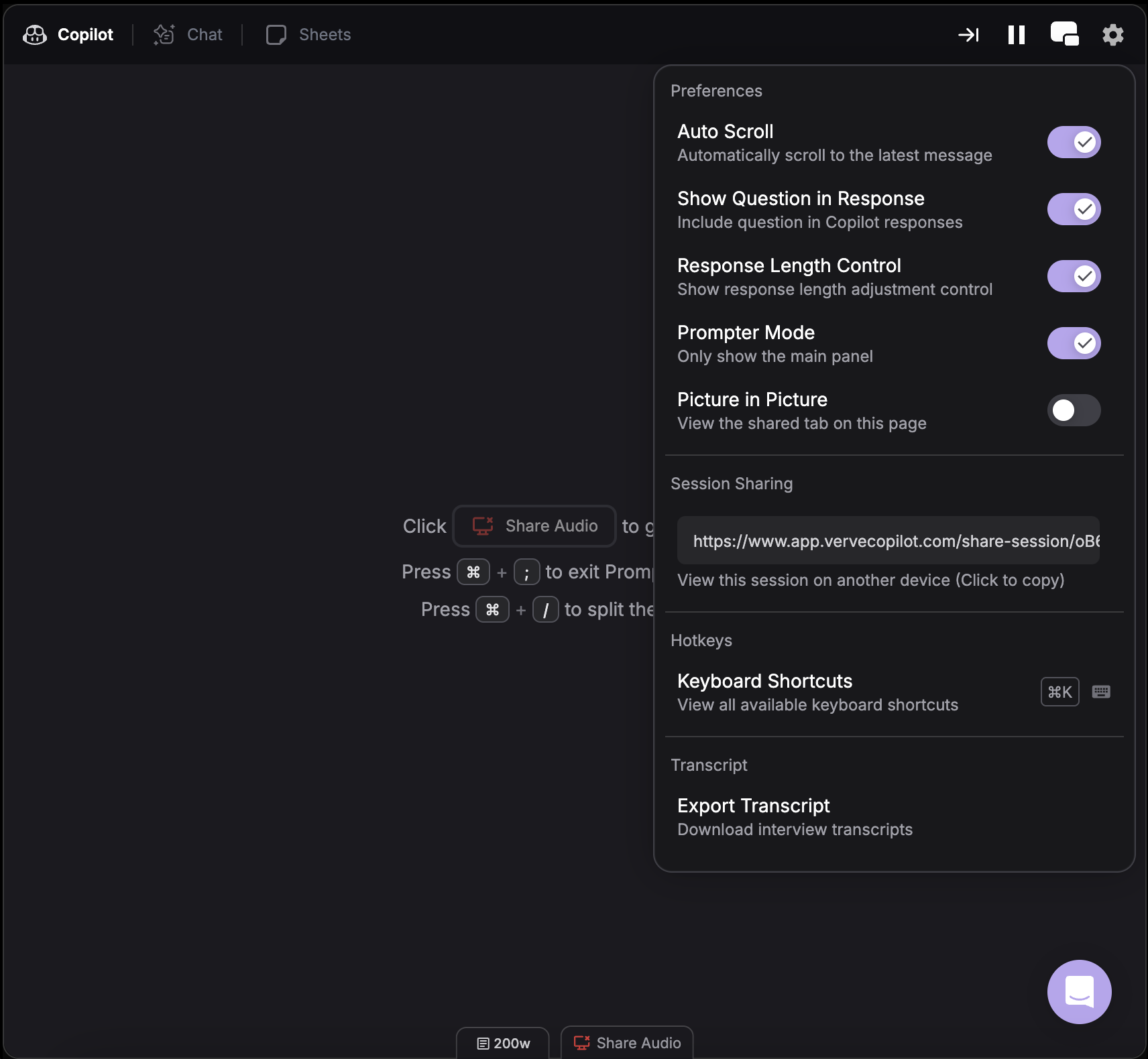
  <Step title="Open Settings">
    Click the **Settings** gear icon in your active session.
  </Step>

  <Step title="Copy the Session Link">
    Find the **Session Sharing** section and click to copy the session link.

    <div
      style={{
  background: 'url(https://mintcdn.com/verveai/4DDDE1_YTFGlwOxG/images/background.jpg?fit=max&auto=format&n=4DDDE1_YTFGlwOxG&q=85&s=5b8212ed290246edc77dab246edf4fc6)',
  backgroundSize: 'cover',
  backgroundPosition: 'center',
  padding: '1rem',
  borderRadius: '12px',
  marginTop: '1rem',
  marginBottom: '1rem'
}}
    >
      <img src="https://mintcdn.com/verveai/T8bSgWyaU382QWTw/images/share-session-1.png?fit=max&auto=format&n=T8bSgWyaU382QWTw&q=85&s=222c2d45d2784b1104e9ac845ebdefb6" alt="Settings menu showing session sharing option" style={{borderRadius: '12px', width: '100%', border: '1px solid rgba(0, 0, 0, 0.1)', boxShadow: '0 8px 16px rgba(0, 0, 0, 0.15)'}} width="1712" height="1580" data-path="images/share-session-1.png" />
    </div>
  </Step>

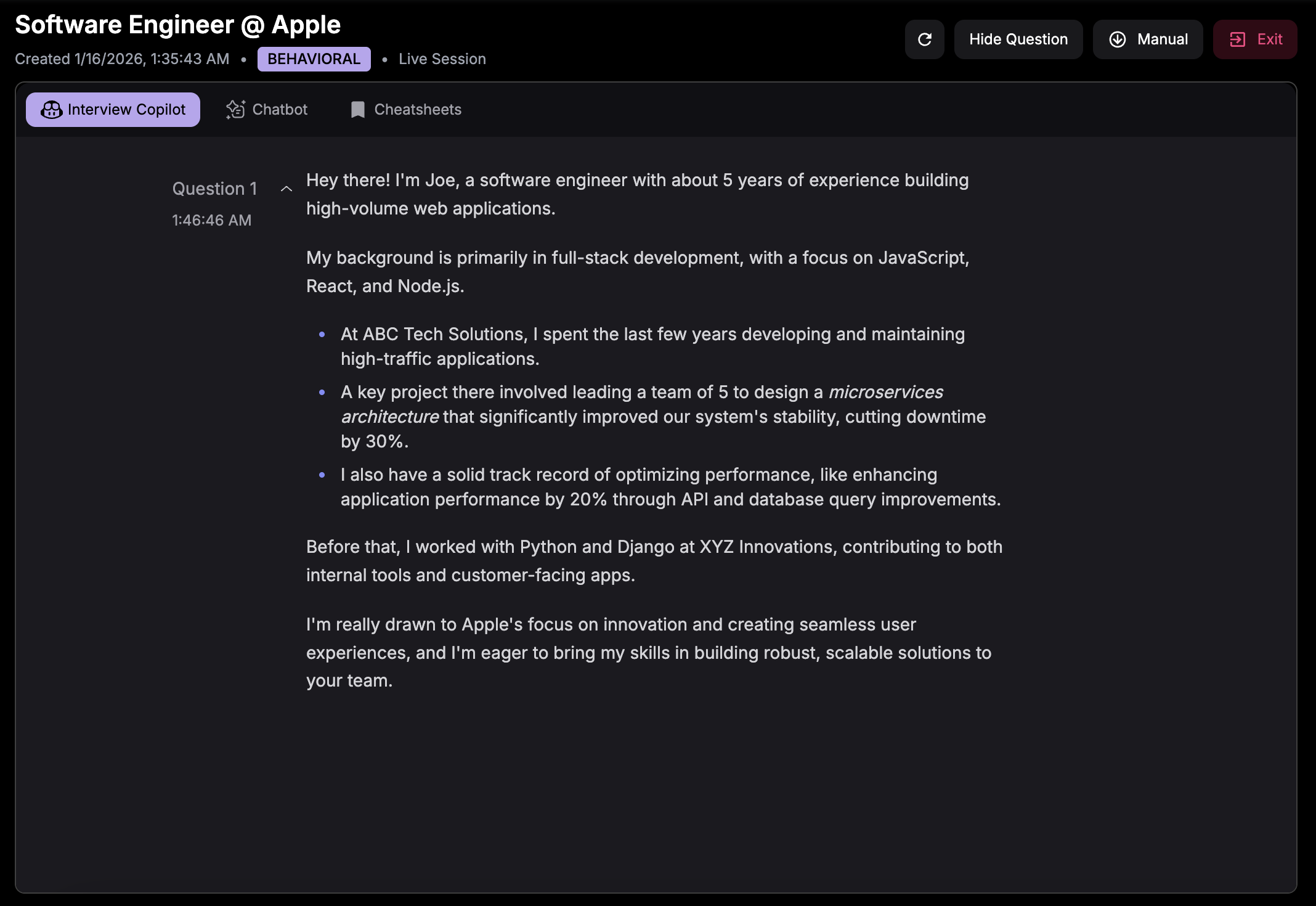
  <Step title="Open on Your Other Device">
    Paste the link in your phone's browser (or any other device) to access the live session.

    <div
      style={{
  background: 'url(https://mintcdn.com/verveai/4DDDE1_YTFGlwOxG/images/background.jpg?fit=max&auto=format&n=4DDDE1_YTFGlwOxG&q=85&s=5b8212ed290246edc77dab246edf4fc6)',
  backgroundSize: 'cover',
  backgroundPosition: 'center',
  padding: '1rem',
  borderRadius: '12px',
  marginTop: '1rem',
  marginBottom: '1rem'
}}
    >
      <img src="https://mintcdn.com/verveai/T8bSgWyaU382QWTw/images/share-session-2.png?fit=max&auto=format&n=T8bSgWyaU382QWTw&q=85&s=41199756dac4da1855a0a81eec62854b" alt="Session sharing interface with copy link button" style={{borderRadius: '12px', width: '100%', border: '1px solid rgba(0, 0, 0, 0.1)', boxShadow: '0 8px 16px rgba(0, 0, 0, 0.15)'}} width="2136" height="1470" data-path="images/share-session-2.png" />
    </div>
  </Step>
</Steps>

***

## Tips

<Tip>
  **Send the link before your interview starts** - Text or email the session link to yourself so it's ready to open on your phone when you need it.
</Tip>