> ## Documentation Index
> Fetch the complete documentation index at: https://docs.vervecopilot.com/llms.txt
> Use this file to discover all available pages before exploring further.
# Stealth mode
> Keep your AI interview assistant completely invisible during screen sharing with Verve stealth mode for discreet interview support.
## What is Stealth Mode?
Stealth Mode keeps Verve AI hidden from your interviewer **even when you share your screen**. You see the copilot on your local screen, but interviewers viewing your shared screen won't see anything.
**Desktop App only** - Stealth Mode requires the [Desktop App](/features/desktop-app). Not available in Browser or Mobile versions.
***
## How to Enable Stealth Mode
1. **Download** the [Desktop App](https://www.vervecopilot.com/app)
2. **Launch Interview Copilot**
3. **Turn on Stealth Mode** at Step 3, confirm your settings, then click **Launch Copilot**
4. **Test it** - Record your screen or do a test call to verify invisibility
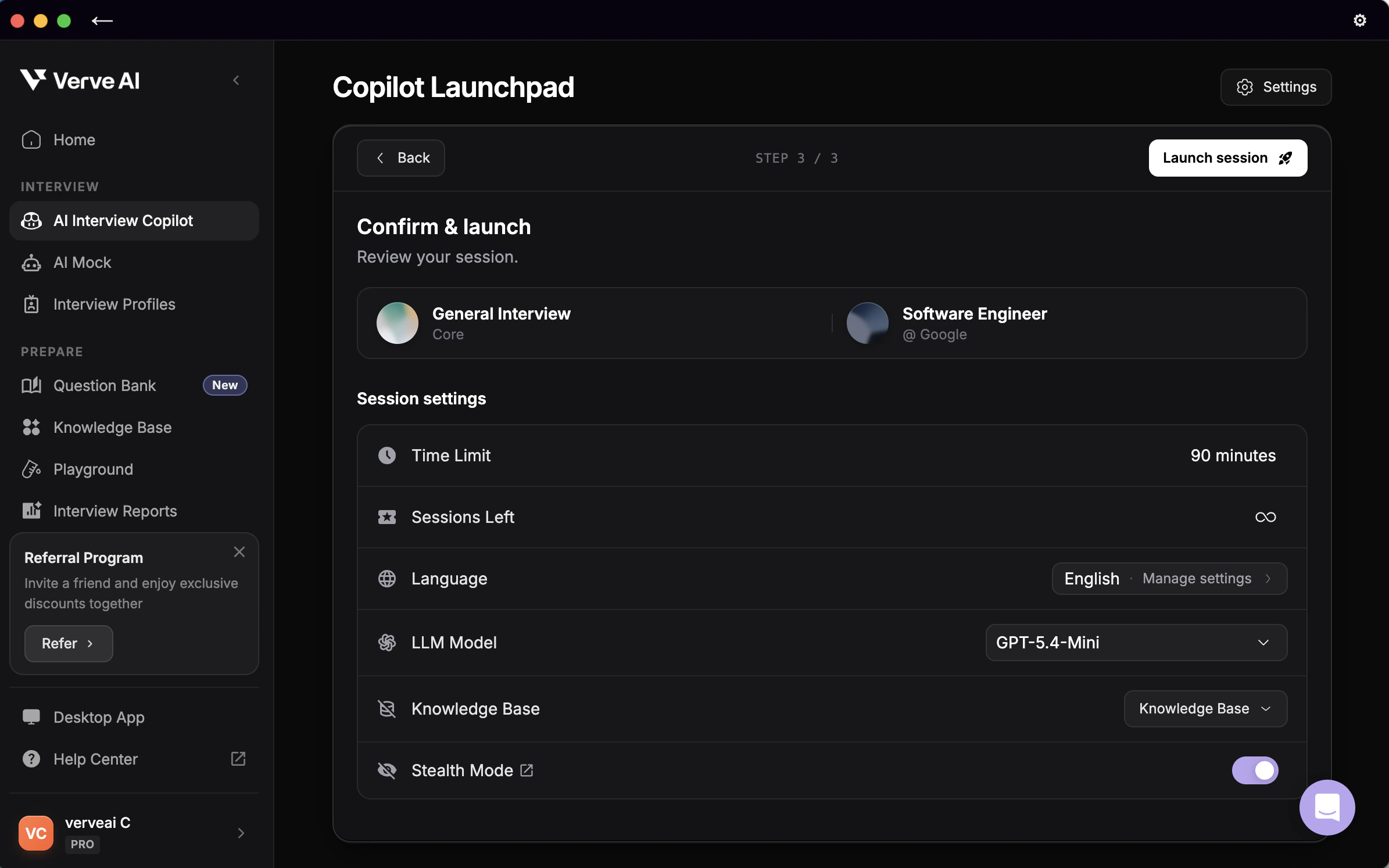 Choose one method to verify it works:
**Option 1: Screen Recording (Quick)**
1. Start recording your screen (QuickTime on Mac, Xbox Game Bar on Windows)
2. Launch Verve AI with Stealth Mode enabled
3. Play back the recording - Verve AI should be invisible
**Option 2: Test Call (Thorough)**
1. Call a friend and share your screen exactly as you will in the interview
2. Ask if they can see Verve AI
3. Adjust settings if needed
***
## Stealth Mode Compatibility
Stealth Mode is guaranteed invisible in these scenarios:
| Sharing Method | Platform | Result |
| ------------------------- | --------------------------- | ----------- |
| **Window or Tab sharing** | Any meeting platform | ✅ Invisible |
| **Entire screen sharing** | Zoom desktop app | ✅ Invisible |
| **Entire screen sharing** | Microsoft Teams desktop app | ✅ Invisible |
**May not work:** Entire screen sharing from browser-based meetings (Chrome, Edge, Brave, Opera running Google Meet, Zoom, or Teams in browser)
**Simple fixes:**
* Share a specific window or tab instead of entire screen (works on any platform)
* Use desktop meeting apps instead of browser versions
* Use a two-monitor setup: Place Verve AI on second monitor, share primary screen only
***
## Troubleshooting
**Most common fixes:**
* Switch from "Entire Screen" to "Window" or "Tab" sharing
* Use Zoom/Teams desktop app instead of browser version
* Verify Stealth Mode is actually enabled (check Step 3, confirm settings, then launch)
* Restart the Desktop App and re-enable Stealth Mode
Look for "Stealth Mode: Active" indicator in the Desktop App interface. Always verify with a test screen share or recording before your interview.
No. Stealth Mode only works in the Desktop App. Download it [here](https://www.vervecopilot.com/app).
If you must use browser-based meetings:
* Share specific windows or tabs instead of entire screen
* Position Verve AI on a second monitor (if available)
Stealth Mode works best with:
* Zoom desktop app
* Teams desktop app
* Any platform when sharing specific windows/tabs
May not work reliably when sharing entire screen from Chromium browsers (Chrome, Edge, Brave, Opera).
Instead of sharing your entire screen:
1. Click **"Share Screen"** in your meeting
2. Select **"Window"** or **"Tab"** (not "Entire Screen")
3. Choose only the window you want interviewer to see (IDE, browser, assessment platform)
This guarantees Verve AI stays hidden on any platform.
Choose one method to verify it works:
**Option 1: Screen Recording (Quick)**
1. Start recording your screen (QuickTime on Mac, Xbox Game Bar on Windows)
2. Launch Verve AI with Stealth Mode enabled
3. Play back the recording - Verve AI should be invisible
**Option 2: Test Call (Thorough)**
1. Call a friend and share your screen exactly as you will in the interview
2. Ask if they can see Verve AI
3. Adjust settings if needed
***
## Stealth Mode Compatibility
Stealth Mode is guaranteed invisible in these scenarios:
| Sharing Method | Platform | Result |
| ------------------------- | --------------------------- | ----------- |
| **Window or Tab sharing** | Any meeting platform | ✅ Invisible |
| **Entire screen sharing** | Zoom desktop app | ✅ Invisible |
| **Entire screen sharing** | Microsoft Teams desktop app | ✅ Invisible |
**May not work:** Entire screen sharing from browser-based meetings (Chrome, Edge, Brave, Opera running Google Meet, Zoom, or Teams in browser)
**Simple fixes:**
* Share a specific window or tab instead of entire screen (works on any platform)
* Use desktop meeting apps instead of browser versions
* Use a two-monitor setup: Place Verve AI on second monitor, share primary screen only
***
## Troubleshooting
**Most common fixes:**
* Switch from "Entire Screen" to "Window" or "Tab" sharing
* Use Zoom/Teams desktop app instead of browser version
* Verify Stealth Mode is actually enabled (check Step 3, confirm settings, then launch)
* Restart the Desktop App and re-enable Stealth Mode
Look for "Stealth Mode: Active" indicator in the Desktop App interface. Always verify with a test screen share or recording before your interview.
No. Stealth Mode only works in the Desktop App. Download it [here](https://www.vervecopilot.com/app).
If you must use browser-based meetings:
* Share specific windows or tabs instead of entire screen
* Position Verve AI on a second monitor (if available)
Stealth Mode works best with:
* Zoom desktop app
* Teams desktop app
* Any platform when sharing specific windows/tabs
May not work reliably when sharing entire screen from Chromium browsers (Chrome, Edge, Brave, Opera).
Instead of sharing your entire screen:
1. Click **"Share Screen"** in your meeting
2. Select **"Window"** or **"Tab"** (not "Entire Screen")
3. Choose only the window you want interviewer to see (IDE, browser, assessment platform)
This guarantees Verve AI stays hidden on any platform.