> ## Documentation Index
> Fetch the complete documentation index at: https://docs.vervecopilot.com/llms.txt
> Use this file to discover all available pages before exploring further.
# Online assessment copilot
> Get instant AI-powered solutions for online coding assessments and technical tests with one-click screen capture.
## What is Online Assessment Copilot?
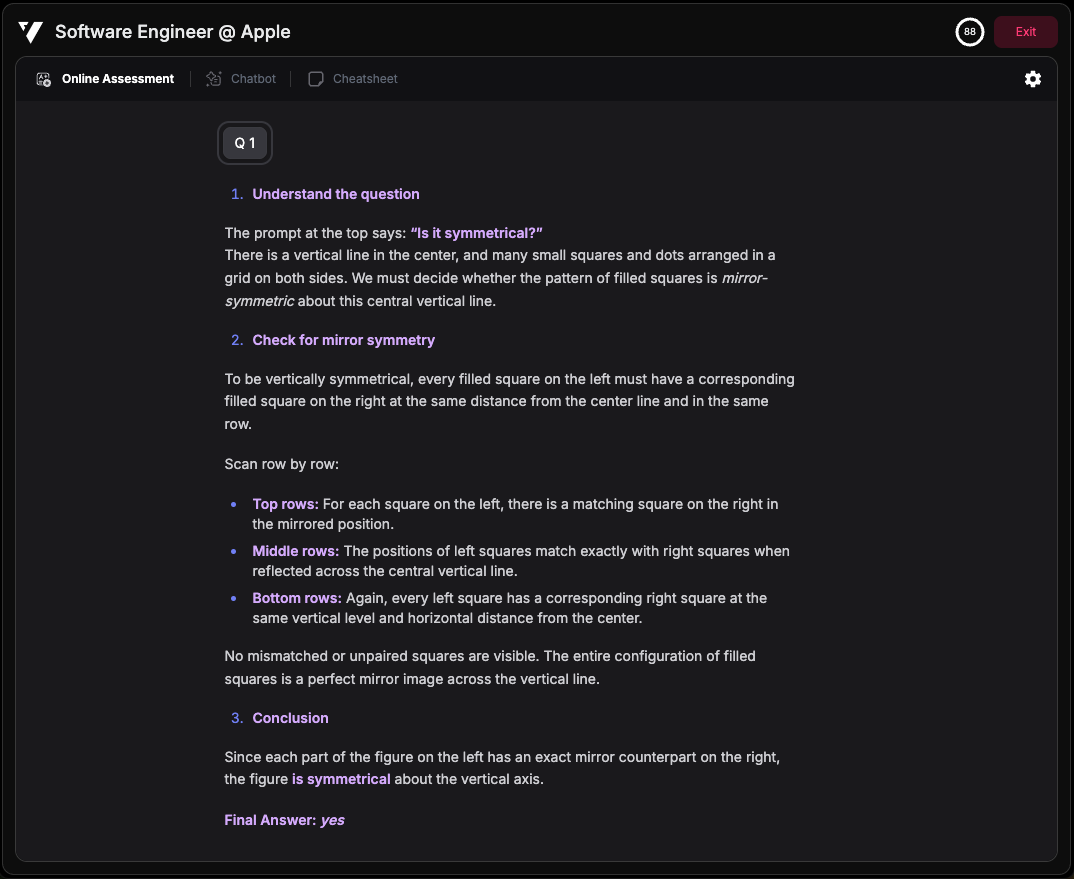
Designed for online assessments of all types, OA Copilot provides instant solutions to any question on your screen—from logic puzzles and math equations to verbal reasoning and visual problems—visible only to you.
**How to access:** Select **Online Assessment Copilot** as your interview domain in Step 2 of [launching interview copilot](https://www.app.vervecopilot.com/copilot)
***
## How to Use It
### 1. Setup
Choose between browser or desktop experience:
**Browser version:**
* **Chrome only** - Other browsers are not supported
* Install the [Verve AI Chrome extension](https://chromewebstore.google.com/detail/verve-ai/eaelmnmhehmblclgjjkhjmbkabaenpjp?hl=en)
**Desktop version (Recommended):**
* Download and install the [Desktop App](https://www.vervecopilot.com/app)
* Integrates with any meeting or assessment platform - not limited to browsers
### 2. Capture the Question
**Browser version:**
* Click the Verve AI extension icon to automatically capture the question from your screen
**Desktop version:**
* Use screen capture hotkeys to capture the question:
* Cmd + Shift + S (Mac) or Ctrl + Shift + S (Windows) - Capture selected area
* Cmd + Shift + C (Mac) or Ctrl + Shift + C (Windows) - Full screen capture
### 3. Get Instant Solutions
OA Copilot analyzes the question using advanced LLM vision technology and delivers a solution within 3 seconds, allowing you to efficiently navigate your assessment.
Visit the [quickstart guide](/quickstart) for complete setup instructions.
***
## What Problems Does It Solve?
* **Logic Puzzles** - Pattern recognition, logical reasoning questions
* **Math Equations** - Algebra, calculus, statistics problems
* **Verbal Reasoning** - Reading comprehension and critical reasoning
* **Text-based Questions** - Multiple choice, short answer, comprehension
* **Image-based Questions** - Visual puzzles, diagrams, charts
* **Mixed Format** - Questions combining text and images
***
## Troubleshooting
For browser: check that the extension is installed and enabled in your extensions menu, then refresh and try again; for desktop: make sure the app is running and try the hotkey again—that usually does the trick!
Make sure you scroll so the entire question—all text and images—is visible on your screen before capturing (browser: before clicking the icon; desktop: before selecting the area), since our AI can only work with what it can see.
Check your internet connection first, and keep in mind that complex questions with detailed images might take a few extra seconds—if it's consistently slow, try restarting the app/browser or reach out to our support team for help!