> ## Documentation Index
> Fetch the complete documentation index at: https://docs.vervecopilot.com/llms.txt
> Use this file to discover all available pages before exploring further.

# Mobile experience

> Get discreet AI interview assistance on mobile devices during phone interviews with real-time support.

## What is the Mobile Experience?

Yes, you can use Verve AI for phone interviews on your mobile device. The mobile experience is designed specifically for interviews conducted over the phone, providing discreet real-time support on a separate device.

**Access:** Use your mobile browser at [Verve AI web app](https://www.app.vervecopilot.com/copilot)

***

## How It Works

### Setup Process

<Steps>
  <Step title="Open mobile browser">
    Use Chrome, Safari or Firefox
  </Step>

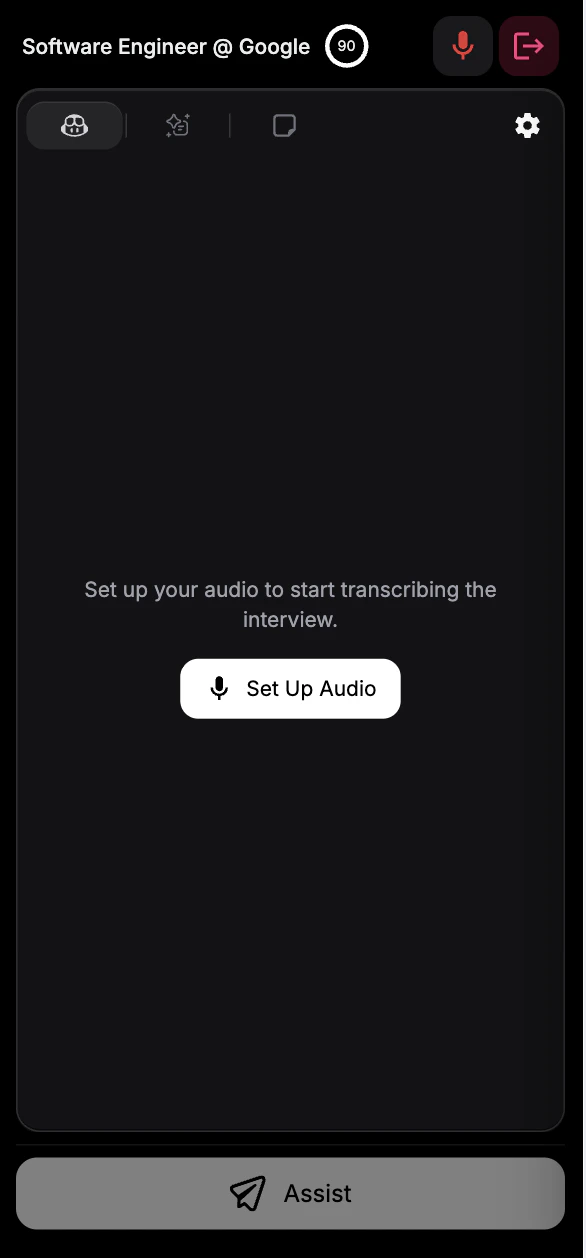
  <Step title="Navigate to Verve AI web app">
    Go to [Verve AI web app](https://www.app.vervecopilot.com/copilot)

    <div
      style={{
  background: 'url(https://mintcdn.com/verveai/jzc8c-7o9gDM_ix4/images/background-2.png?fit=max&auto=format&n=jzc8c-7o9gDM_ix4&q=85&s=0af18b9116238a319c7a24cac112123c)',
backgroundSize: 'cover',
backgroundPosition: 'center',
  padding: '1rem',
  borderRadius: '12px',
  marginTop: '1rem',
  marginBottom: '1rem',
  display: 'flex',
  justifyContent: 'center'
}}
    >
      <img src="https://mintcdn.com/verveai/QJL4eGuyUaXRRBy4/images/mobile-ux-1.png?fit=max&auto=format&n=QJL4eGuyUaXRRBy4&q=85&s=4aea4a7f8129a251d62cab24cc53b767" alt="Mobile experience step 2" style={{borderRadius: '12px', maxWidth: '300px', height: 'auto', border: '1px solid rgba(0, 0, 0, 0.1)', boxShadow: '0 8px 16px rgba(0, 0, 0, 0.15)'}} width="580" height="1262" data-path="images/mobile-ux-1.png" />
    </div>
  </Step>

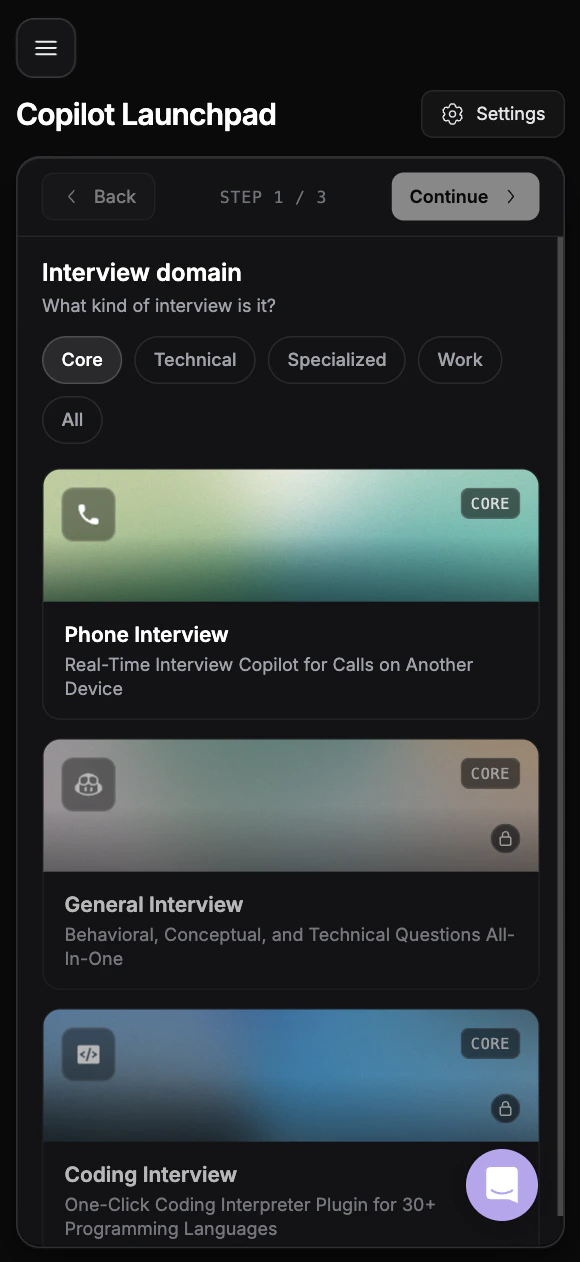
  <Step title="Select Phone Interview Copilot">
    Choose Phone Interview Copilot from your dashboard
  </Step>

  <Step title="Start your session">
    Begin your session while conducting the interview on another device
  </Step>
</Steps>

### The Separate Device Advantage

The mobile experience works best when used as a **separate device from your phone interview**:

* Interview on your **primary device**
* Run Verve AI Copilot on your **tablet, second phone, or mobile device**
* Glance at suggestions discreetly during the conversation

***

## Important Limitations

### Audio Quality Tradeoffs

Mobile browsers capture both interviewer and interviewee audio from the same source, making it harder to:

* Distinguish between speakers clearly
* Maintain consistent audio levels
* Filter background noise effectively

**Recommendation:** Use mobile only when a phone device is your only option for conducting the interview. For best results, use the Desktop App or Browser Version.

***

## Using the Mobile Experience

Once you've launched your session, follow these steps to get AI assistance during your interview:

<Steps>
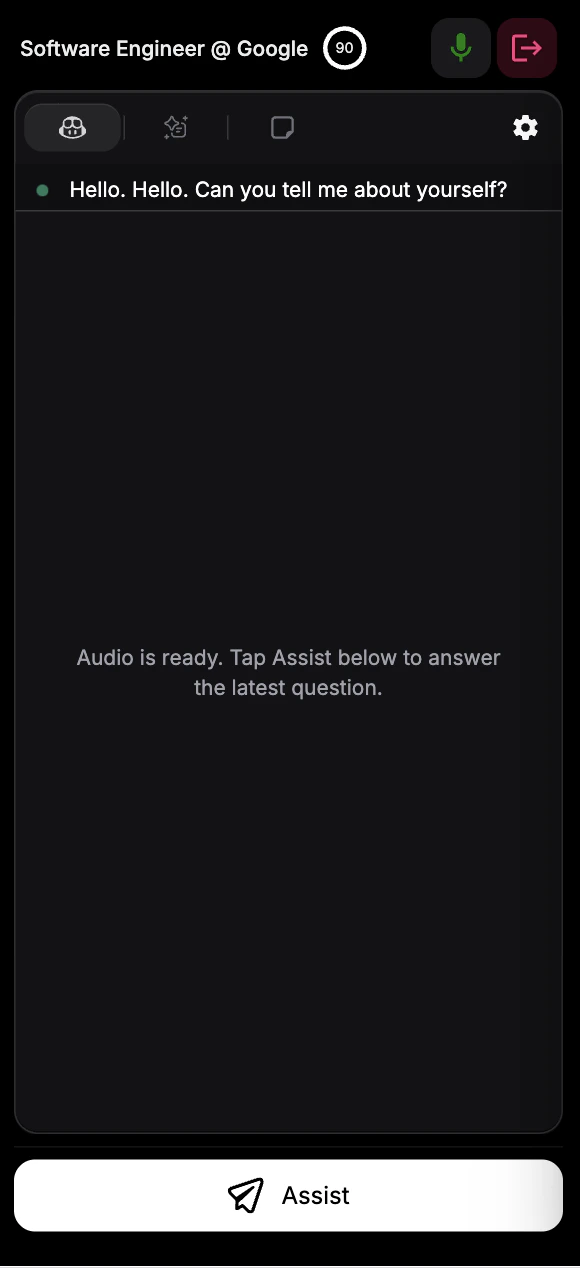
  <Step title="Select your microphone device">
    After launching the session, select your microphone device so the AI can hear the interview

    <div
      style={{
  background: 'url(https://mintcdn.com/verveai/jzc8c-7o9gDM_ix4/images/background-2.png?fit=max&auto=format&n=jzc8c-7o9gDM_ix4&q=85&s=0af18b9116238a319c7a24cac112123c)',
backgroundSize: 'cover',
backgroundPosition: 'center',
  padding: '1rem',
  borderRadius: '12px',
  marginTop: '1rem',
  marginBottom: '1rem',
  display: 'flex',
  justifyContent: 'center'
}}
    >
      <img src="https://mintcdn.com/verveai/QJL4eGuyUaXRRBy4/images/mobile-ux-2.png?fit=max&auto=format&n=QJL4eGuyUaXRRBy4&q=85&s=6b7b429e89f29cb5833feba954d4c00c" alt="Select microphone device" style={{borderRadius: '12px', maxWidth: '300px', height: 'auto', border: '1px solid rgba(0, 0, 0, 0.1)', boxShadow: '0 8px 16px rgba(0, 0, 0, 0.15)'}} width="586" height="1258" data-path="images/mobile-ux-2.png" />
    </div>
  </Step>

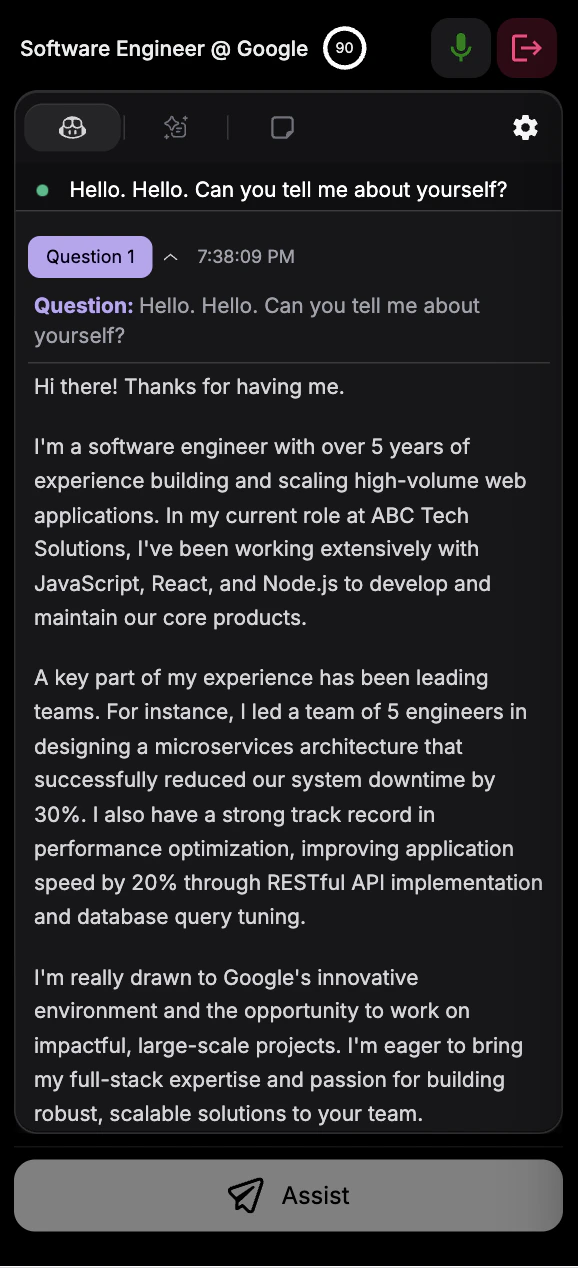
  <Step title="Press Assist when you need help">
    When you need assistance during the interview, press the Assist button

    <div
      style={{
  background: 'url(https://mintcdn.com/verveai/jzc8c-7o9gDM_ix4/images/background-2.png?fit=max&auto=format&n=jzc8c-7o9gDM_ix4&q=85&s=0af18b9116238a319c7a24cac112123c)',
backgroundSize: 'cover',
backgroundPosition: 'center',
  padding: '1rem',
  borderRadius: '12px',
  marginTop: '1rem',
  marginBottom: '1rem',
  display: 'flex',
  justifyContent: 'center'
}}
    >
      <img src="https://mintcdn.com/verveai/QJL4eGuyUaXRRBy4/images/mobile-ux-3.png?fit=max&auto=format&n=QJL4eGuyUaXRRBy4&q=85&s=072601ea9be002be49ae2af2031478e9" alt="Press Assist button" style={{borderRadius: '12px', maxWidth: '300px', height: 'auto', border: '1px solid rgba(0, 0, 0, 0.1)', boxShadow: '0 8px 16px rgba(0, 0, 0, 0.15)'}} width="580" height="1268" data-path="images/mobile-ux-3.png" />
    </div>
  </Step>

  <Step title="Get AI-powered answers">
    The AI analyzes the recent transcription and provides relevant answers to help you respond

    <div
      style={{
  background: 'url(https://mintcdn.com/verveai/jzc8c-7o9gDM_ix4/images/background-2.png?fit=max&auto=format&n=jzc8c-7o9gDM_ix4&q=85&s=0af18b9116238a319c7a24cac112123c)',
backgroundSize: 'cover',
backgroundPosition: 'center',
  padding: '1rem',
  borderRadius: '12px',
  marginTop: '1rem',
  marginBottom: '1rem',
  display: 'flex',
  justifyContent: 'center'
}}
    >
      <img src="https://mintcdn.com/verveai/QJL4eGuyUaXRRBy4/images/mobile-ux-4.png?fit=max&auto=format&n=QJL4eGuyUaXRRBy4&q=85&s=faca722562eb79d6436766d65249bb70" alt="AI-powered answers based on transcription" style={{borderRadius: '12px', maxWidth: '300px', height: 'auto', border: '1px solid rgba(0, 0, 0, 0.1)', boxShadow: '0 8px 16px rgba(0, 0, 0, 0.15)'}} width="578" height="1268" data-path="images/mobile-ux-4.png" />
    </div>
  </Step>
</Steps>

***

## When to Use

<CardGroup cols={2}>
  <Card title="Phone-Only Interviews" icon="phone-volume">
    When the interview must be conducted via phone call
  </Card>

  <Card title="Backup Device" icon="tablet">
    Using a tablet or second phone for discreet support
  </Card>

  <Card title="No Desktop Access" icon="wifi">
    When you can't use a computer for the interview
  </Card>

  <Card title="On-the-Go" icon="person-walking">
    Interviews conducted while traveling or away from desk
  </Card>
</CardGroup>

***

## Mobile vs. Desktop vs. Browser

| Feature                         | Mobile               | Browser Version          | Desktop App         |
| ------------------------------- | -------------------- | ------------------------ | ------------------- |
| **Installation**                | None                 | None                     | Required            |
| **Supported Copilots**          | Phone Interview only | All domains              | All domains         |
| **Audio Quality**               | Lower                | High                     | High                |
| **Discreet on Separate Device** | Yes                  | Yes                      | Yes                 |
| **Transcription Quality**       | Compromised          | High                     | High                |
| **Screen Capture**              | No                   | Extension only           | Hotkey              |
| **Stealth Mode**                | No                   | No                       | Yes                 |
| **Best Use Case**               | Phone interviews     | Browser-based interviews | All interview types |

***

## Troubleshooting

<AccordionGroup>
  <Accordion title="Audio not being captured">
    Check mobile browser permissions. Go to Settings > \[Browser] > Microphone and ensure access is granted. Try refreshing and restarting the session.
  </Accordion>

  <Accordion title="Poor transcription quality">
    This is a known limitation of mobile audio capture. Ensure you're in a quiet environment, speak clearly, and manually verify speaker selection. Consider using Desktop App for better quality.
  </Accordion>

  <Accordion title="Copilot responses don't make sense">
    Compromised audio transcription affects response quality. Manually select the correct speaker as interviewer. If issues persist, switch to Desktop or Browser version.
  </Accordion>

  <Accordion title="Can I use other copilot types on mobile?">
    Currently, only Phone Interview Copilot is supported on mobile. For Coding, OA, or General Interview Copilots, use the Browser Version or Desktop App.
  </Accordion>

  <Accordion title="Real-time support not starting">
    You must manually select which speaker is the interviewer for real-time support to activate. Check your session settings and speaker selection.
  </Accordion>
</AccordionGroup>