> ## Documentation Index
> Fetch the complete documentation index at: https://docs.vervecopilot.com/llms.txt
> Use this file to discover all available pages before exploring further.
# Manual mode
> Take control of when your AI interview copilot generates responses during technical and behavioral interviews.
## What is Manual Mode?
By default, Interview Copilot operates in **Auto Mode**, providing a hands-free experience where it automatically transcribes questions, detects when the interviewer finishes speaking, and generates responses in real-time.
**Manual Mode** gives you control over when the copilot generates responses. Transcription continues automatically in the background, but the copilot only provides an answer when you explicitly request it.
**How to access:** Manual Mode is available in every active Interview Copilot session after you [launch copilot](/quickstart)
You can set Manual Mode as your default starting mode in [Layout and Response Mode](/features/copilot-layout-response-settings) so every new session launches with Manual Mode enabled.
***
## How to Enable Manual Mode
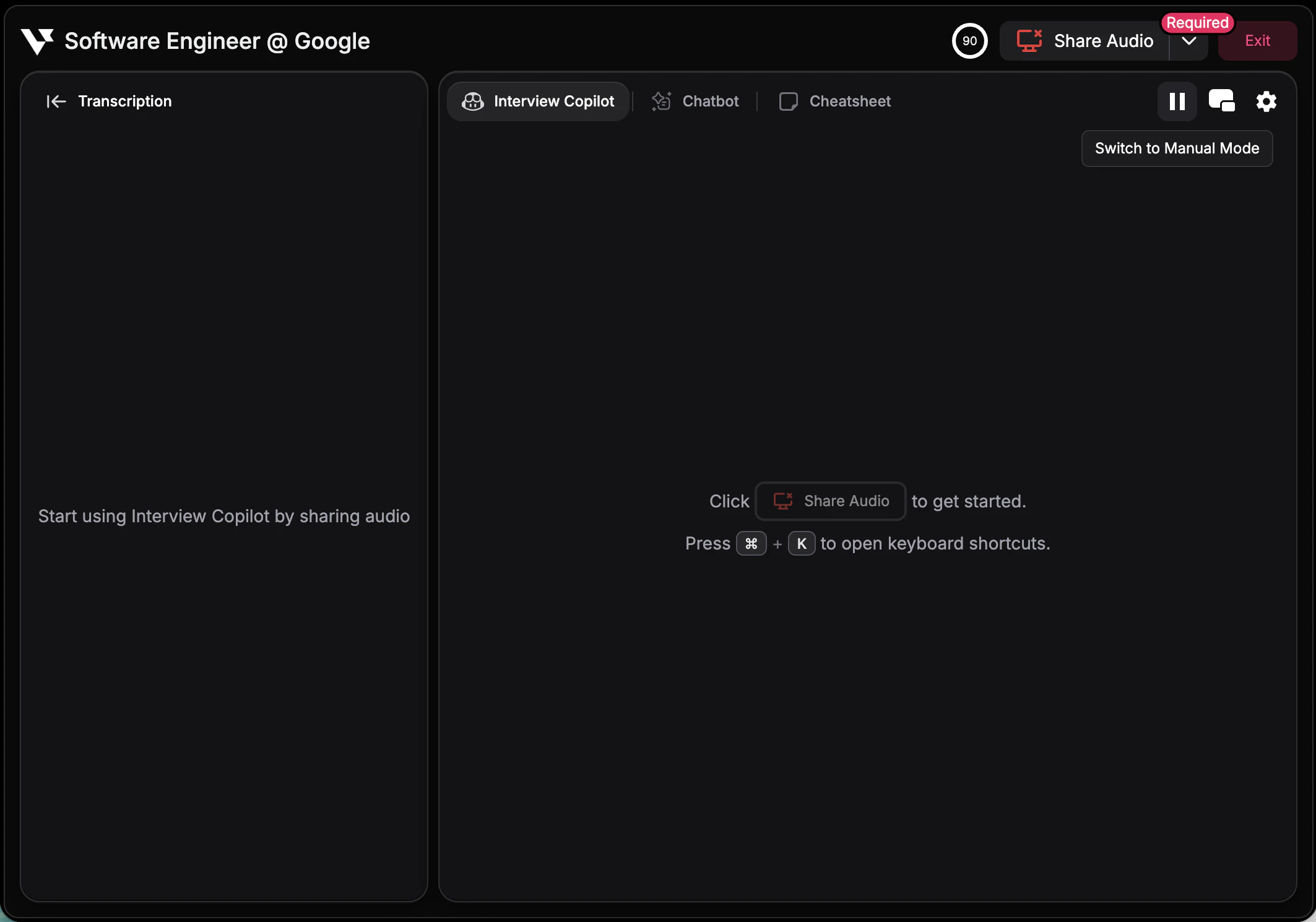 You can switch between Auto Mode and Manual Mode at any time during your active copilot session.
### Using the Button
Find the **pause/play button** in the top-right corner of the copilot interface.
* **Play icon** = Auto Mode (responses generate automatically)
* **Pause icon** = Manual Mode (responses generate on request)
### Using the Hotkey
Press Cmd + M (Mac) or Ctrl + M (Windows) to toggle between Auto Mode and Manual Mode instantly.
***
## How to Request a Response in Manual Mode
When in Manual Mode, the most recent transcription is automatically highlighted with a **purple border** in the transcription section, indicating which message the AI will answer when you trigger a response.
You can switch between Auto Mode and Manual Mode at any time during your active copilot session.
### Using the Button
Find the **pause/play button** in the top-right corner of the copilot interface.
* **Play icon** = Auto Mode (responses generate automatically)
* **Pause icon** = Manual Mode (responses generate on request)
### Using the Hotkey
Press Cmd + M (Mac) or Ctrl + M (Windows) to toggle between Auto Mode and Manual Mode instantly.
***
## How to Request a Response in Manual Mode
When in Manual Mode, the most recent transcription is automatically highlighted with a **purple border** in the transcription section, indicating which message the AI will answer when you trigger a response.
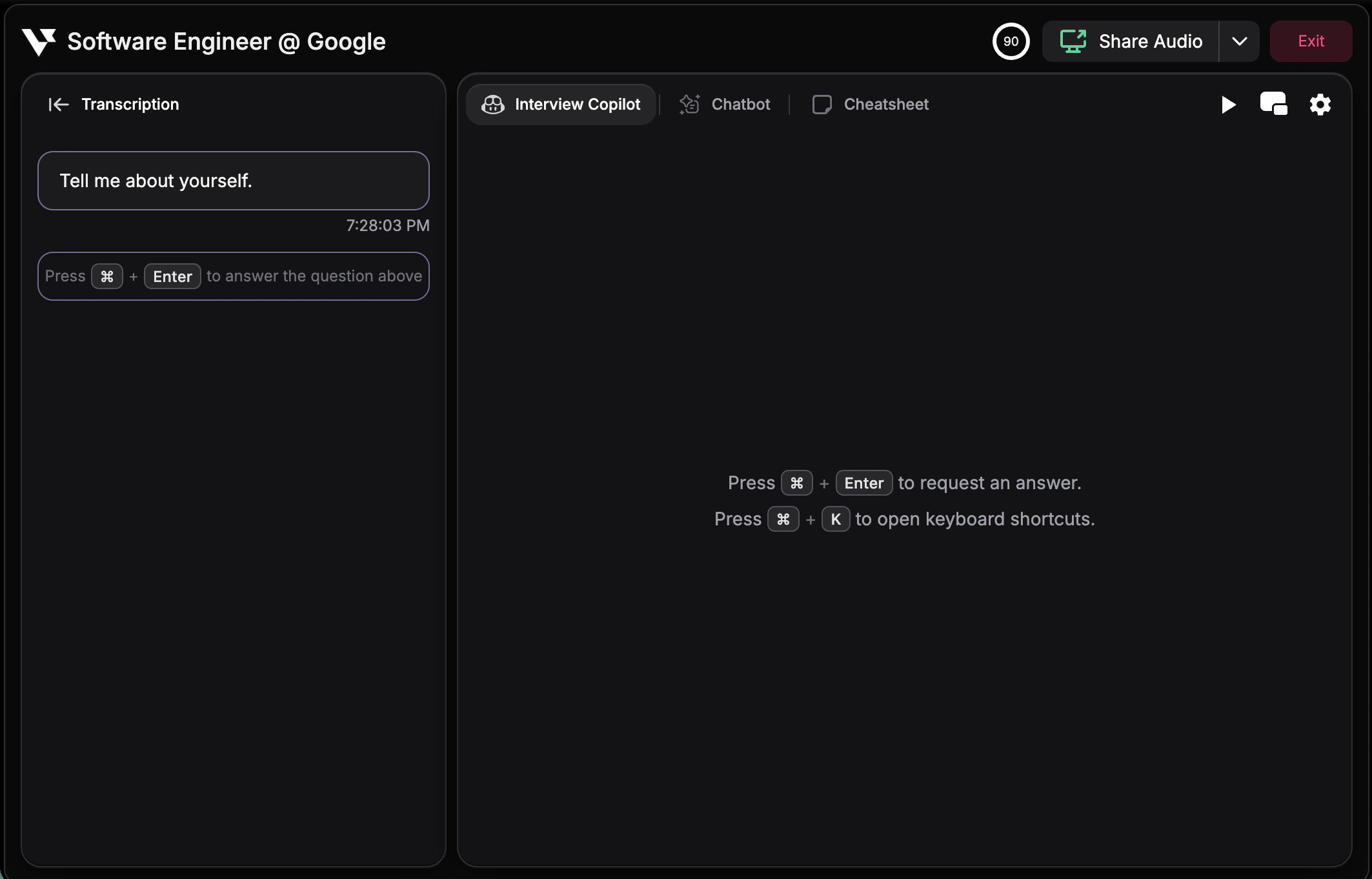 To request copilot assistance for the highlighted question:
**Press Cmd + Enter (Mac) or Ctrl + Enter (Windows)**
The copilot will generate a response based on the highlighted transcription. Once sent, you cannot trigger Manual Mode again until new transcription messages come in.
To request copilot assistance for the highlighted question:
**Press Cmd + Enter (Mac) or Ctrl + Enter (Windows)**
The copilot will generate a response based on the highlighted transcription. Once sent, you cannot trigger Manual Mode again until new transcription messages come in.
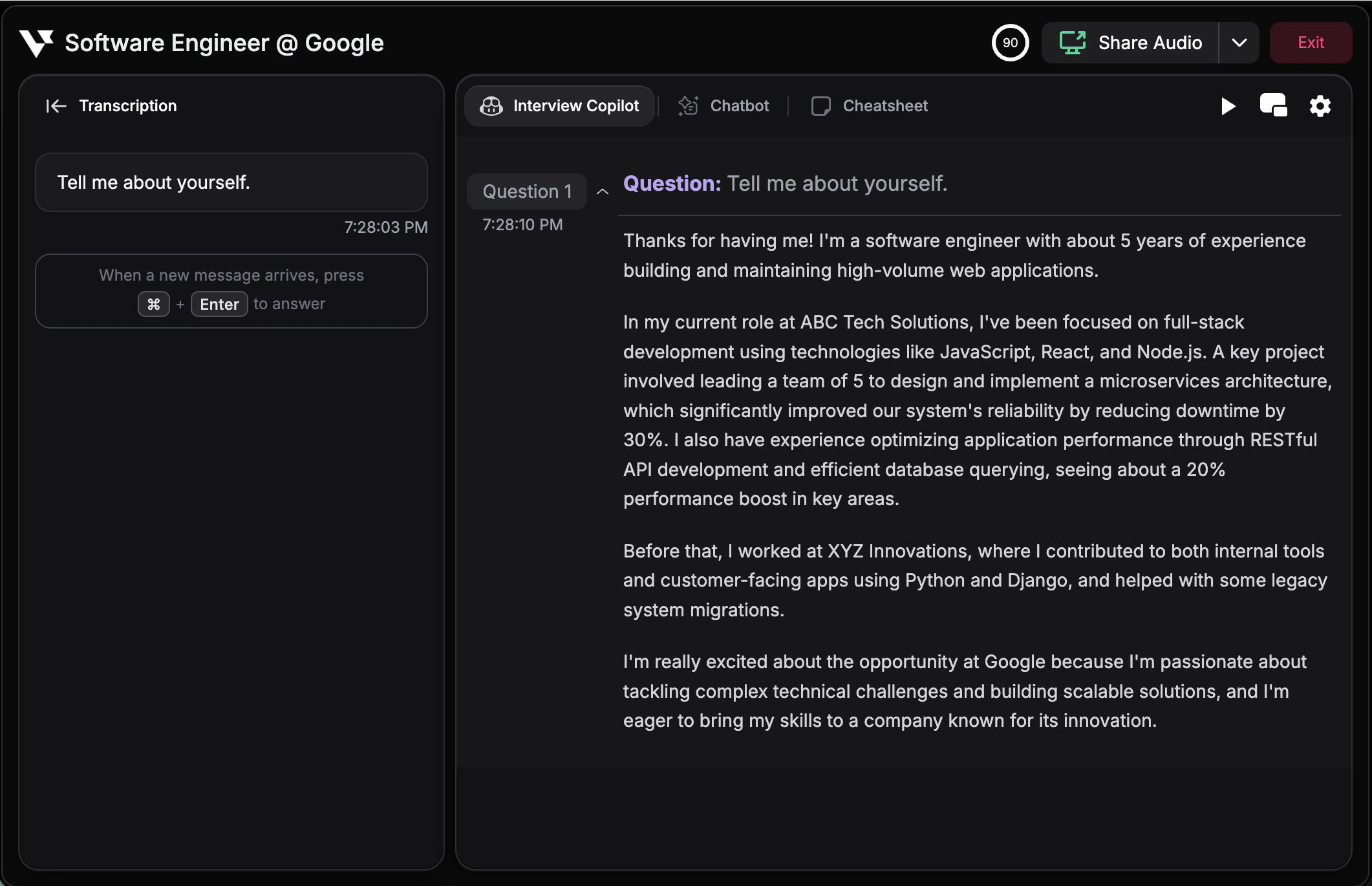 You must be in Manual Mode for this hotkey to work. In Auto Mode, responses are already generated automatically.