> ## Documentation Index
> Fetch the complete documentation index at: https://docs.vervecopilot.com/llms.txt
> Use this file to discover all available pages before exploring further.
# Knowledge Base
> Train your AI Interview Copilot with uploaded documents and documents created from scratch for personalized interview assistance.
## Overview
The Knowledge Base is your central hub for training and preparing your AI Interview Copilot. It focuses on AI-usable documents, whether you upload an existing file or create one from scratch.
**Access:** [Knowledge Base](https://www.app.vervecopilot.com/knowledge-base)
***
## Choose the Right Knowledge Base Option
The Knowledge Base gives you 2 ways to add AI-usable documents:
| Option | Upload Document | Create from Scratch |
| ------------------- | -------------------------------------------------------- | ---------------------------------------------------- |
| **Purpose** | Add existing files for Copilot context | Write new context directly in Knowledge Base |
| **Used by Copilot** | Yes | Yes |
| **How It Works** | Upload a file and let Copilot reference it | Type content manually using STAR or free-form input |
| **Format** | .pdf, .docx, .pptx, .txt, .csv, .md files (up to 3.5 MB) | Structured STAR fields or a free-form message |
| **Best For** | Resumes, job descriptions, company info | Personal stories, prepared answers, project examples |
***
## Documents
AI actively uses documents to generate tailored responses during your interview. Upload resumes, job descriptions, company research, and other materials that give the Copilot stronger context.
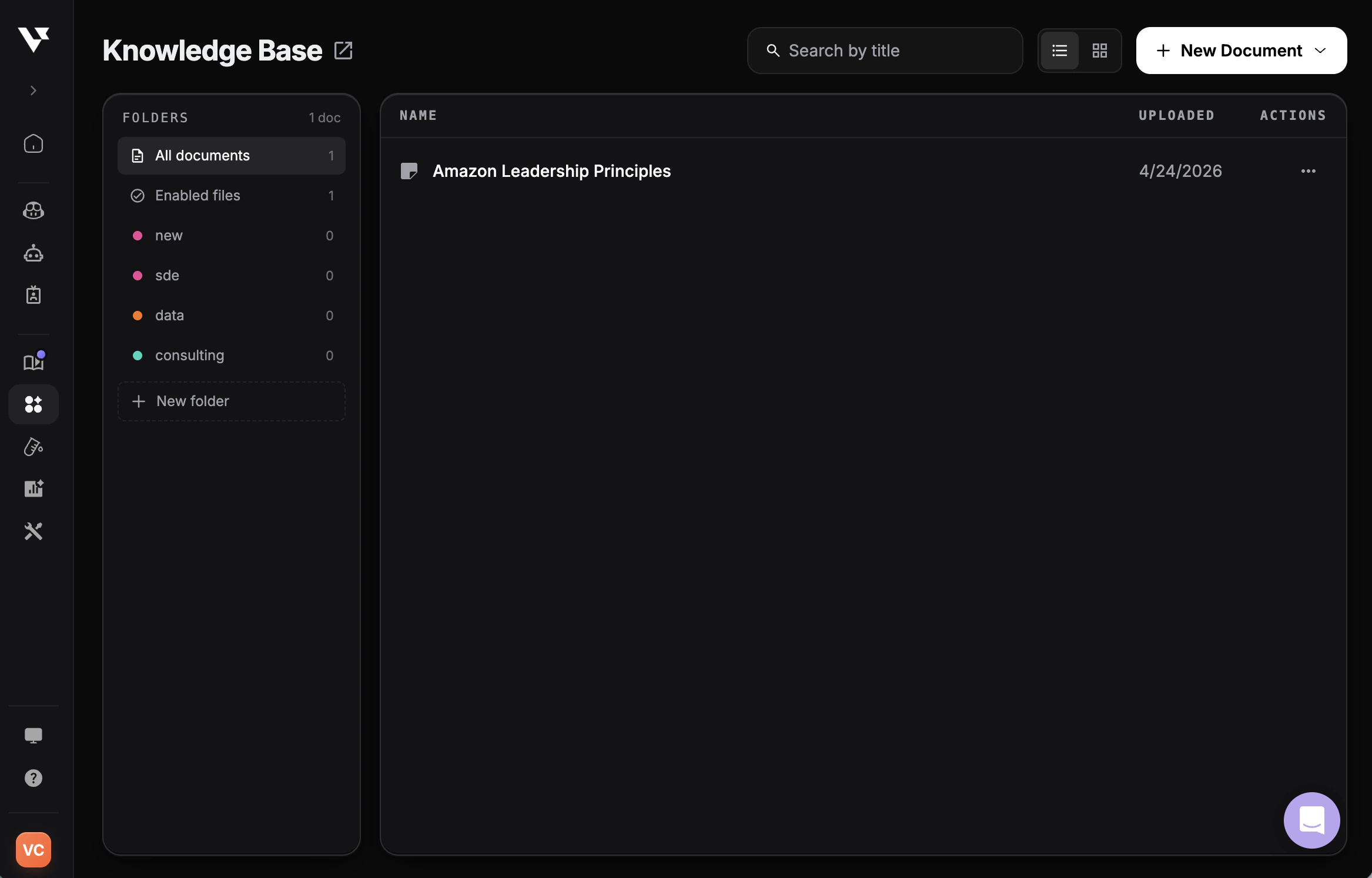
Visit the [Knowledge Base](https://www.app.vervecopilot.com/knowledge-base) and select the **Documents** tab.
Click the **+ New Document** button to start uploading.
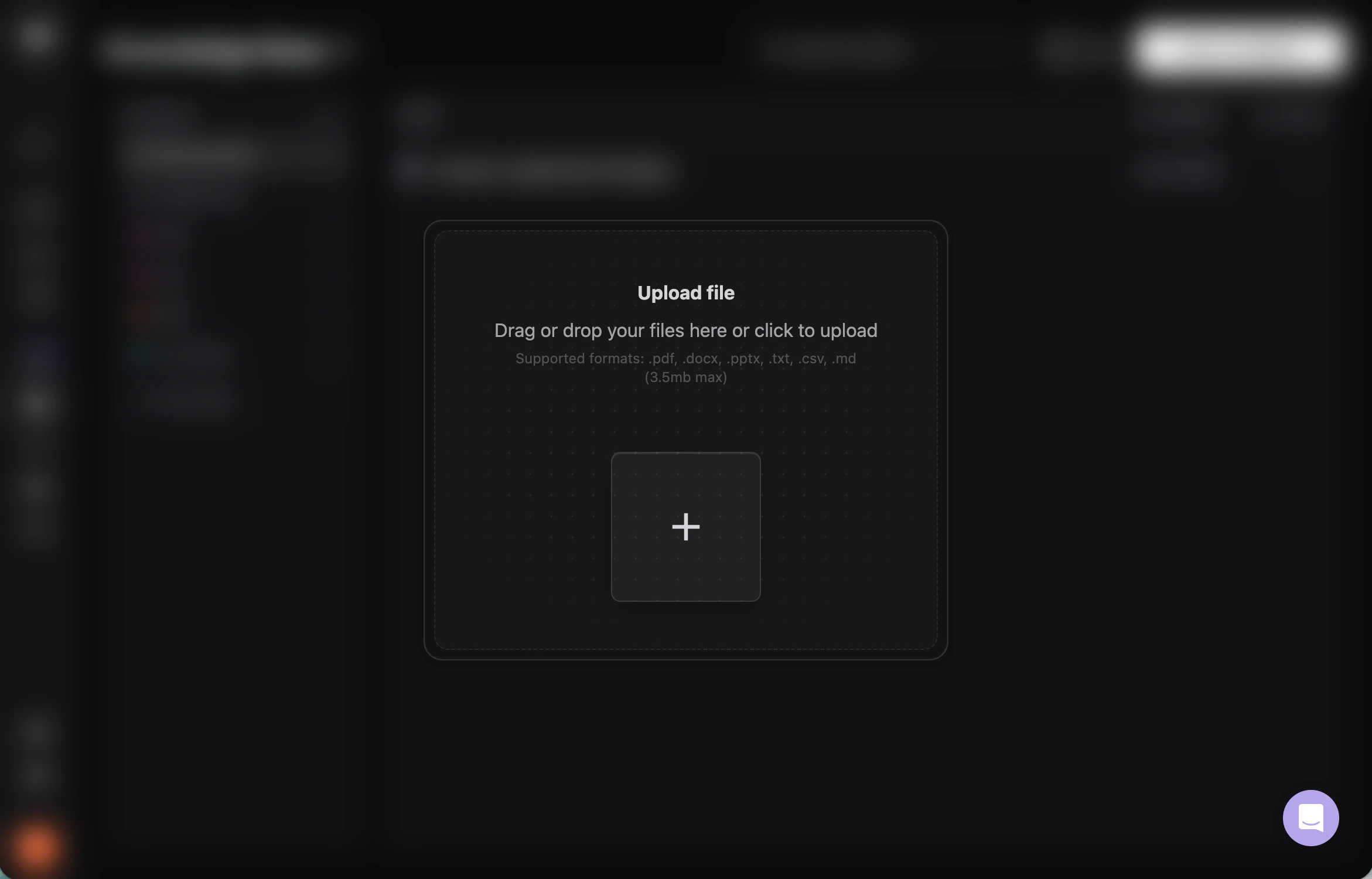
Drag and drop or choose a local file. Supported formats: **.pdf, .docx, .pptx, .txt, .csv, .md** (up to **3.5 MB**).
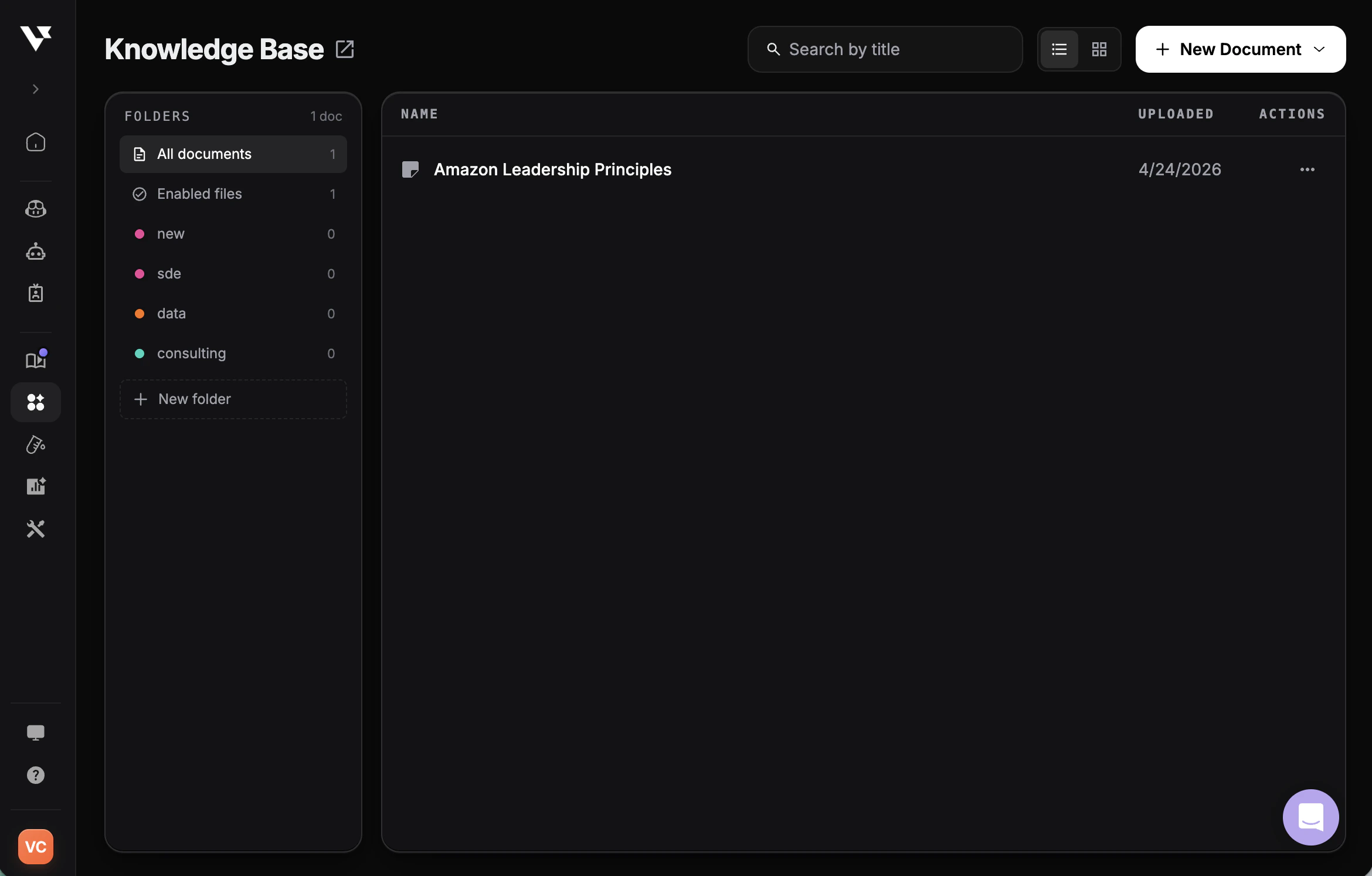
Once uploaded, your document appears on the dashboard. Toggle it ON to include it in Copilot responses or OFF to exclude it.
**Supported formats:** .pdf, .docx, .pptx, .txt, .csv, .md — up to **3.5 MB** per file.
### What to Upload
* **Company Research:** Information about the company, culture, products, or recent news
* **Technical Specs:** Technical documentation, architecture diagrams, or technology overviews
* **Portfolio Summaries:** Project summaries, case studies, or work samples relevant to the role
* **Industry Reports:** Market research, trends, or industry-specific knowledge
* **Product Documentation:** Product guides, user manuals, or feature specifications you should know
* **Study Materials:** Interview prep notes, coding patterns, or domain-specific guides
***
## Organize with Folders
Folders let you group related documents — for example, by role, company, or interview type — so you can keep your Knowledge Base tidy and load only the relevant context into each Copilot session.
In the Knowledge Base sidebar, click **+ New folder** and give it a name (e.g., *sde*, *data*, *consulting*).
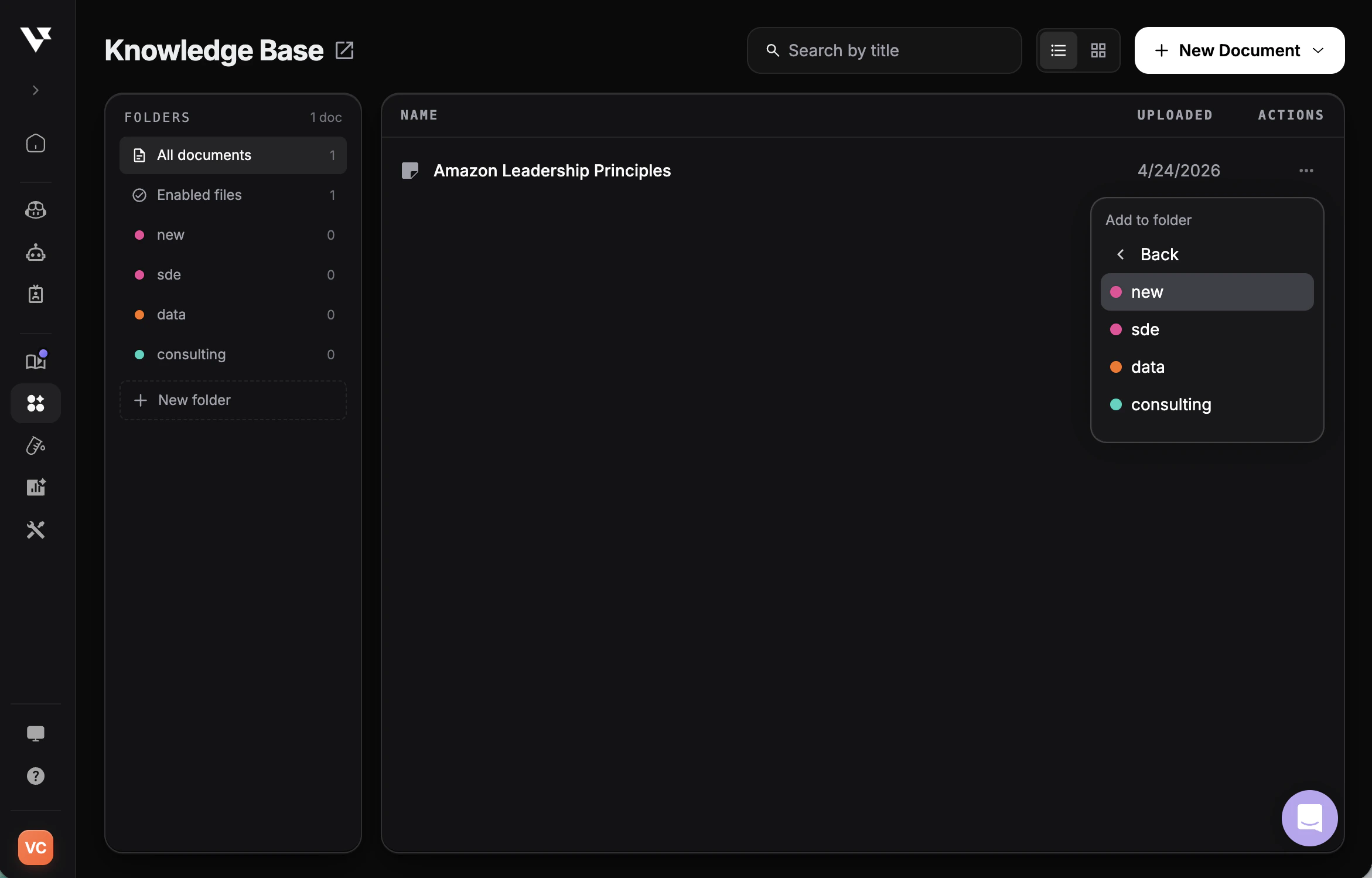
Open the **⋯** action menu on any document, choose **Add to folder**, and pick the destination folder.
Click any folder in the sidebar to view only its documents. Use **All documents** to see everything, or **Enabled files** to see only what's active.
At launch time, you can scope a Copilot session to a single folder instead of your entire Knowledge Base — useful when you've prepared role-specific notes you don't want bleeding into other interviews.
***
## Create from Scratch
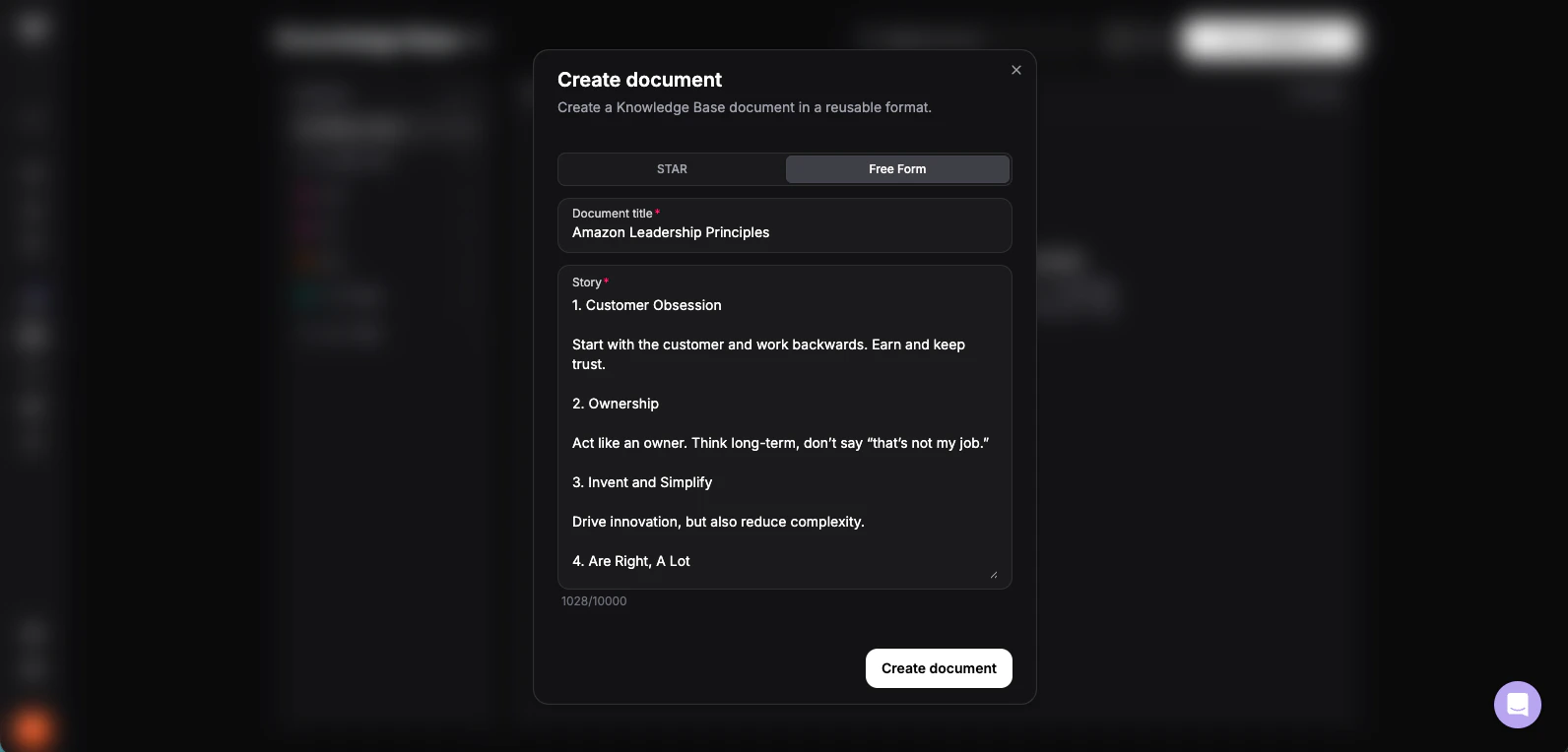
If you do not want to upload a file, you can create a document directly inside Knowledge Base. This is the right option for interview stories, prepared answers, project summaries, and other context you want Copilot to use.
Go to the [Knowledge Base](https://www.app.vervecopilot.com/knowledge-base) and choose the option to create a document from scratch.
Click to create a new document instead of uploading an existing file.
Pick either the **STAR format** or a **free-form message**, depending on how structured you want the content to be.
Add a title, fill in your content, and save it so the document becomes part of your Copilot response context.
### When to Create from Scratch
* **Behavioral stories:** STAR examples for leadership, conflict, delivery, or ownership
* **Prepared answers:** Common interview prompts you want to answer consistently
* **Project summaries:** Highlights you want Copilot to reference without uploading a separate file
* **Role-specific talking points:** Domain knowledge, priorities, or examples tailored to one interview
### Example STAR Entry
**Situation:** Our e-commerce platform was experiencing slow checkout times, causing a 15% cart abandonment rate.
**Task:** As the lead developer, I needed to optimize the checkout flow while maintaining all security and payment integrations.
**Action:** I conducted performance profiling, identified database query bottlenecks, implemented Redis caching for session data, and optimized the payment gateway API calls. I also worked with the UX team to streamline the user interface.
**Result:** Reduced checkout time from 45 seconds to 12 seconds, decreasing cart abandonment by 60% and increasing completed purchases by 25% over three months. The solution handled 3x the original traffic capacity.
### Input Styles
#### STAR Format (Recommended)
The STAR method gives both the AI and your interviewer a clean structure to follow:
* **Situation:** Set the context and background
* **Task:** Describe the challenge or goal
* **Action:** Explain what you specifically did
* **Result:** Share the outcome and impact
#### Free-Form Message
You can also write your document in a natural, conversational style. The AI will extract key points and integrate them appropriately during the interview.