> ## Documentation Index
> Fetch the complete documentation index at: https://docs.vervecopilot.com/llms.txt
> Use this file to discover all available pages before exploring further.
# Interview copilot
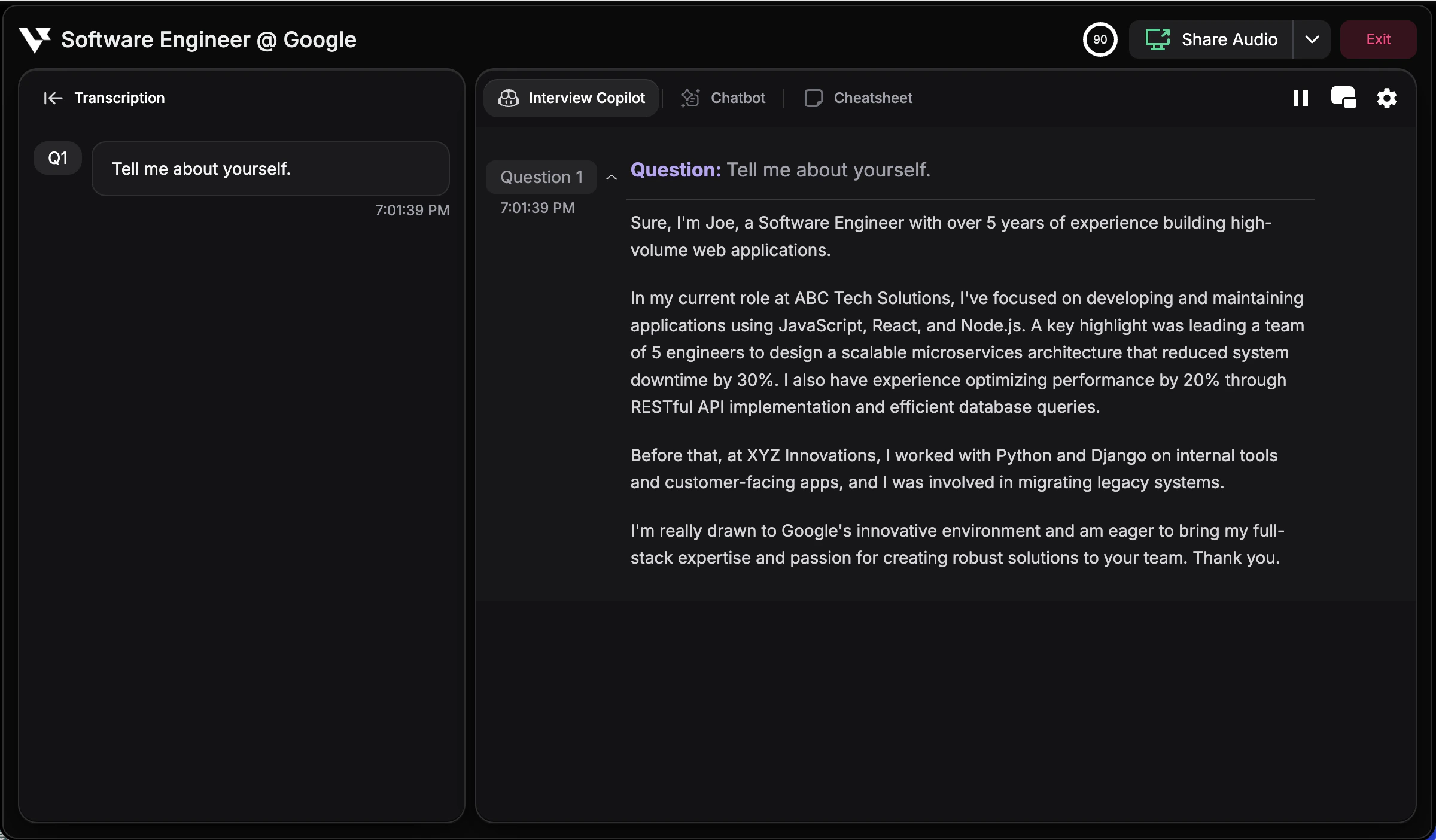
> Get real-time AI assistance for behavioral, technical, and coding interviews with Verve intelligent copilot across 20+ domains.
## What is Interview Copilot?
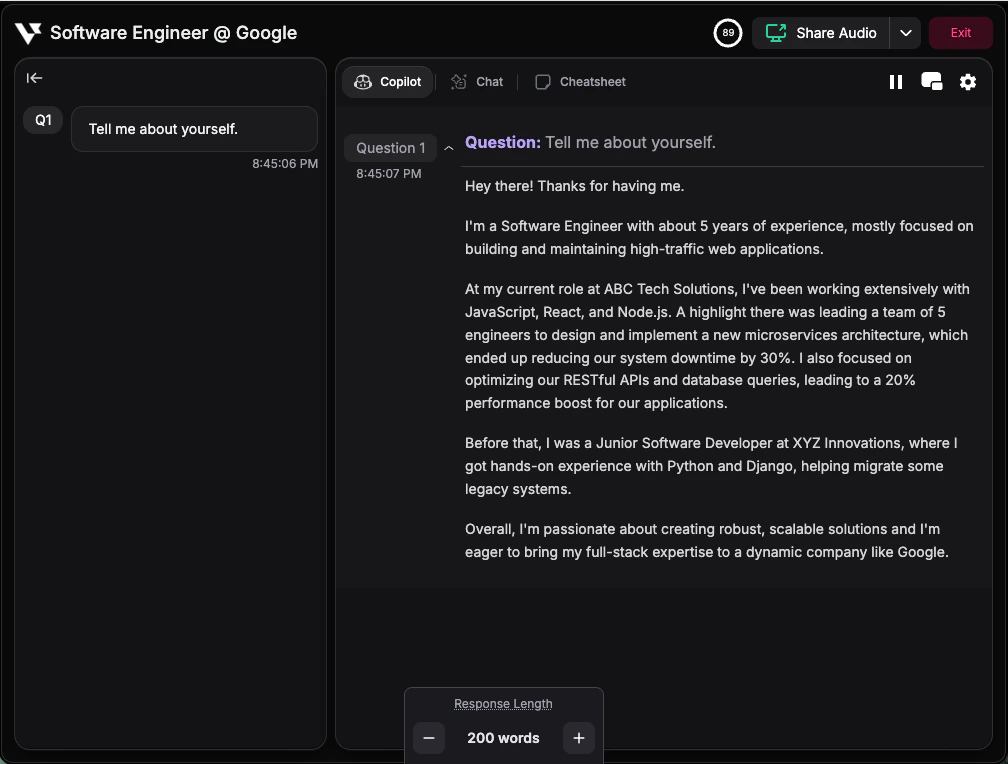
Interview Copilot provides real-time guidance during live interviews. It listens to conversations and displays suggestions visible only to you, or captures questions from your screen for instant solutions.
**How to access:** [launch interview copilot](https://www.app.vervecopilot.com/copilot)
***
## How to Use Interview Copilot
For detailed setup and usage instructions, visit the [quickstart guide](/quickstart).
***
## Interview Domains
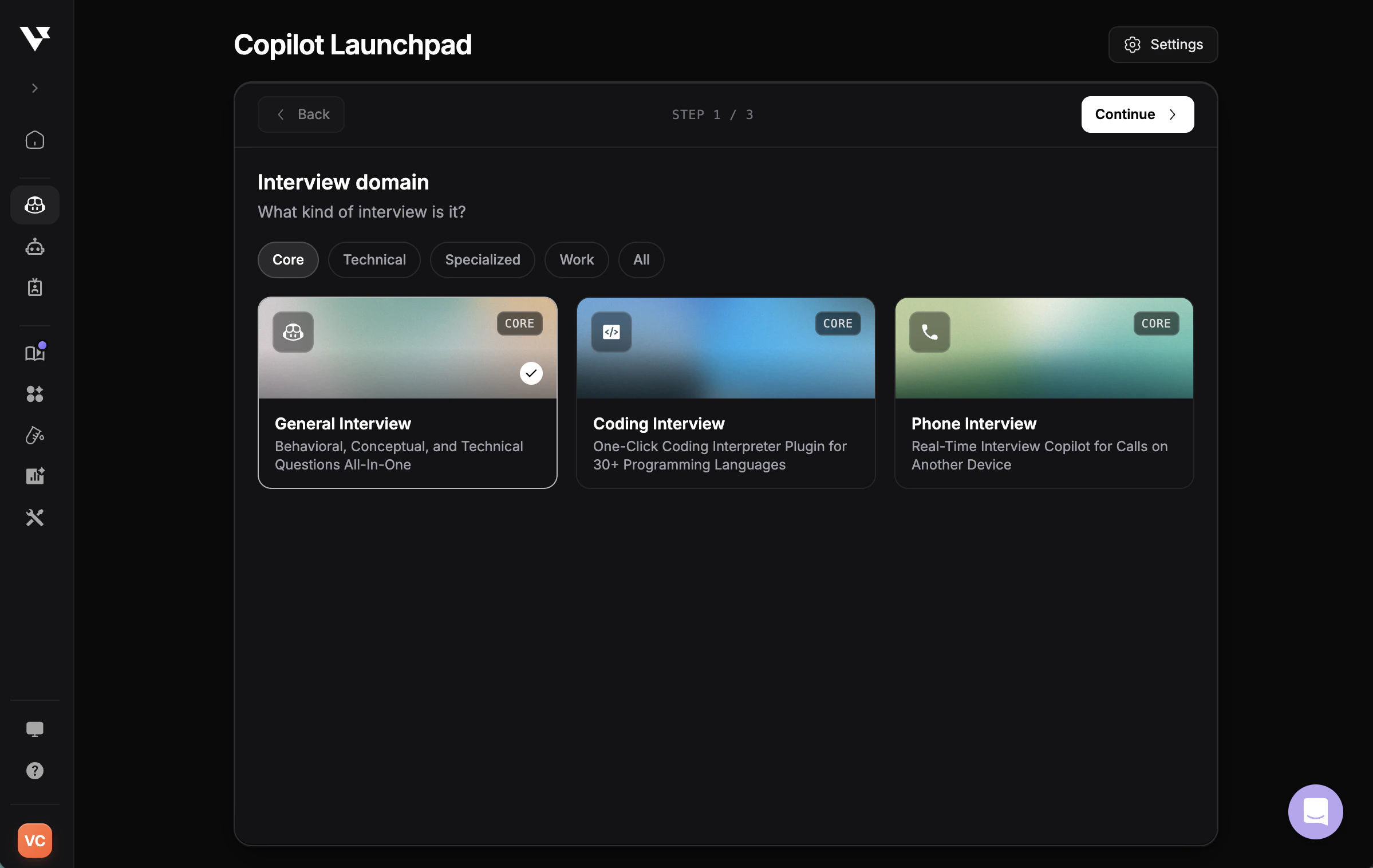
Interview Copilot supports 20+ specialized domains, each tailored with relevant knowledge and frameworks. Select your domain when launching to get context-aware guidance.
### Technical Copilot
One-click interpreter for 30+ programming languages
Crack tests instantly with LLM vision technology
Real-time copilot for calls on another device
Optimized for Mercor's AI interview system
### Industry & Role Domains
**Software Engineering** - Algorithms, system design, DevOps standards
**Data Science & Analytics** - SQL, statistical methods, ML models, visualization
**Cloud & Infrastructure Engineering** - Scalable systems, cloud architecture, reliability
**Cyber Security** - Network security, threat analysis, security architecture
**AI Security & Governance** - AI risk management, model security, compliance
**General Interview** - Behavioral, conceptual, and technical questions all-in-one
**Product Management** - Product lifecycles, market research, agile methodologies
**Consulting** - Case studies, business strategy, market analysis
**Marketing** - Marketing strategies, digital marketing, brand management
**Sales & Customer Relations** - CRM, sales processes, negotiation, retention
**Supply Chain Management** - Procurement, logistics, inventory, demand planning
**Finance** - Financial theories, investment strategies, analysis
**Legal & Compliance** - Regulatory reasoning, risk assessment, frameworks
**Healthcare** - Medical terminologies, healthcare policies, patient care
**Professional Meeting** - AI copilot and meeting notes for professional meetings
**College Application** - Admissions, scholarships, and internship interviews
***
## In-Session Controls
Access powerful session controls via the dropdown menu in the top-right corner during active interviews. These features help you customize the copilot experience in real-time.
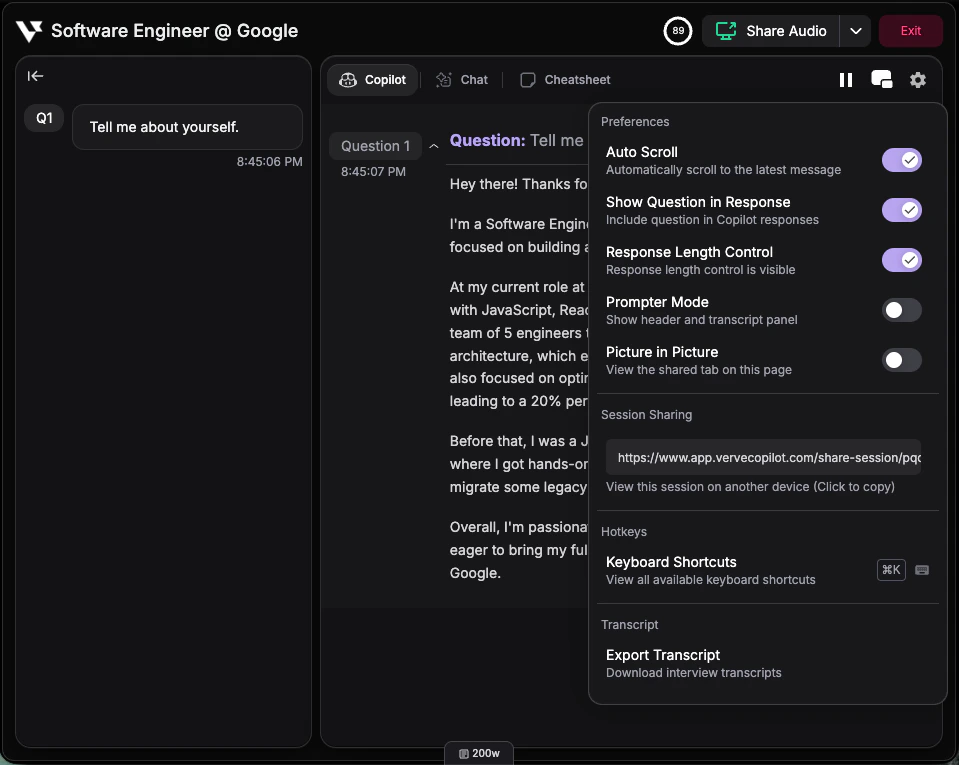
**Available Features:**
* **[Auto Scroll](/guides/turn-off-auto-scroll)** - Automatically scroll to the latest AI suggestions as they appear. Turn this on for hands-free real-time updates, or off when you need to review earlier responses at your own pace.
* **Show Question in Response** - Display the interviewer's question above each AI response for better context and reference during the conversation.
* **Response Length Control** - Adjust how detailed AI responses are using Cmd + ↑ / ↓ (Mac) or Ctrl + ↑ / ↓ (Windows). Increase for more comprehensive answers or decrease for concise talking points.
* **[Prompter Mode](/features/copilot-layout-response-settings)** - Switch to a distraction-free single-panel view that shows only the copilot content, maximizing screen space for reading suggestions.
* **Picture in Picture** - View the shared tab directly within the copilot interface, allowing you to see what the copilot is capturing and hearing.
* **Session Sharing** - Generate a shareable link to your interview session for collaborative review or coaching purposes.
* **[Keyboard Shortcuts](/features/keyboard-shortcuts)** - View and reference all available hotkeys for quick access during interviews. Essential for mastering efficient copilot control.
* **[Export Transcript](/guides/interview-transcription)** - Download a complete record of your interview conversation including questions, responses, and timestamps for post-interview review.
***
## Platform Options
### Browser Version
* Chrome, Edge, Opera supported for general interviews
* [screen capture Chrome extension](https://chromewebstore.google.com/detail/verve-ai/eaelmnmhehmblclgjjkhjmbkabaenpjp?hl=en) enables screen capture for all copilot domains
* Real-time transcription and basic hotkeys
### Desktop App (Recommended)
* **Stealth Mode** - Invisible during screen sharing
* **Screen capture hotkey** - Capture anything and send to Chatbot for instant support
* **Transparent overlay** - See-through display option
* **Platform-agnostic** - Works with any application, not just browsers
* **Enhanced performance** - Better resource optimization
***
## Tips for Success
Don't read word-for-word. Glance at structure and key points, then speak naturally.
Get comfortable showing and hiding the panel instantly. Smooth control looks more natural during interviews.
If transcription misses something or you want to dig into specific topics, just switch to the Chatbot tab and type your question directly. You can also upload screenshots—Interview Copilot will factor this content into its responses, so your answers stay relevant to any materials being discussed. [Learn more about Chatbot](/features/chat-bot).
***
## Troubleshooting
Ensure audio sharing is properly configured. [Learn how to share audio →](/guides/share-audio)
Upload your resume and add context in [Knowledge Base](/features/knowledge-base). You can also customize the response style and tone in [Custom Response Style](/features/custom-response-style) settings.
Adjust the [pause interval](/guides/pause-interval) to control how long the copilot waits before responding. You can also switch to [Manual Mode](/features/manual-mode) to trigger responses only when you're ready.
Check your plan limits and remaining sessions. Upgrade if you need longer or more sessions.
Verify you selected the right language in [interview language settings](/guides/change-interview-language). Enable multilingual support for non-Latin languages.