> ## Documentation Index
> Fetch the complete documentation index at: https://docs.vervecopilot.com/llms.txt
> Use this file to discover all available pages before exploring further.
# Coding copilot
> AI-powered coding interview assistant with instant solutions for LeetCode-style questions and technical interviews.
## What is Coding Copilot?
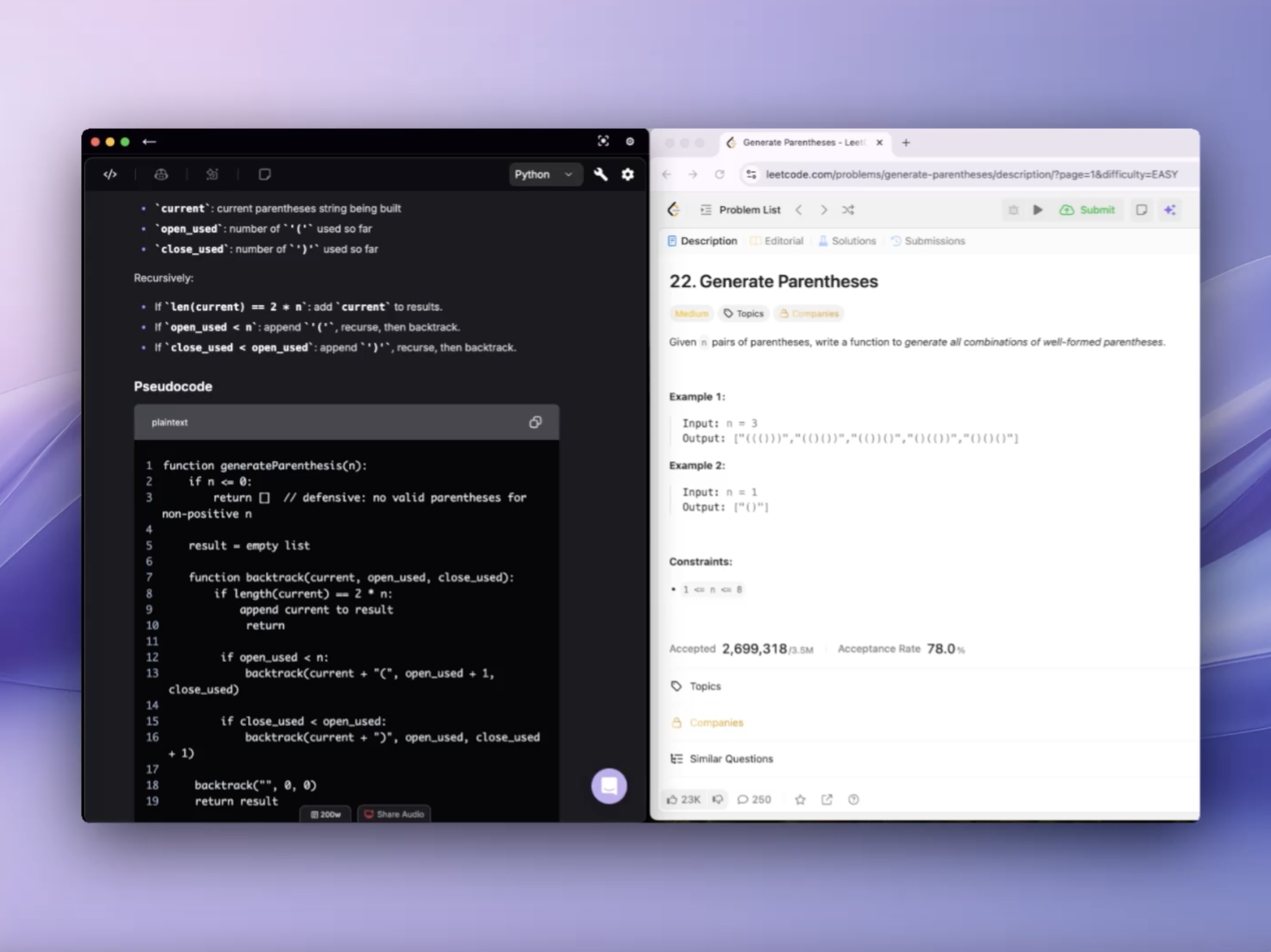
Designed specifically for leetcode-style coding interviews, Coding Copilot captures questions from your screen and delivers instant solutions with comprehensive explanations—visible only to you.
**How to access:** Select **Coding Copilot** as your interview domain in Step 3 of [launching interview copilot](https://www.app.vervecopilot.com/copilot)
 ***
## Coding Interpreter
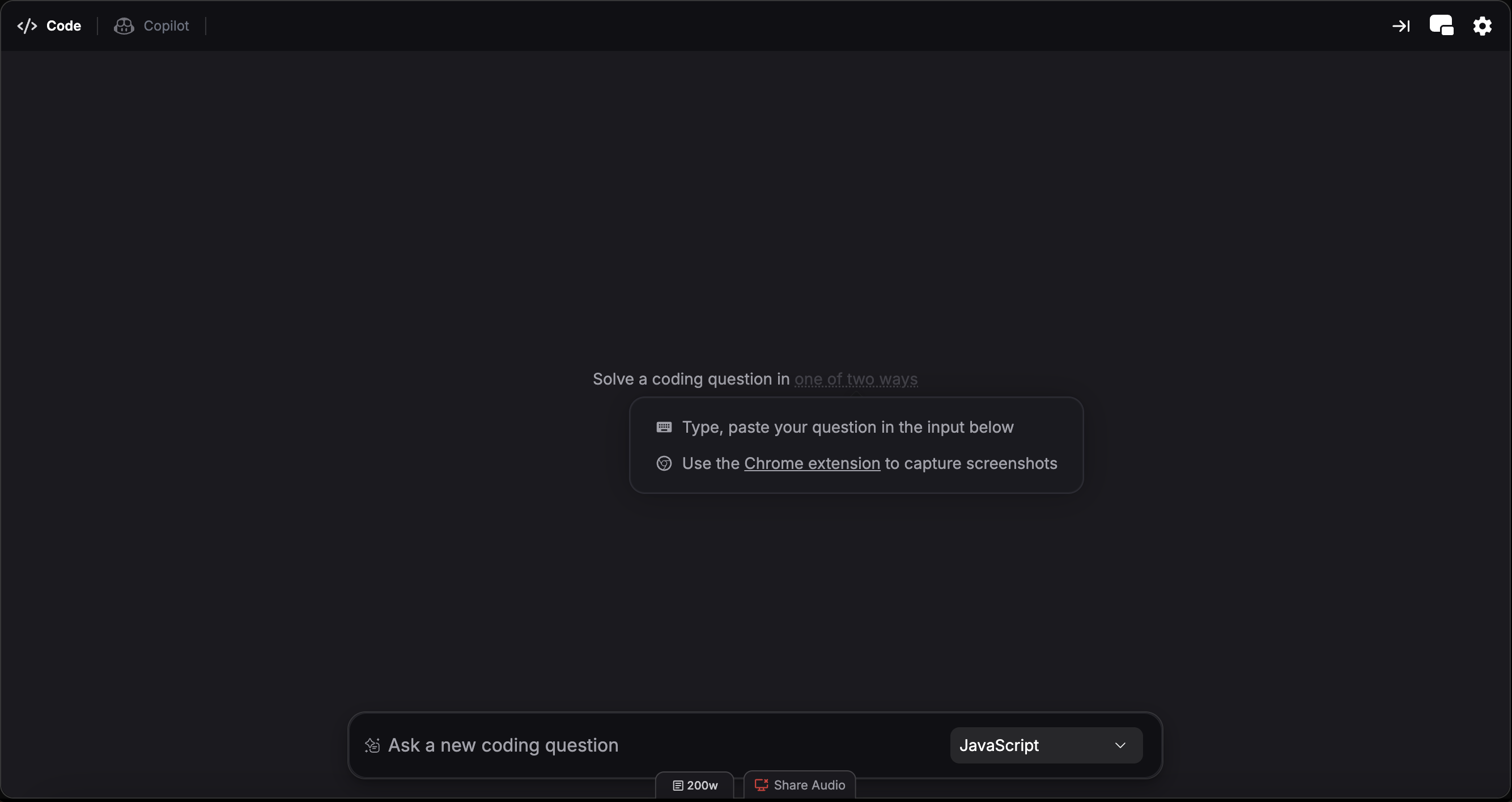
While Interview Copilot generates responses based on detected questions in verbal conversation, Coding Interpreter is a secondary assistant that allows you to capture or send screenshots to solve coding problems on screen.
**How to access:** Coding Interpreter is available as a tab within any active Coding Copilot session
### 1. Setup
Choose between browser or desktop experience:
**Browser version:**
* **Chrome only** - Other browsers are not supported
* Install the [Verve AI Chrome extension](https://chromewebstore.google.com/detail/verve-ai/eaelmnmhehmblclgjjkhjmbkabaenpjp?hl=en)
**Desktop version (Recommended):**
* Download and install the [Desktop App](https://www.vervecopilot.com/app)
* Greater flexibility - works with any application, not limited to Chrome browser
### 2. Screen Capture
Capture coding problems on your screen and send them directly to Coding Interpreter for an immediate solution.
**Browser version:**
* Navigate to the coding question page with full question visibility
* Click the Verve AI Chrome extension to capture the question and get an instant solution
**Desktop version:**
* Use screen capture hotkeys to capture and solve:
* Cmd + Shift + S (Mac) or Ctrl + Shift + S (Windows) - Capture selected area
* Cmd + Shift + C (Mac) or Ctrl + Shift + C (Windows) - Full screen capture
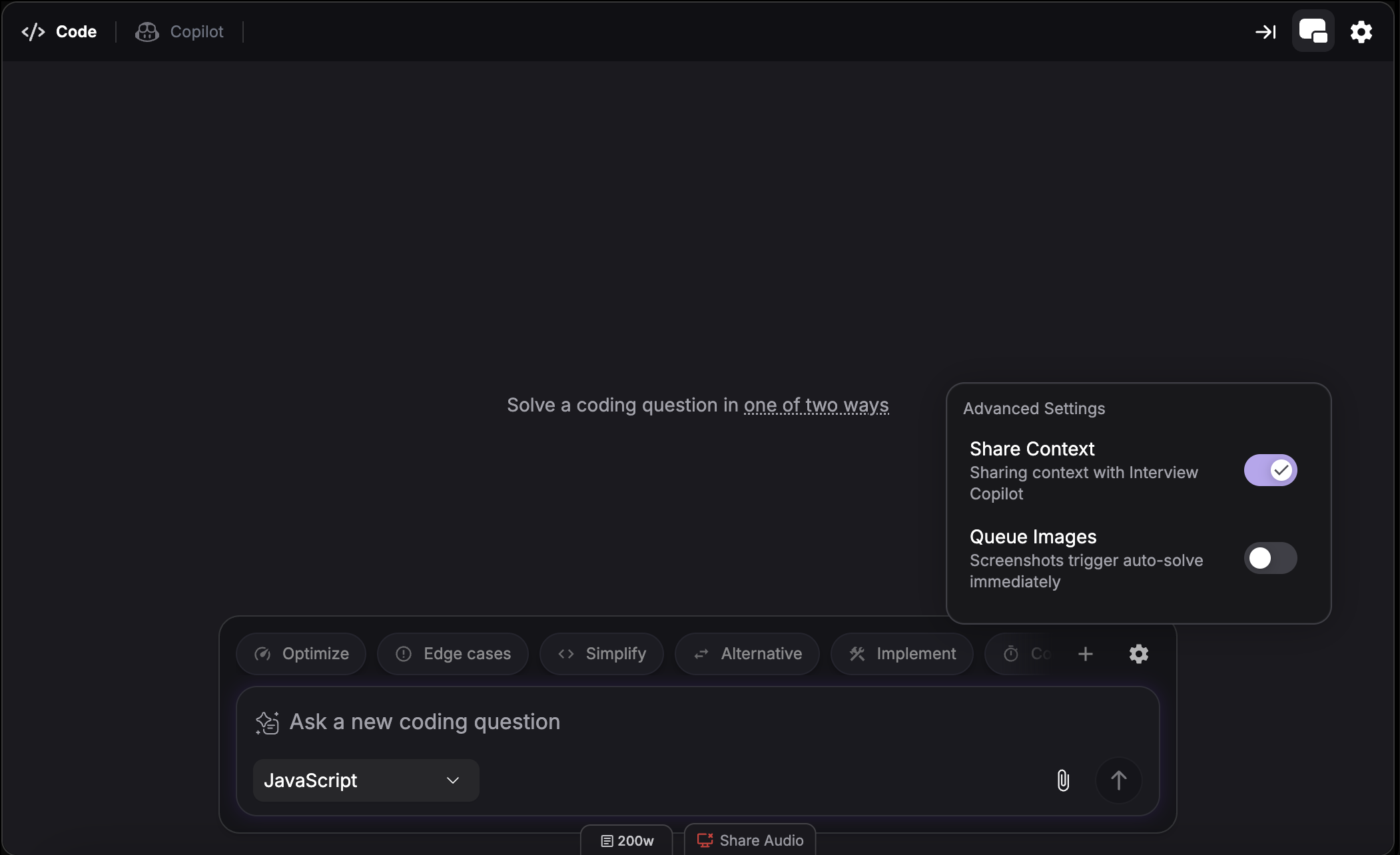
**Queue Images:** Hover over the chat box and click the settings icon to enable Queue Images. When enabled, screenshots captured via the Chrome extension or desktop app hotkeys add to a queue instead of auto-solving. Useful when you need multiple captures before triggering a single solve.
### 3. Select Coding Language
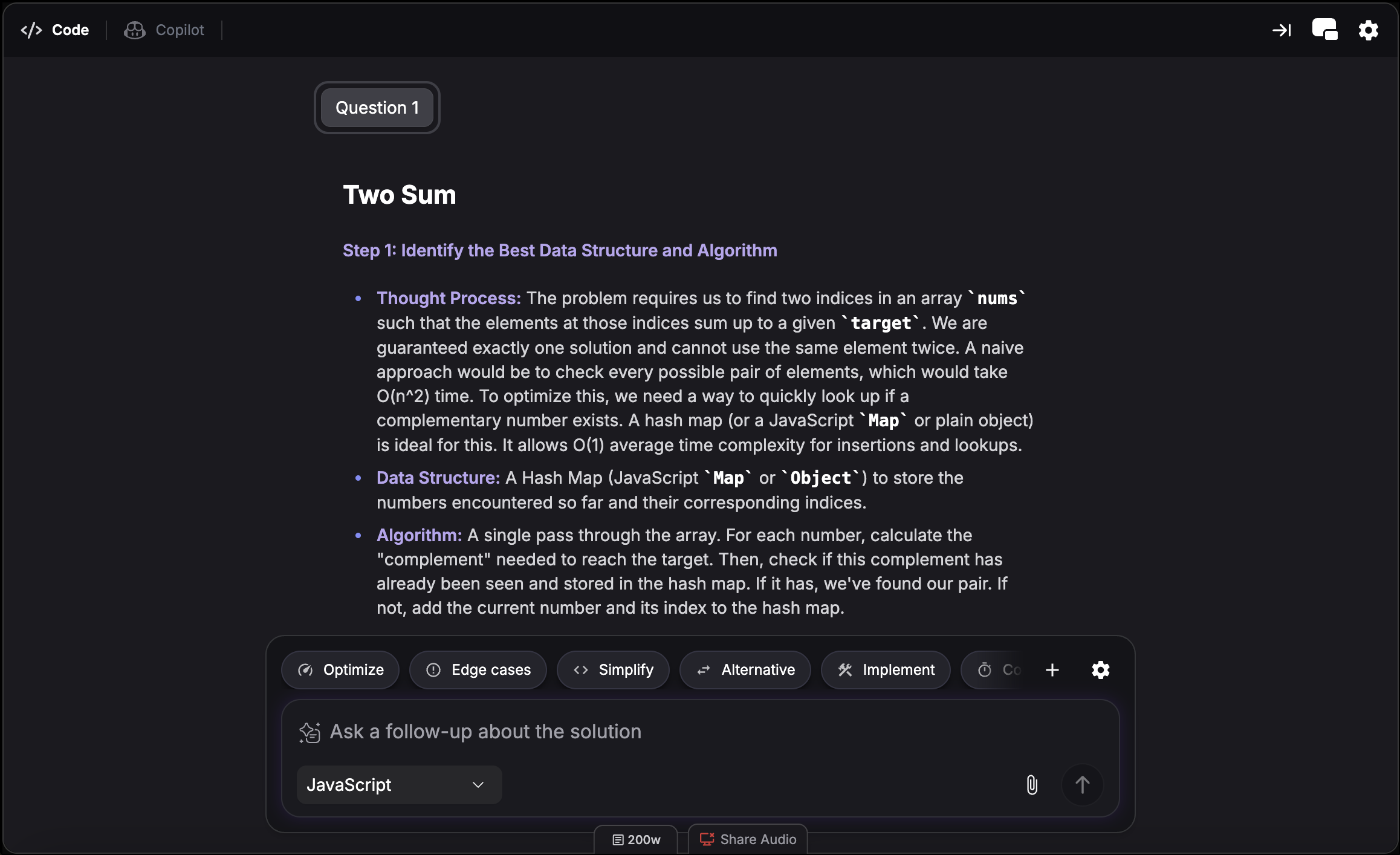
Use the dropdown on the chat box to select the programming language you want your solution to be in.
### 4. Use Quick Actions
Click quick action buttons above the chat box to refine your solution:
Suggest a more efficient or faster solution
Suggest improvements to handle tricky or unusual input cases
Provide a more concise or readable version of the solution
Offer a different algorithm or method to solve the problem
Implement a fully working solution
Give an analysis of the solution's efficiency in Big-O notation
### 5. Share Context
Hover over the chat box and click the settings icon to toggle Share Context. When enabled, Interview Copilot considers your Coding Interpreter interactions as reference when generating spoken support. Turn off if you don't want Interview Copilot to elaborate on the content.
### 6. View Outline
Open the outline view to jump between sections of the solution quickly. This makes it easier to navigate long answers and revisit the exact part you need during the interview.
***
## Split Screen Mode
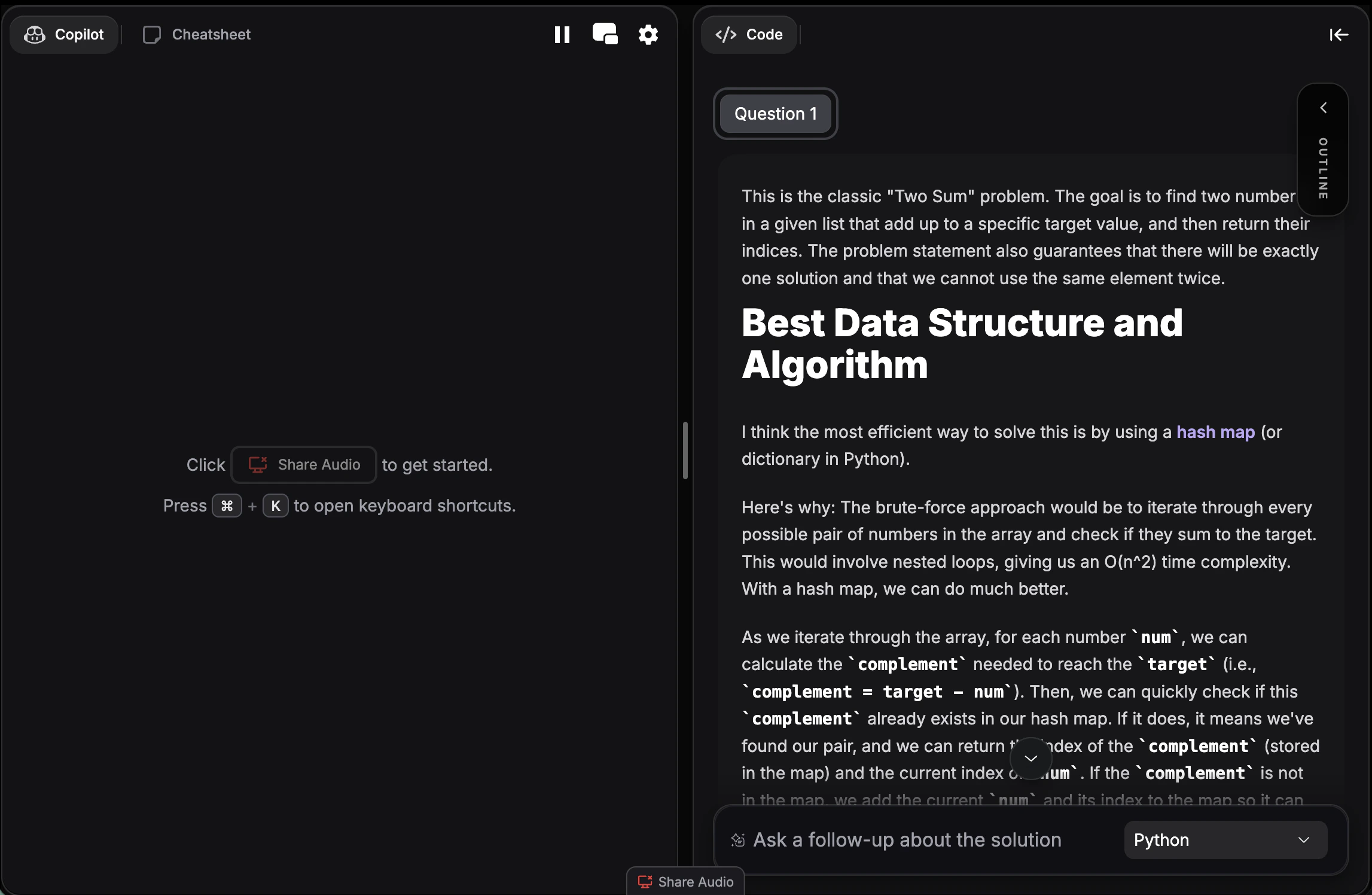
View Interview Copilot and Coding Interpreter side-by-side instead of switching between tabs. This lets you reference copilot suggestions while working on coding problems simultaneously.
**Hotkey:** Cmd + / (Mac) or Ctrl + / (Windows)
Learn more about [split screen mode](/guides/split-screen-mode).
***
## What Problems Does It Solve?
* **Algorithms** - Arrays, strings, search algorithms
* **Data Structures** - Trees, graphs, hash tables, heaps, linked lists
* **Dynamic Programming** - Memoization, tabulation, optimization
* **Recursion & Backtracking** - Recursive solutions, backtracking
* **Sorting & Searching** - Binary search, merge sort, quicksort
* **System Design** - Class design, API implementation
Coding Copilot supports the following programming languages:
* Python
* JavaScript
* TypeScript
* Java
* C
* C++
* C#
* Go
* Swift
* Kotlin
* PHP
* Ruby
* Rust
* R
* MATLAB
* Scala
* Dart
* Perl
* Lua
* SQL
* Apex
***
## Troubleshooting
For browser: check that the extension is installed and enabled in your extensions menu, then refresh and try again; for desktop: make sure the app is running and try the hotkey again—that usually does the trick!
Ensure full question is visible when capturing, including constraints and examples.
Use "Simplify" follow-up action or adjust settings for beginner-friendly approaches.
***
## Coding Interpreter
While Interview Copilot generates responses based on detected questions in verbal conversation, Coding Interpreter is a secondary assistant that allows you to capture or send screenshots to solve coding problems on screen.
**How to access:** Coding Interpreter is available as a tab within any active Coding Copilot session
### 1. Setup
Choose between browser or desktop experience:
**Browser version:**
* **Chrome only** - Other browsers are not supported
* Install the [Verve AI Chrome extension](https://chromewebstore.google.com/detail/verve-ai/eaelmnmhehmblclgjjkhjmbkabaenpjp?hl=en)
**Desktop version (Recommended):**
* Download and install the [Desktop App](https://www.vervecopilot.com/app)
* Greater flexibility - works with any application, not limited to Chrome browser
### 2. Screen Capture
Capture coding problems on your screen and send them directly to Coding Interpreter for an immediate solution.
**Browser version:**
* Navigate to the coding question page with full question visibility
* Click the Verve AI Chrome extension to capture the question and get an instant solution
**Desktop version:**
* Use screen capture hotkeys to capture and solve:
* Cmd + Shift + S (Mac) or Ctrl + Shift + S (Windows) - Capture selected area
* Cmd + Shift + C (Mac) or Ctrl + Shift + C (Windows) - Full screen capture
**Queue Images:** Hover over the chat box and click the settings icon to enable Queue Images. When enabled, screenshots captured via the Chrome extension or desktop app hotkeys add to a queue instead of auto-solving. Useful when you need multiple captures before triggering a single solve.
### 3. Select Coding Language
Use the dropdown on the chat box to select the programming language you want your solution to be in.
### 4. Use Quick Actions
Click quick action buttons above the chat box to refine your solution:
Suggest a more efficient or faster solution
Suggest improvements to handle tricky or unusual input cases
Provide a more concise or readable version of the solution
Offer a different algorithm or method to solve the problem
Implement a fully working solution
Give an analysis of the solution's efficiency in Big-O notation
### 5. Share Context
Hover over the chat box and click the settings icon to toggle Share Context. When enabled, Interview Copilot considers your Coding Interpreter interactions as reference when generating spoken support. Turn off if you don't want Interview Copilot to elaborate on the content.
### 6. View Outline
Open the outline view to jump between sections of the solution quickly. This makes it easier to navigate long answers and revisit the exact part you need during the interview.
***
## Split Screen Mode
View Interview Copilot and Coding Interpreter side-by-side instead of switching between tabs. This lets you reference copilot suggestions while working on coding problems simultaneously.
**Hotkey:** Cmd + / (Mac) or Ctrl + / (Windows)
Learn more about [split screen mode](/guides/split-screen-mode).
***
## What Problems Does It Solve?
* **Algorithms** - Arrays, strings, search algorithms
* **Data Structures** - Trees, graphs, hash tables, heaps, linked lists
* **Dynamic Programming** - Memoization, tabulation, optimization
* **Recursion & Backtracking** - Recursive solutions, backtracking
* **Sorting & Searching** - Binary search, merge sort, quicksort
* **System Design** - Class design, API implementation
Coding Copilot supports the following programming languages:
* Python
* JavaScript
* TypeScript
* Java
* C
* C++
* C#
* Go
* Swift
* Kotlin
* PHP
* Ruby
* Rust
* R
* MATLAB
* Scala
* Dart
* Perl
* Lua
* SQL
* Apex
***
## Troubleshooting
For browser: check that the extension is installed and enabled in your extensions menu, then refresh and try again; for desktop: make sure the app is running and try the hotkey again—that usually does the trick!
Ensure full question is visible when capturing, including constraints and examples.
Use "Simplify" follow-up action or adjust settings for beginner-friendly approaches.