> ## Documentation Index
> Fetch the complete documentation index at: https://docs.vervecopilot.com/llms.txt
> Use this file to discover all available pages before exploring further.
# Chatbot
> Manually input interview questions and get instant AI-powered responses during technical and behavioral interviews.
## What is Chatbot?
Available inside your copilot session, Chatbot gives you direct control over what gets supported and answered during your interview—perfect for when you need to manually input questions or get instant help with specific prompts.
**How to access:** Chatbot is available as a tab within any active copilot session
Chatbot is available in all interview domains except for [Coding Interview](/features/coding-copilot), Data Science & Analytics, [Mercor Interview](/features/mercor-interview-copilot), and Consulting—these domains have their own specialized chatbot features tailored to their specific interview formats.
***
## How to Use It
While our copilot automatically detects questions during interviews for a hands-free experience, Chatbot offers five powerful ways to take control:
### 1. Screen Capture
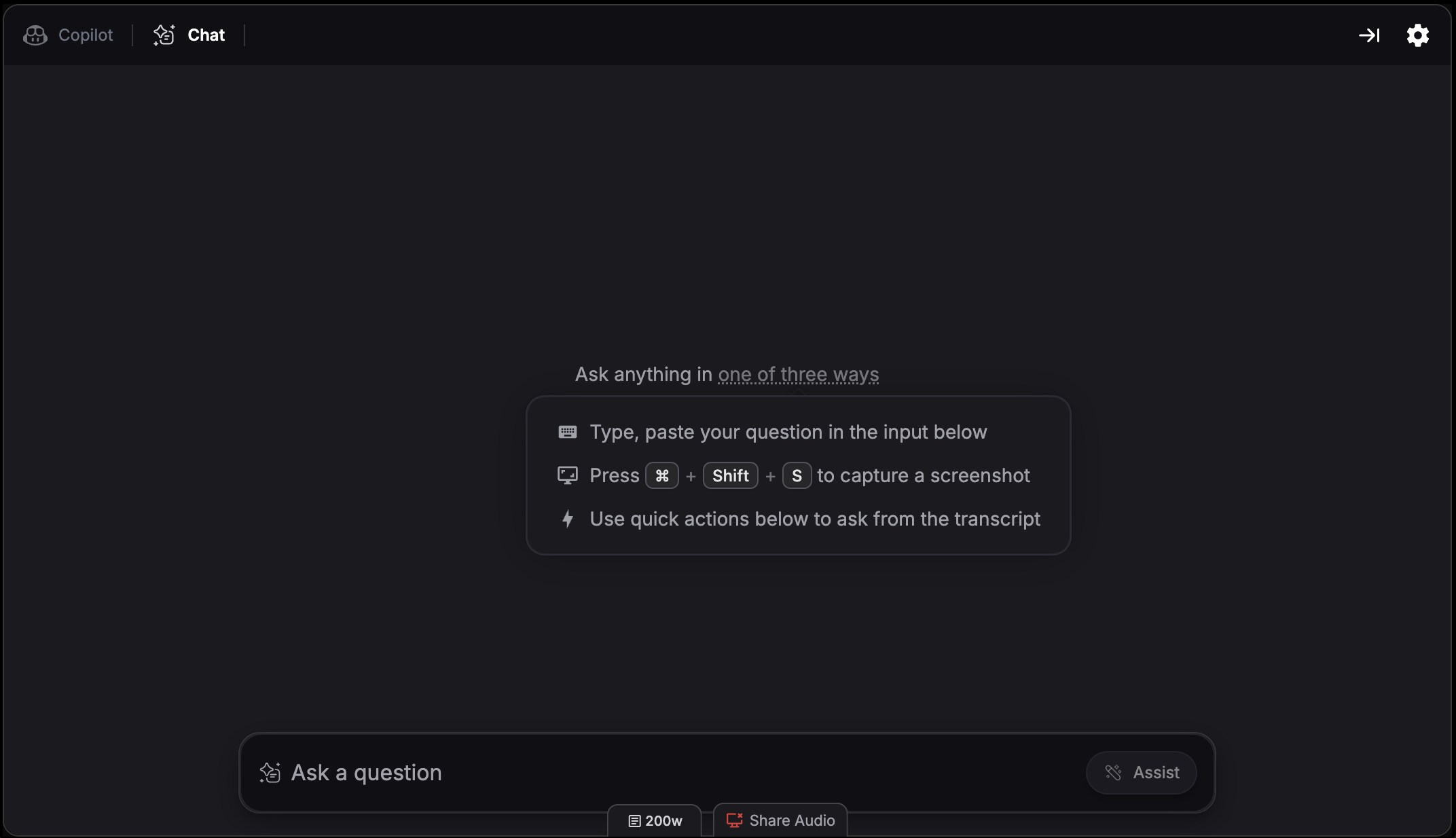
Capture anything on your screen and send it directly to Chatbot for immediate support—the fastest way to get help with visual content.
**Browser version:**
* Click the [screen capture Chrome extension](https://chromewebstore.google.com/detail/verve-ai/eaelmnmhehmblclgjjkhjmbkabaenpjp?hl=en) icon to capture your screen and send it to Chatbot
**Desktop version:**
* Use screen capture hotkeys to capture and send to Chatbot:
* Cmd + Shift + S (Mac) or Ctrl + Shift + S (Windows) - Capture selected area
* Cmd + Shift + C (Mac) or Ctrl + Shift + C (Windows) - Full screen capture
**Queue Images:** Hover over the chat box and click the settings icon to enable Queue Images. When enabled, screenshots captured via the Chrome extension or desktop app hotkeys add to a queue instead of auto-solving. Useful when you need multiple captures before triggering a single solve.
### 2. Upload Screenshots
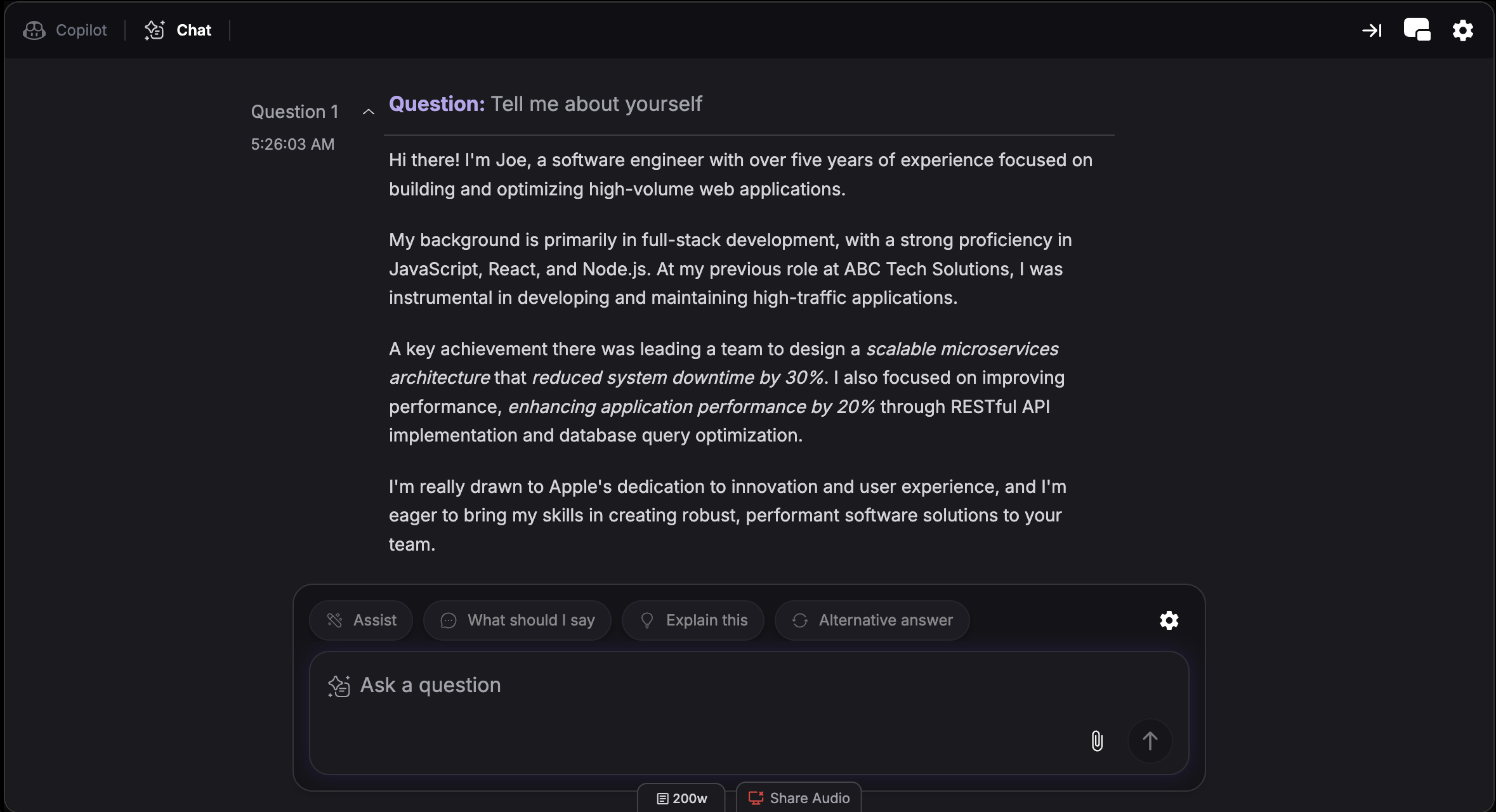
Attach screenshots directly in the chat to get AI-powered assistance on any visual content. This is useful when a single screenshot isn't enough to capture everything you need help with.
**How it works:**
* Click the attachment icon in the chat box to upload screenshots
* Attach one or multiple screenshots in a single message
### 3. Type Directly
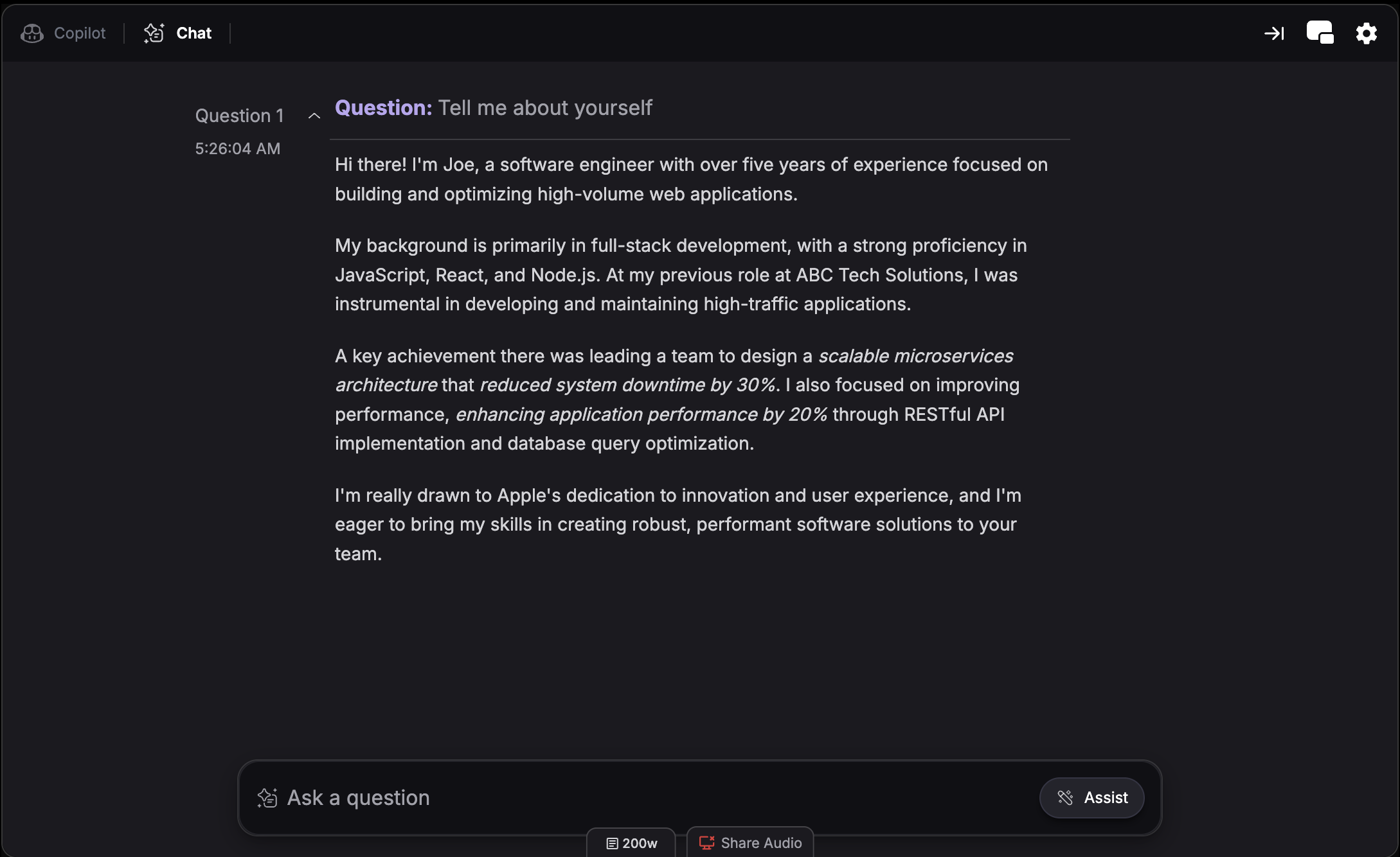
Type any question into the chat box and get an instant, tailored response—whether it's a technical query, behavioral question, or anything the transcription might have missed.
### 4. Use Quick Actions
Click quick action buttons above the chat box to instantly interact with your most recent conversation:
Get AI assistance for your current context
Get suggested talking points for responding to the interviewer
Receive a detailed explanation of the solution or concept
Get a different approach or perspective on the same question
### 5. Highlight Text
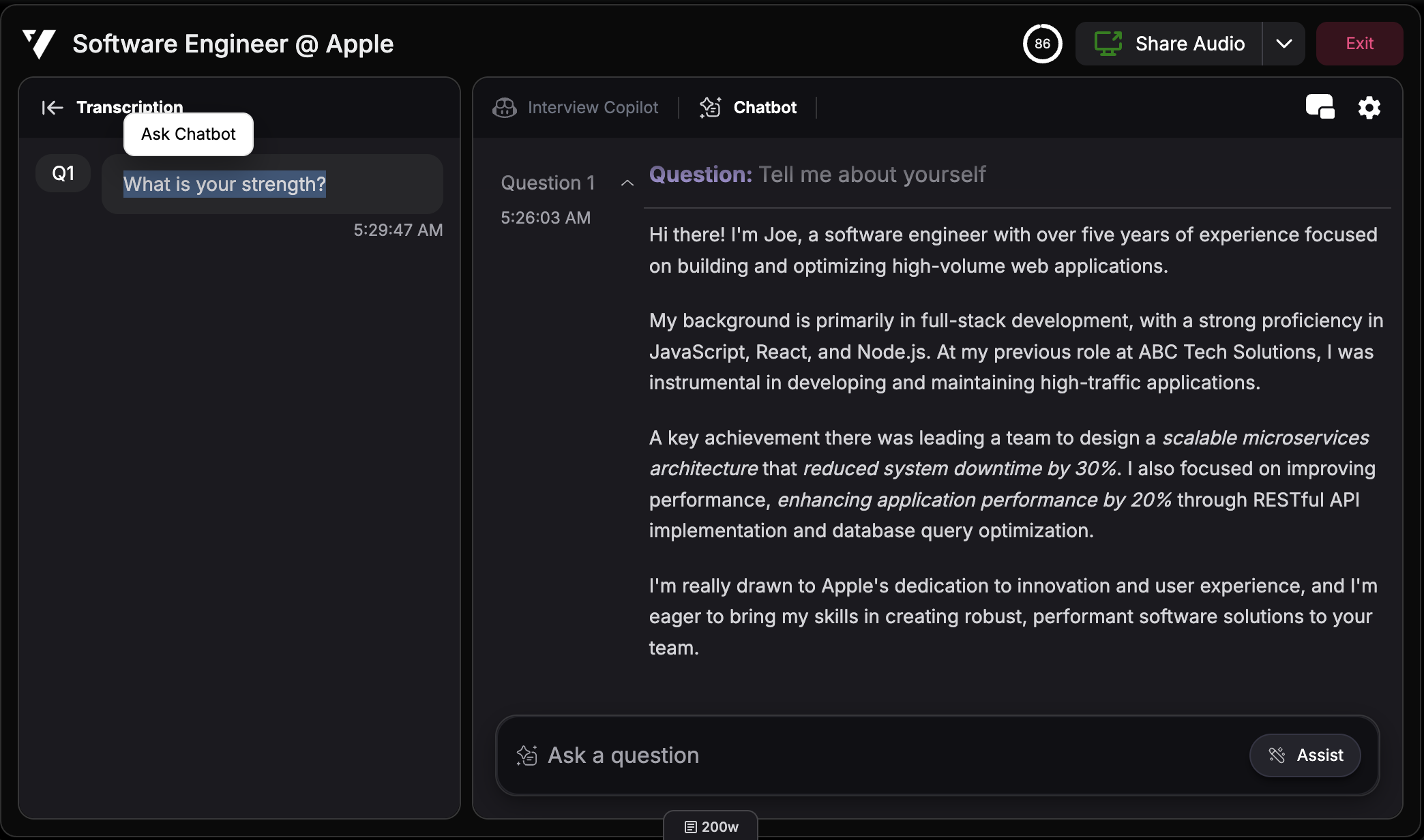
Highlight any text in the Copilot responses or transcription panel, and an "Ask Chatbot" option will appear—letting you instantly send the selected content to Chatbot for further assistance.
### 6. Share Context
Hover over the chat box and click the settings icon to toggle Share Context. When enabled, Interview Copilot considers your Chatbot interactions as reference when generating spoken support. Turn off if you don't want Interview Copilot to elaborate on the content.
***
## Split Screen Mode
View Interview Copilot and Chatbot side-by-side instead of switching between tabs. This lets you reference copilot suggestions while typing questions in Chatbot simultaneously.
**Hotkey:** Cmd + / (Mac) or Ctrl + / (Windows)
Learn more about [split screen mode](/guides/split-screen-mode).
***
## When to Use Chatbot
* **Visual Content** - Upload one or multiple screenshots when you need AI assistance on visual materials
* **Missed Transcription** - Manually type questions that weren't captured correctly
* **Follow-up Questions** - Explore topics or angles not covered by the interviewer
* **Quick Refinements** - Use quick actions to refine or explain recent answers